Wiki
Hands-on Git
Existing English translations were reused. 125 current source blocks remain in Simplified Chinese, without triggering paid translation.
1.Introduction to Common Commands
本教程同时适用于 Windows 和 Linux。Windows 使用 PowerShell,Linux 使用 Bash。 除特别标注外,以下命令在两种环境中均可使用。 文件编辑统一使用 VS Code(没辙了,为了方便傻逼Windows),修改后请先按
Ctrl+S保存,再回到终端执行下一步。
1.1.创建目录并进入目录
请在你想存放代码的文件夹打开终端并执行以下命令:
mkdir hellogit
cd hellogit
1.2.Initialize Git (make this folder controlled by Git)
git init
1.3.创建并编辑文件,查看当前文件夹内的文件
code test.md在 VS Code 中随便输入一段文本,按 Ctrl+S 保存。
新文件只有保存后才会出现在磁盘上。
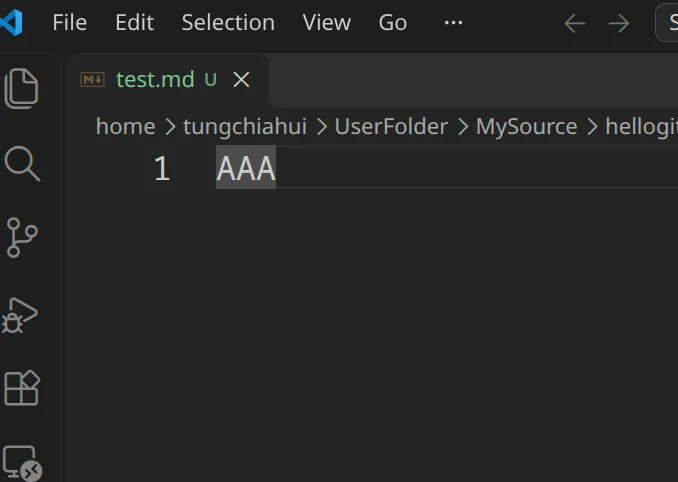
回到终端查看文件:
ls
1.4.Query the status of the current file
git status
On branch branch-name
Untracked means the file is in the working directory
1.5.Stage the file to the staging area
git add test.md
1.6.Submit the file to the local repository
git commit -m "version1"
# git commit -m "提交的信息(可以理解为是注释)"
1.7.View submitted project versions
git log
这几行的意思是tungchiahui(邮箱为tungchiahui@gmail.com)用户于2023年12月30日周六00:42:47往master分支提交了注解为"version1"的项目版本
1.8.You can try modifying the file contents and submitting again.
code test.md在 VS Code 中随便修改文件内容,按 Ctrl+S 保存,然后回到终端继续操作。
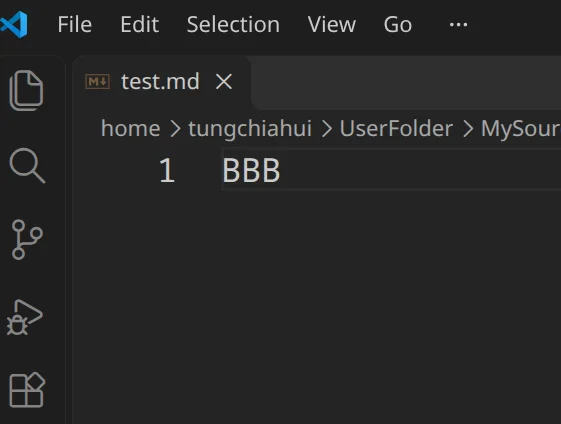
git add test.md
git commit -m "version2"
git log
1.9.How to ignore files you don't want to commit
-
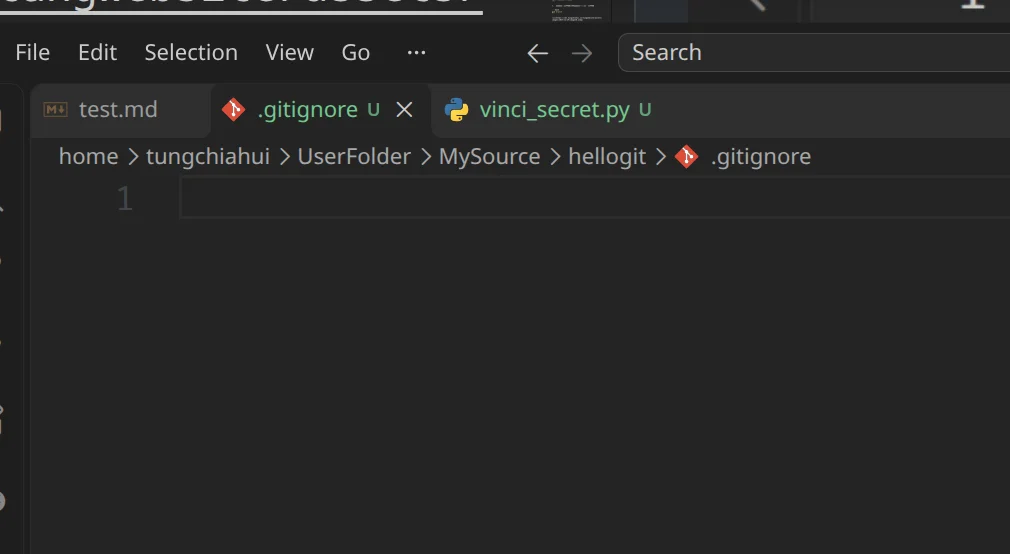
首先创建一个文件.gitignore
-
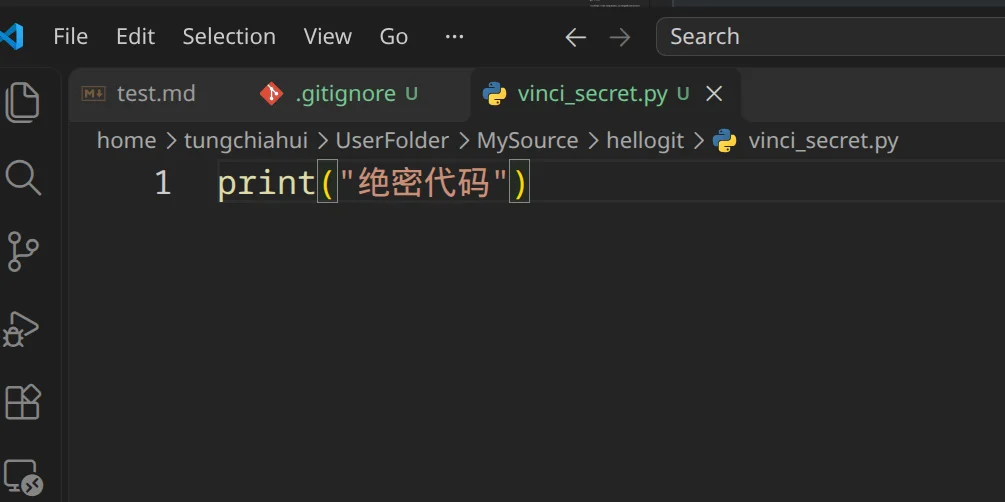
再创建一个文件 绝密文件不想上传的.py 并修改里面的内容
-
查看git状态
code .gitignore
code vinci_secret.py
先在 VS Code 中Ctrl+S保存空的 .gitignore 文件,
再为 vinci_secret.py 输入下面示例内容print("绝密代码")并按 Ctrl+S 保存,然后回到终端查看状态:
git status
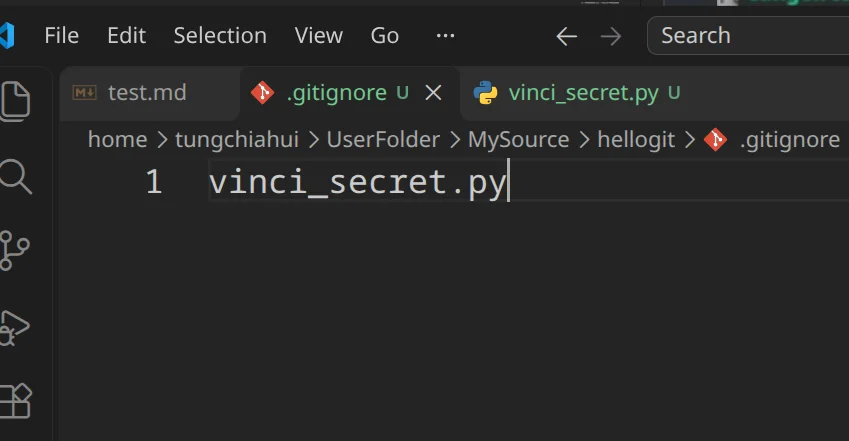
- Modify the contents of .gitignore and write the names of files you do not want to be committed into this file.
code .gitignore在 VS Code 中修改文件内容,按 Ctrl+S 保存,然后回到终端继续操作。
.gitignore的内容为vinci_secret.py,代表commit的时候忽略这个文件。
git status
1.10.Basic Branch Operations
-
分支的作用:开辟项目的一个新仓库分支,与master等其他分支是独立的,可以进行独立的add、commit和diff、clone。
-
创建分支
git branch route2
#git branch 分支名- Enter branch
git checkout route2
#git checkout 分支名- Query how many branches there are, and query which branch is currently active
git branch
Files in the current branch will perfectly inherit the files from the master branch.
- Delete the files under this branch
ls
rm test.md
rm vinci_secret.py
ls
- Commit the branch to the local repository.
git commit -a -m "删库跑路"
#该指令是把git add和git commit指令一起写
- 查看分支是否对其他分支有影响
git checkout是切换到其他分支,查看是否有影响
git checkout master
ls
可以发现,在route2分支中被删掉的test.md文件回来了。 但是同样被删掉的vinci_sercet.py文件没回来,是因为该文件在提交时被.gitignore文件屏蔽了,不会被提交到本地仓库
- Delete branch
git branch -D route2
#git branch -D 分支名
- Create a branch and immediately switch to it
git checkout -b route3
1.11.Merging Branches
- 在route3分支中随便修改文件内容并提交
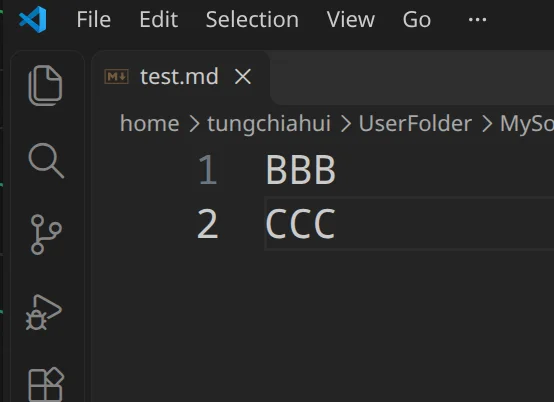
code test.md在 VS Code 中修改文件内容,按 Ctrl+S 保存,然后回到终端继续操作。
这次修改的内容是放在BBB的下一行,写一个CCC。
git commit -am "route3 version3"
#-a -m也可以被省略成-am
- 切换到master分支
git checkout master
code test.md
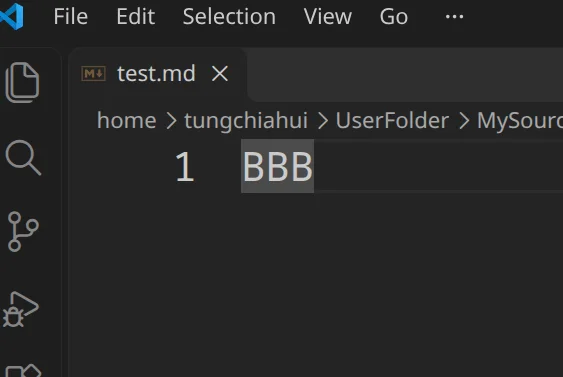
在 VS Code 中查看当前分支的文件内容。
发现刚才在 route3 上改成的BBB CCC并没有被同步到 master ,这里 master 分支还是BBB
- 将route3分支合并到当前分支上
git merge route3
# git merge 被合并的分支名
code test.md
在 VS Code 中查看当前分支的文件内容。
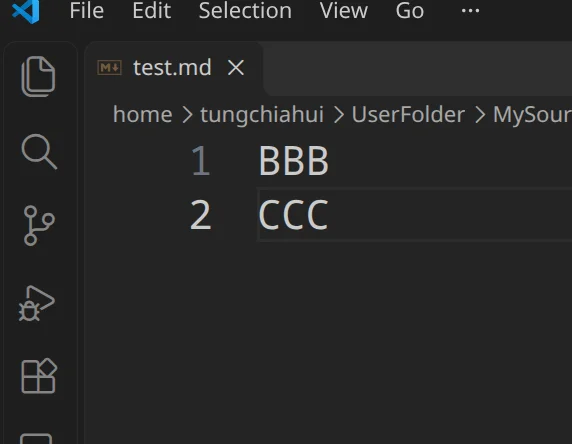
这其实就是把route3写多写的那一行给合并到master分支了。
1.12.Branch merge conflict
- Add a line of content for master and commit
code test.md在 VS Code 中修改文件内容,按 Ctrl+S 保存,然后回到终端继续操作。
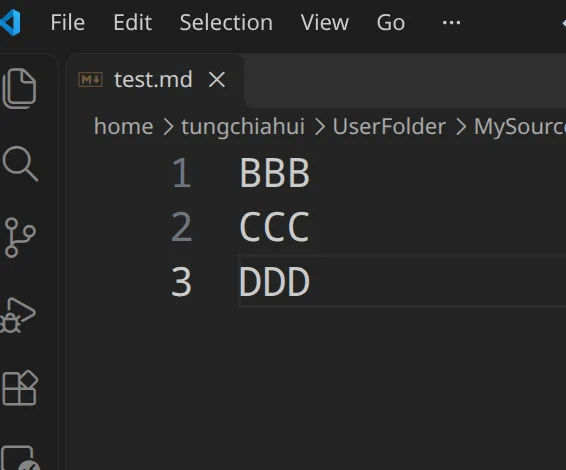
git commit -am "master version4"
- 切换到route3分支,并添加内容并提交
git checkout route3
code test.md
在 VS Code 中修改文件内容,按 Ctrl+S 保存,然后回到终端继续操作。
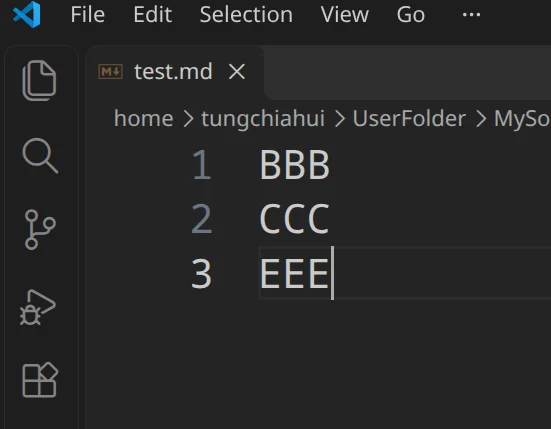
git commit -am "route3 version4"
- 合并分支
git merge master
发生了内容冲突,需要手动修改文本冲突才可以!或者其他办法也可以解决。
因为一边第三行是DDD,一边是EEE,内容不一样,冲突了。
这里是进阶教程里的,暂时先不用知道如何处理。
1.13.远程仓库Github
-
打开github官网:https://github.com(如果你打不开,请自己找办法打开)
-
注册并登录账号
注册账号就点最底下的create an account即可,按提示操作即可

- Create a remote repository


It is recommended to configure this interface in detail, but since this is a demonstration, only the repository name is set here, and the other options are left at their default settings.

If the above image appears, it indicates that it has been created successfully.
- Create a file and submit it.


After filling in the file name and file content, you can click the green button to submit. You can also fill in comment information for the submission.


- Clone the remote repository to the local machine

找一个空文件夹打开终端并运行下列命令:
git clone https://github.com/tungchiahui/test_repo.git
如果出错,请检查是否能正常访问github!


- Modify the file content
cd test_repo
code test1.md
可以看到那会儿在github上写入的内容:
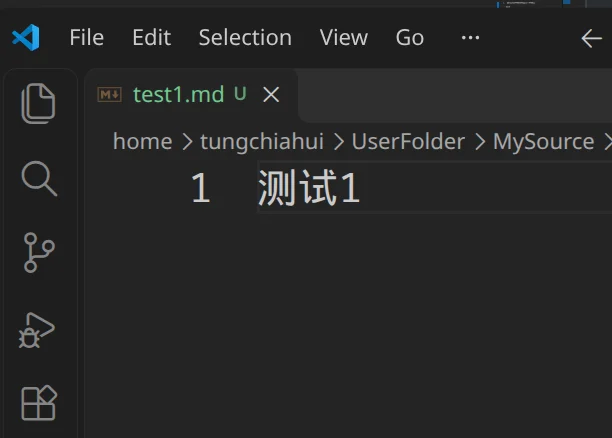
在 VS Code 中修改文件内容,按 Ctrl+S 保存,然后回到终端继续操作。
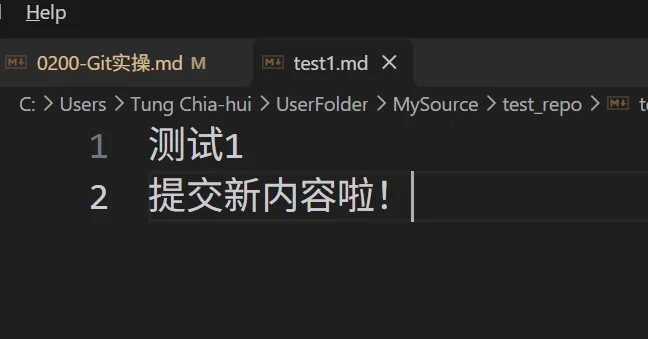

- 查看该本地仓库与哪些远程仓库有联系
git remote -v
- Push the local repository to the remote repository
git push
这里需要你输入github的用户名与密码,用户名则为github用户名,但是密码则为github用户token,生成token的步骤如下:


Note can be filled in arbitrarily; for the expiration date, select no end time.
Check all the checkboxes that can be checked below; these are the permissions.

Copy the token and fill it into password (the token will be hidden when entered in the terminal; just press Enter after typing it)

- View remote repositories

Found that the file has been modified!
- Modify the content of the remote repository.

- Pull the contents of the remote repository to the local repository
git fetch
- View differences between local and remote repositories
git diff origin/main
#git diff 远程仓库名/分支名
- If no issues are found with the content, you can synchronize the remote repository content to the workspace.
git pull
- View project modification history
git log
1.14.Merge code using a Pull Request
A Pull Request (PR for short) is used to request merging changes from one branch into another. PRs allow project members to review code changes, leave comments for discussion, and conduct reviews before merging. Therefore, in team collaboration, unreviewed code is typically not pushed directly to the main branch.
- Create and enter a feature branch from the main branch
git checkout main
git pull origin main
git checkout -b feature/pr-demofeature/pr-demois the branch name for this example; in actual development, use a name that expresses the modifications.
- Modify the file and commit it to the local repository
code test1.md在 VS Code 中输入一段正文。
For example
测试1
提交新内容啦!
你好!!!
TEST11111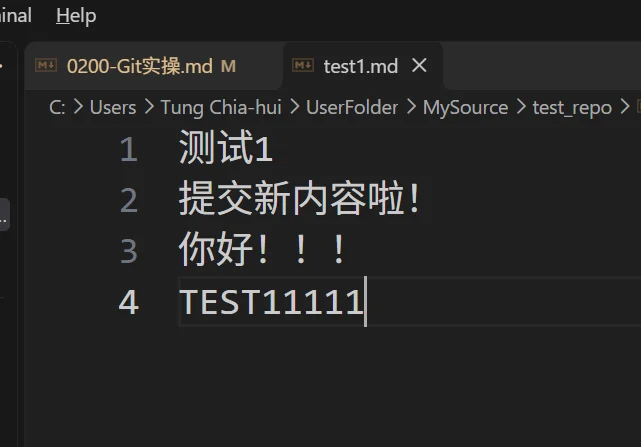
按 Ctrl+S 保存,然后回到终端继续操作。
git add test1.md
git commit -m "修改test1文件"- Push the feature branch to Github
git push -u origin feature/pr-demo-uwill establish a tracking relationship between the local branch and the remote branch, after which you can directly use it on that branchgit push.

- 在Github仓库页面创建PR
推送新分支后,Github仓库页面通常会显示Compare & pull request按钮,点击该按钮。如果没有显示,也可以进入仓库的Pull requests页面,点击New pull request。

Confirm that the two branch selections are correct:
base: main: Modify the target branch into which the merge will ultimately be performed.compare: feature/pr-demo: Contains the source branch of this modification.
A PR can only be created between two different branches. After confirming that the commits and file changes shown below are correct, fill in the PR title and description, then click Create pull request.

- Review and continue revising the PR
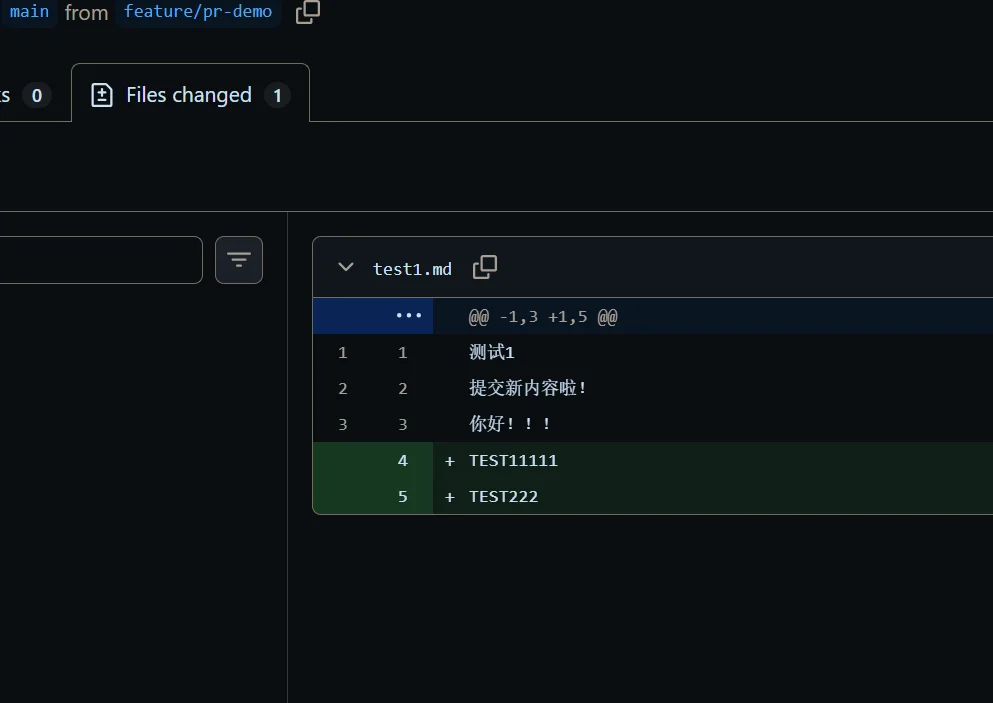
After creating the PR, you can view the changes on theFiles changedpage, and you can also invite other project members to review them.

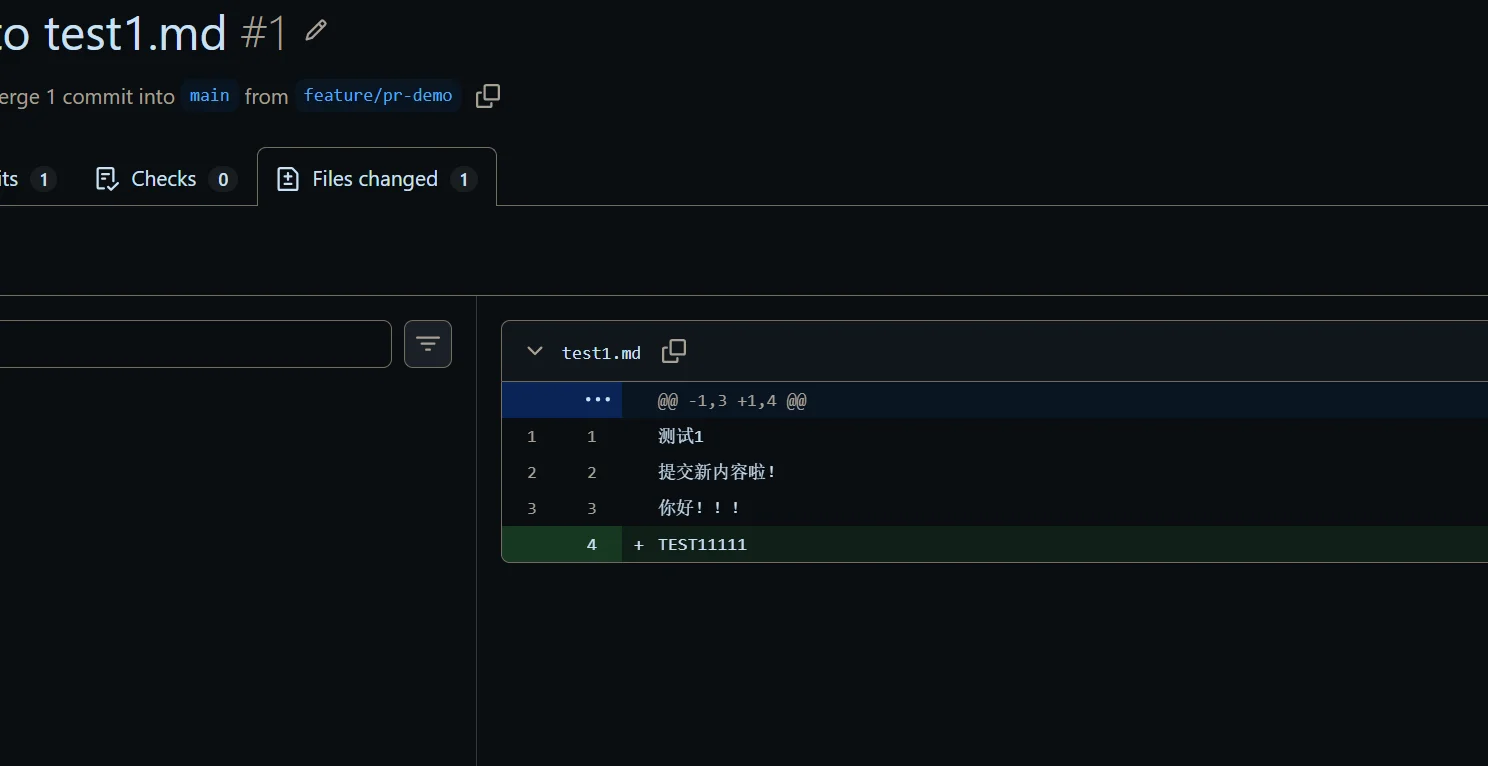
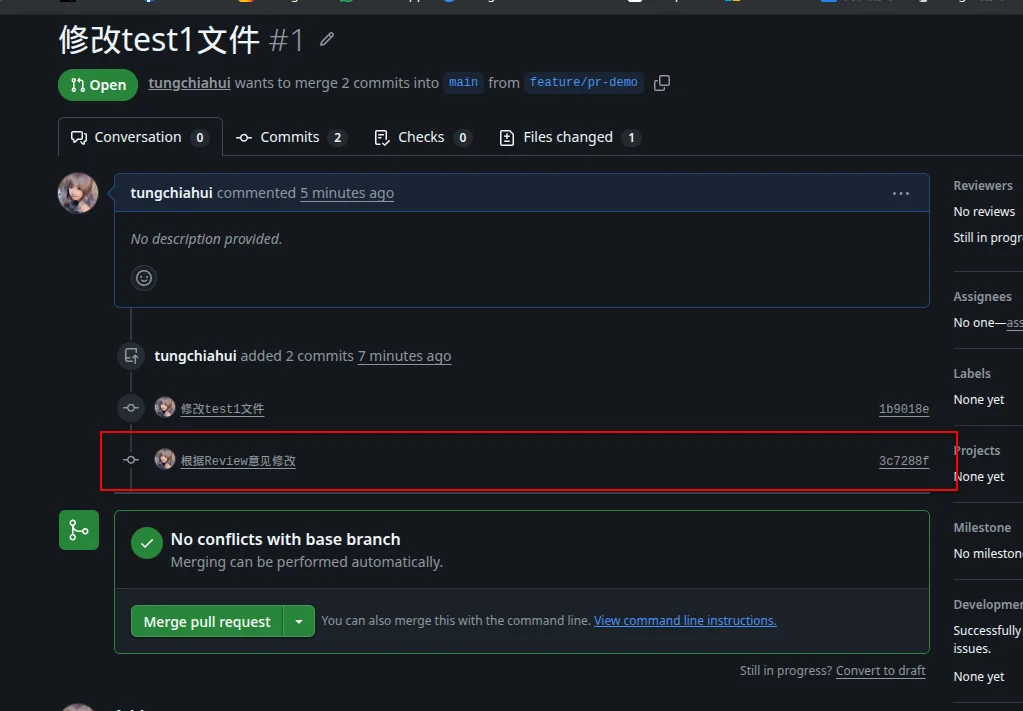
If further modifications are needed after review, there is no need to recreate the PR. Simply continue committing and pushing on the same feature branch, and the new commits will automatically be added to the current PR.
code test1.md在 VS Code 中修改正文。
For example
测试1
提交新内容啦!
你好!!!
TEST11111
TEST222
按 Ctrl+S 保存,然后回到终端继续操作。
git add test1.md
git commit -m "根据Review意见修改"
git push
You will notice that there is an additional commit as shown in the figure below.
ClickFiles changedView this revision on the page:
- Merge PR
When the review is approved and there are no code conflicts, members with repository write permission can clickMerge pull requestand then clickConfirm mergeto complete the merge. If the repository has review or automated test rules configured, these conditions must be met before merging.
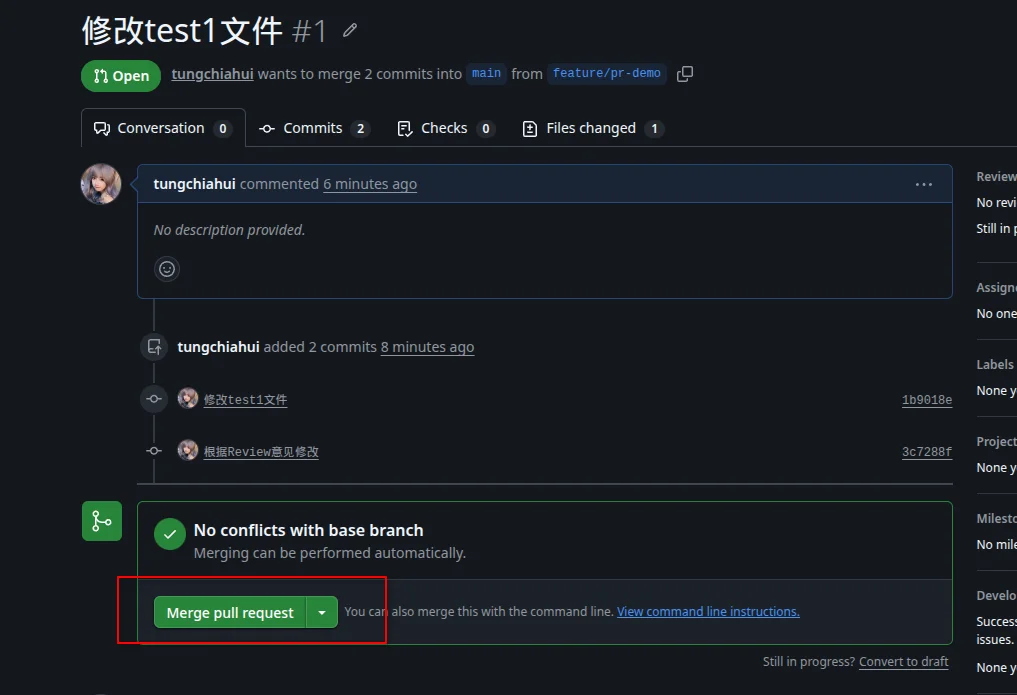

- Synchronize the main branch and delete the branches that have already been merged
合并成功后,可以在PR页面点击Delete branch删除Github上的功能分支。然后返回终端,更新本地main分支并删除本地功能分支。
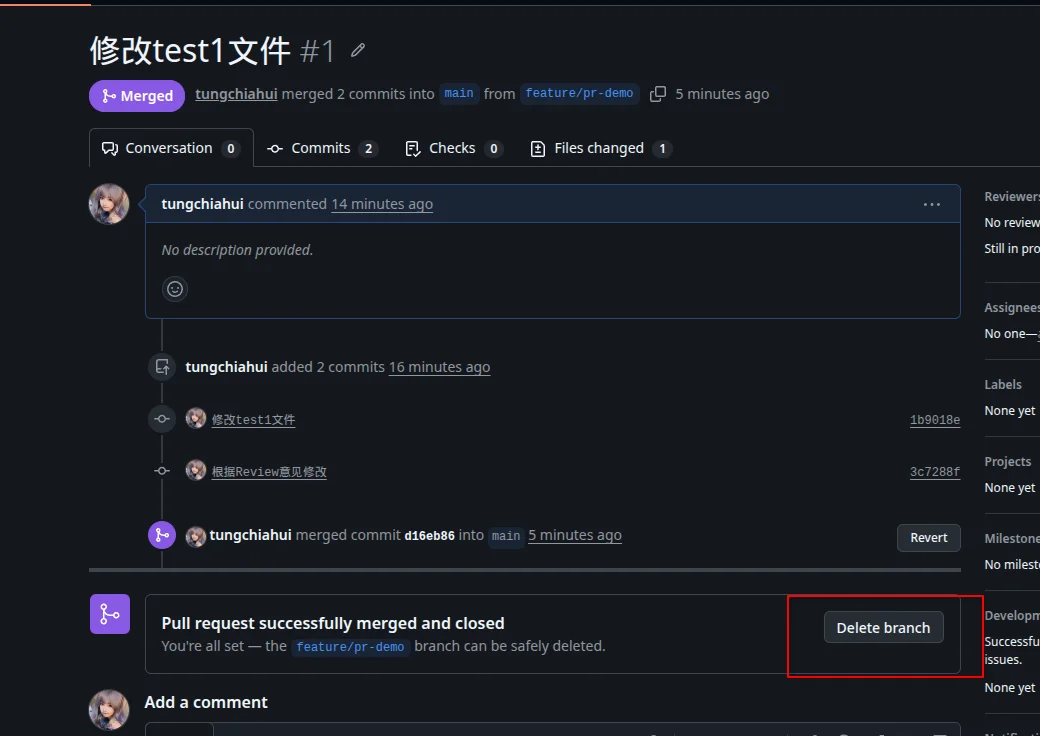

git checkout main
git pull origin main
git branch -d feature/pr-demo
1.15.Submit a PR to a repository without write access
如果想向其他人的开源项目贡献代码,通常没有权限直接将分支push到对方的仓库。此时需要先在Github上点击Fork,将该仓库复制到自己的账号下。
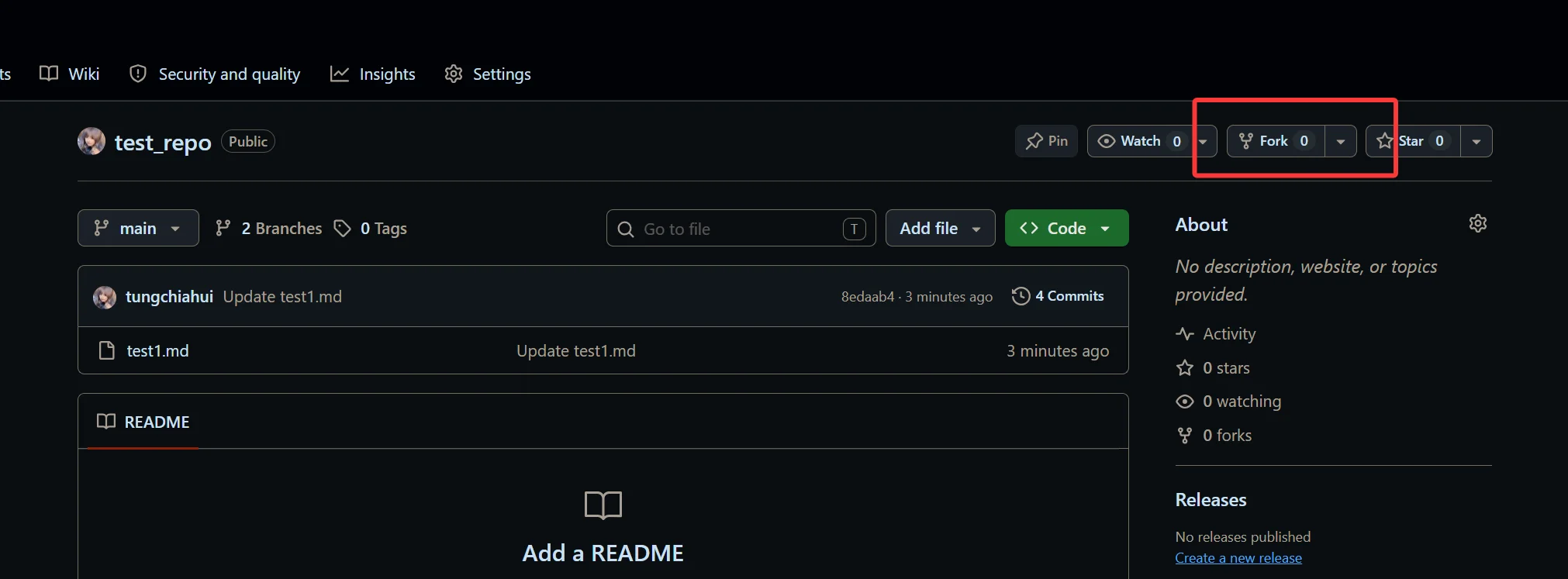
After forking, clone your own repository and record the original repository URL:
git clone https://github.com/你的Github用户名/仓库名.git
cd 仓库名
git remote add upstream https://github.com/原仓库用户名/仓库名.git
git remote -v其中origin指向自己Fork出来的仓库,upstream指向原仓库。
接下来仍然需要创建功能分支,不要直接在main分支上修改。
git checkout -b feature/pr-demo
# 修改文件后提交
git add .
git commit -m "添加示例功能"
git push -u origin feature/pr-demo
推送后在Github上创建PR,并特别确认:
base repositoryis the other party's original repository,baseis the branch to which the other party will receive the modifications.head repositoryis the repository forked by oneself,compareis the feature branch that one has just pushed.
Then fill in the title and modification description, and clickCreate pull requestto submit a PR to the original project.
2.VScode + Git
2.1.What is VScode?
VSCode is a text editor, similar to editors like Vim, but it has a graphical interface, has a great many useful plugins, and can integrate a compiler environment, and ultimately can also be customized and configured by users into an IDE like Visual Studio.
2.2.VSCode official website:
https://code.visualstudio.com/
2.3.Create a folder and open VSCode in that folder

2.4.New File


2.5.Initialize Git (similar to the git init command)


U refers to the untracked state, meaning the file is still in the working tree
2.6.Submit files to the staging area (similar to git add).

2.7.Cancel submission to the staging area by clicking the minus sign (do not cancel here)

A is added, indicating it is in the staging area
2.8.Submit (similar to commit)

Enter the commit message, and click the checkmark to commit.
2.9.Create a new branch and switch to the new branch


2.10.Modify content

Display M as modified status
2.11.View historical version comparison (click file)

2.12.Submit

2.13.Switch back to the main branch


2.14.Merge branches


2.15.Push到Github远程仓库
- 在下面这个界面找到
Publish to Github,可能会弹出来点击Sign In,然后按提示在浏览器中完成Github授权。
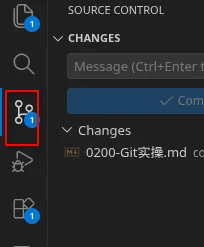
- Enter repository name


- 打开github仓库查看


2.16.Use the VScode GUI to submit a Pull Request
This section demonstrates how to create, review, and merge a Pull Request using VSCode, without entering Git commands in the terminal throughout the entire process.
Note: If you want to use a Pull Request, do not perform the above "switch back to the main branch" and "merge branch" operations after the feature branch commit is complete. The feature branch should be kept independent and merged into the main branch only after PR review.
- 安装Github Pull Requests扩展
打开VScode左侧的扩展页面,搜索GitHub Pull Requests,安装由Github发布的GitHub Pull Requests扩展。

- Create a feature branch from main
先点击VScode左下角的当前分支名,切换到main分支。
在源代码管理页面点击选择Pull,保证本地main分支与Github上的内容一致。


Click the branch name in the lower-left corner again, select Create new branch from..., select main as the starting point, and then enter a branch name that describes the changes, for example feature/pr-demo. After creation, VSCode will automatically switch to that branch.
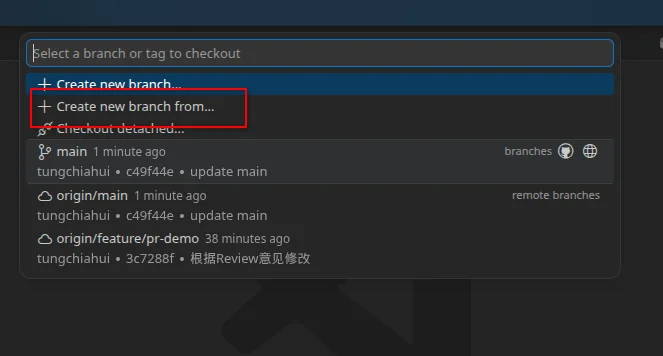


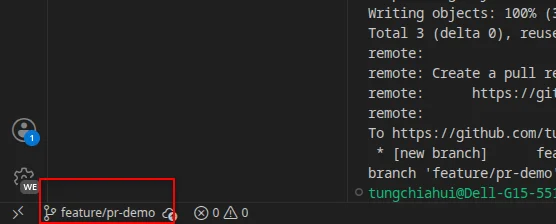
- Modify the file and submit
Modify the file in the feature branch and save it, then open the Source Control page:
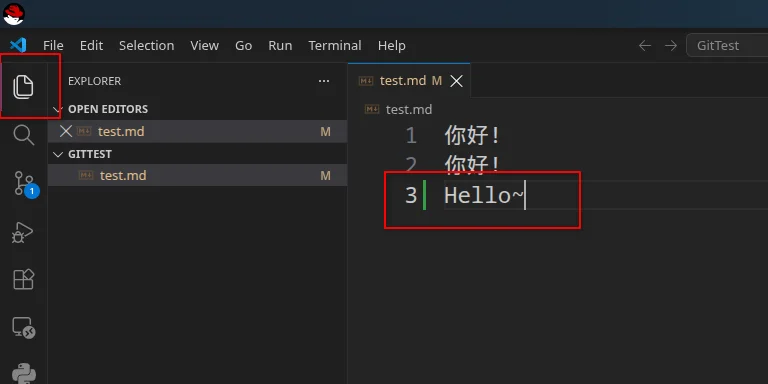
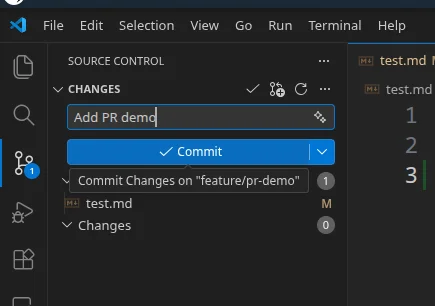
- Click to the right of the file
+to add the changes to the staging area. - Enter a commit message above, for example
Add PR demo。 - Click
Committo complete the local commit.

After commit, it becomes
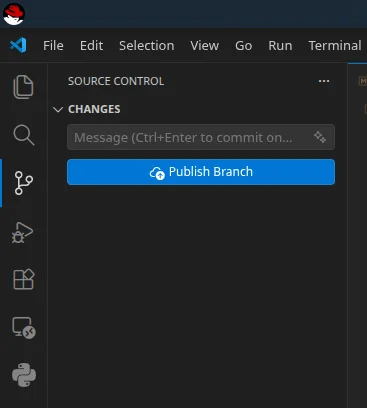
- Create a PR in VSCode
打开左侧的Github Pull Requests页面,点击Create Pull Request。也可以按Ctrl+Shift+P打开命令面板,执行GitHub Pull Requests: Create Pull Request。
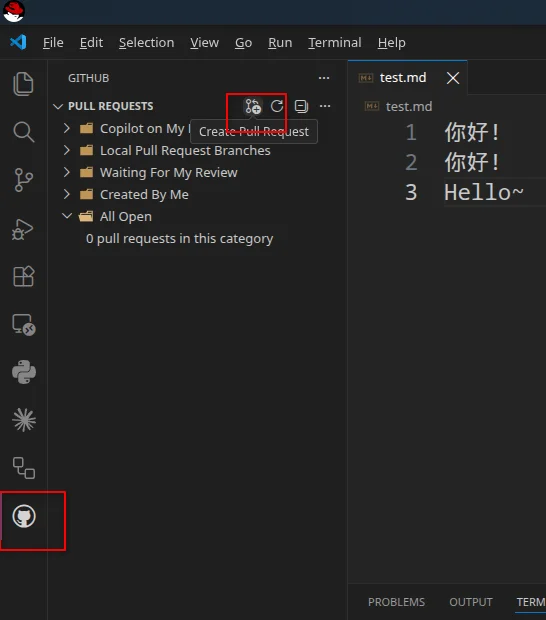
- Fill in PR information
On the Create Pull Request page, check the following:
Base Repository:接收修改的Github仓库。Base Branch:要合并进入的目标分支,通常为main。- 来源分支:当前的功能分支,例如
feature/pr-demo。 Title:简洁描述本次修改。Description:说明修改原因、主要内容和验证方法。
You can also add Reviewers, Assignees, and Labels as needed. After checking that everything is correct, clickCreateto submit the PR; if the changes are not yet complete, you can chooseCreate Draftto create a draft PR.
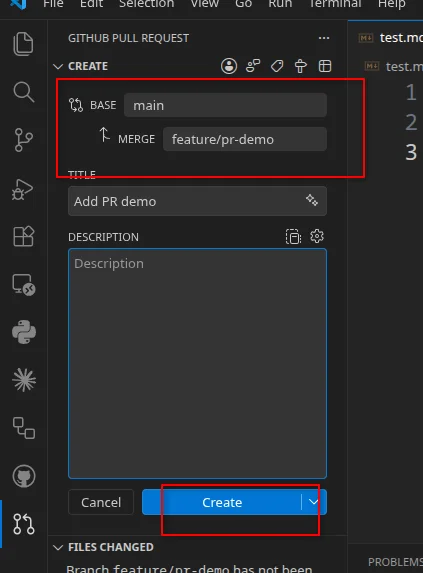
如果当前分支还没有推送到Github,VScode会提示发布分支。选择publish branch即可将当前功能分支推送到远程仓库。

- Review and revise the PR
After successful creation, VSCode will enter PR Review Mode. Here you can view commit records and file differences, leave comments, invite reviewers, and continue modifying the code.
You can view the merge differences:
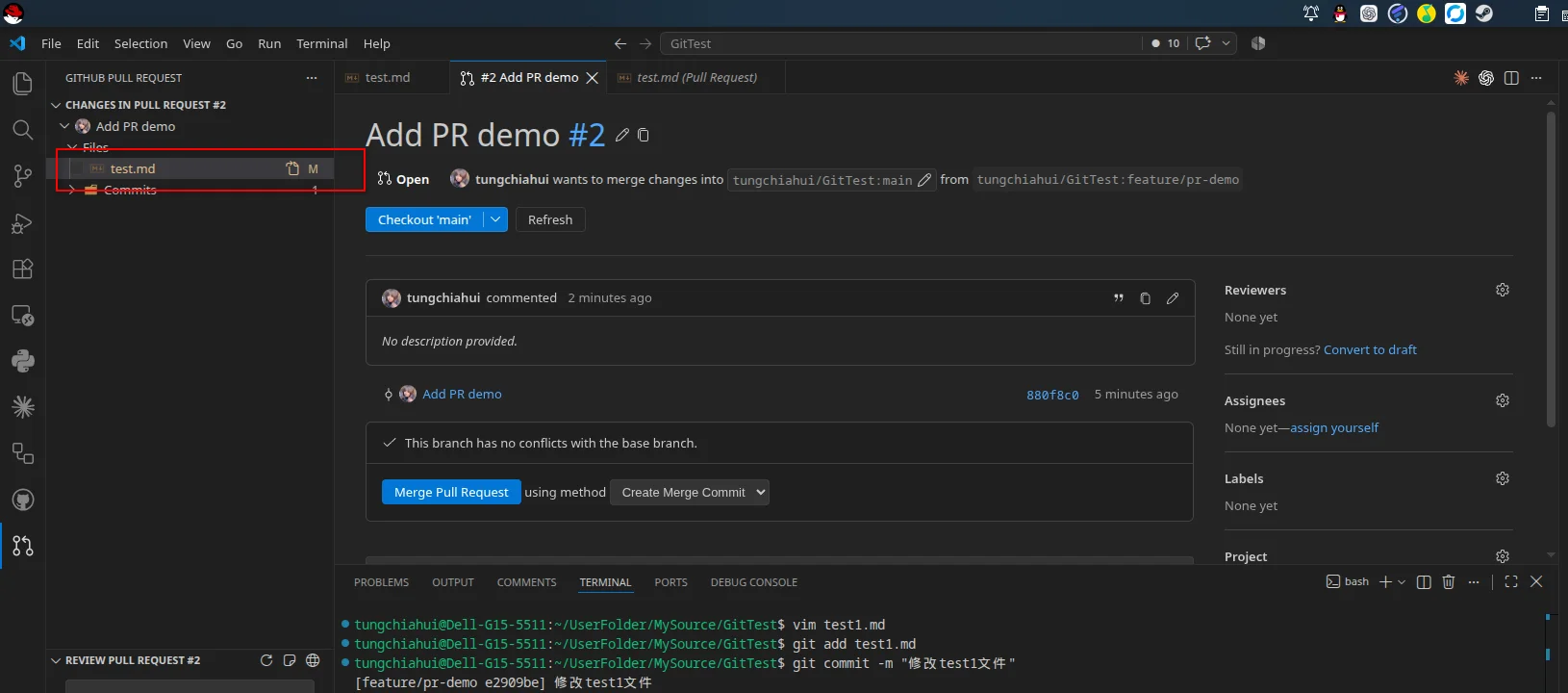

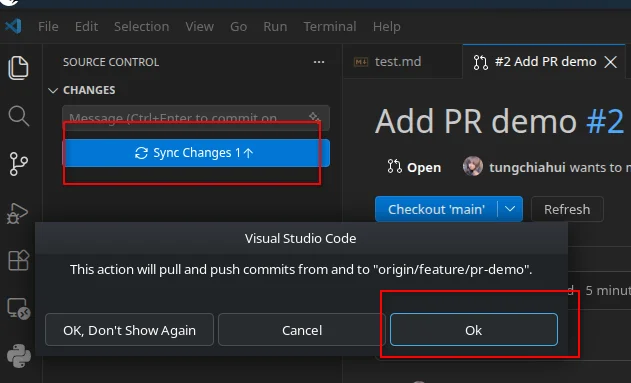
If the code needs to be modified based on review comments, stay on the current feature branch, and then continue to use the source control page to Commit. That is, you can continue to modify.

Likewise, first add and then commit this change, which can be namedAdd PR demo2.

Finally, push. New commits will be automatically added to the current PR; there is no need to recreate the PR.
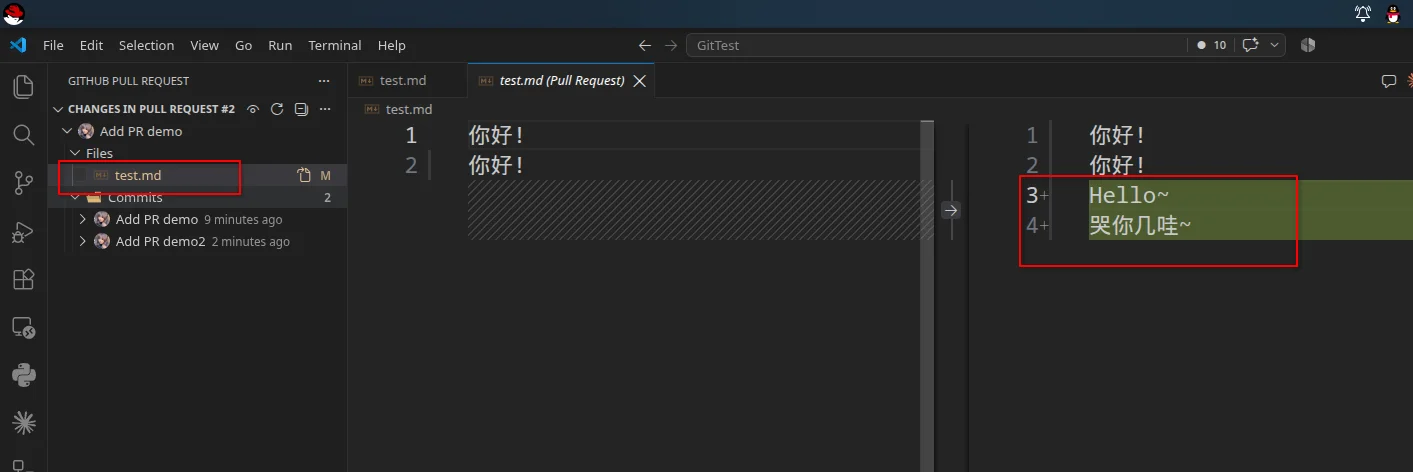
As can be seen, both commits are included in the PR.

You can also see in the file diff that both commits can be merged into main.
- Merge the PR and clean up the branch
After the review is approved and automated checks are completed, members with repository write permissions can click on the PR details pageMergeto complete the merge.

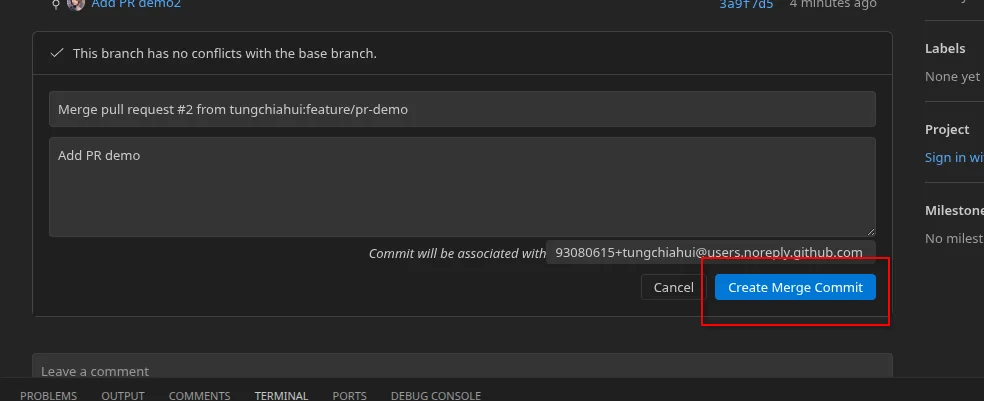
After the merge is complete, VS Code will prompt you to delete the remote and local feature branches. Confirm that the PR has been merged correctly before deleting, then switch back to the main branch and clickPullto fetch the latest code.
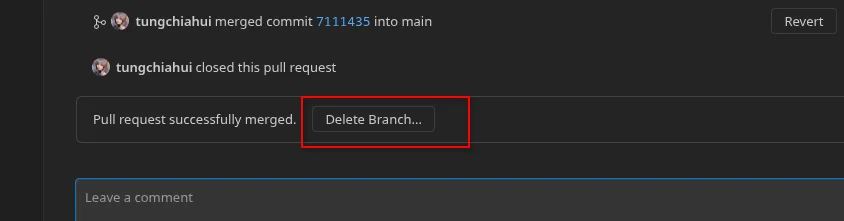

The PR will then be automatically closed.

3.最常用的几个功能扩展
3.1.向无仓库权限提交PR
比如我用另一个号新建了一个仓库,但是我的tungchiahui账号并没有这个仓库的权限:
https://github.com/dongjiahui0204/TEST_PR首先要先Fork这个仓库:
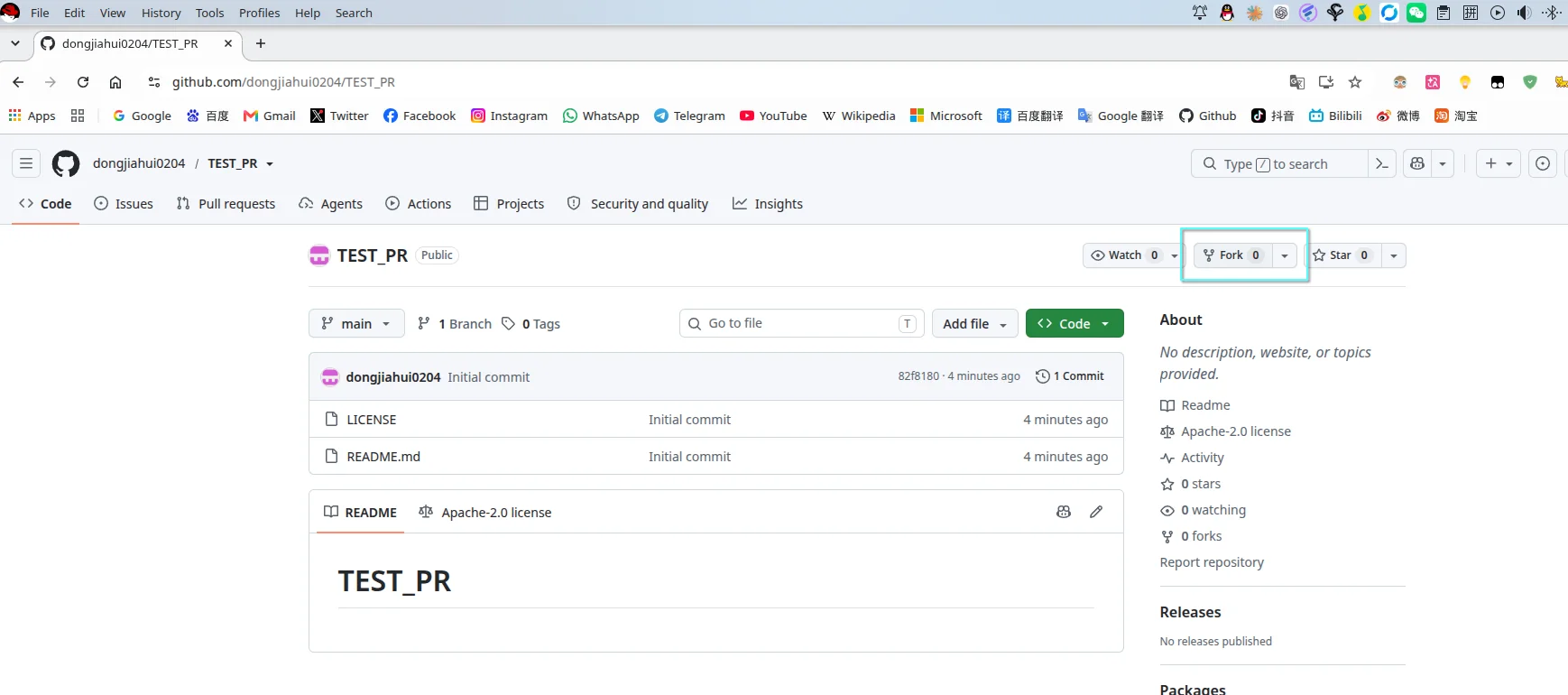
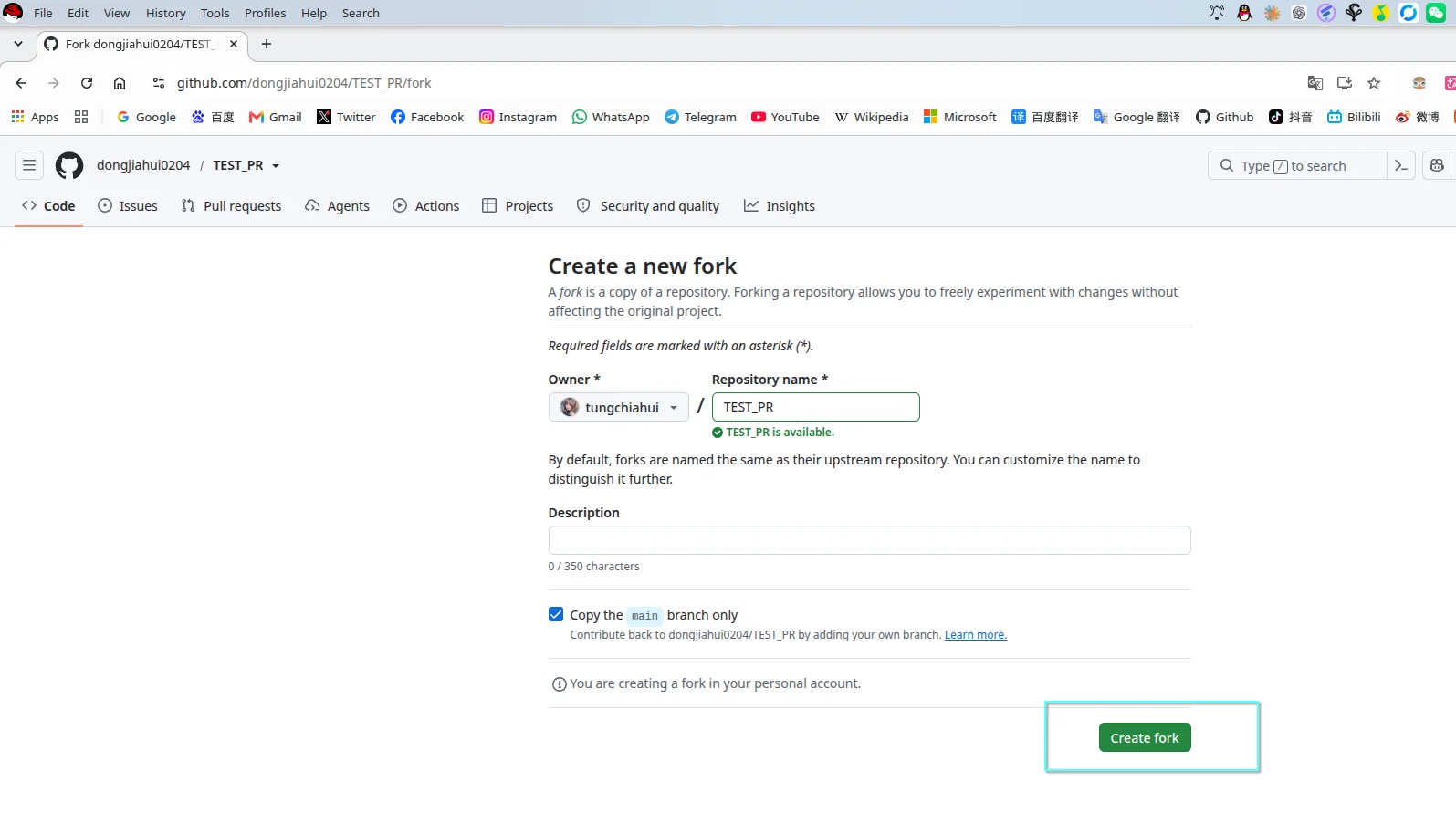
Fork完毕了:
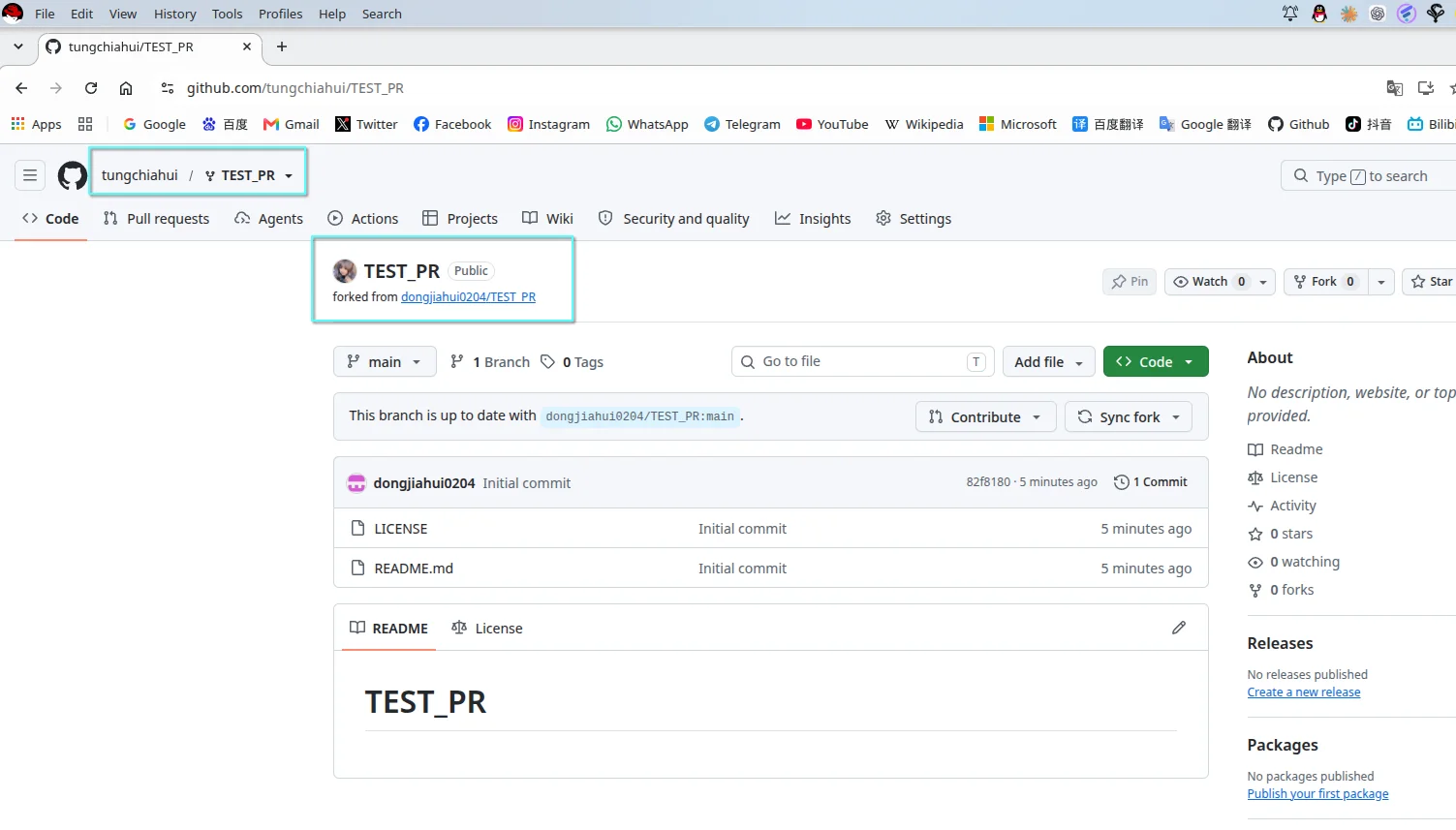
克隆下自己的这个仓库:
git clone https://github.com/tungchiahui/TEST_PR.git打开VScode:
cd ./TEST_PR
code .
创建分支:
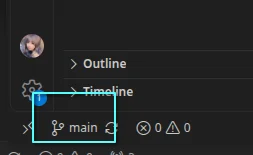
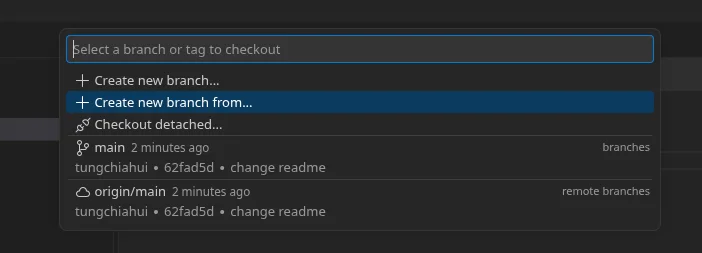
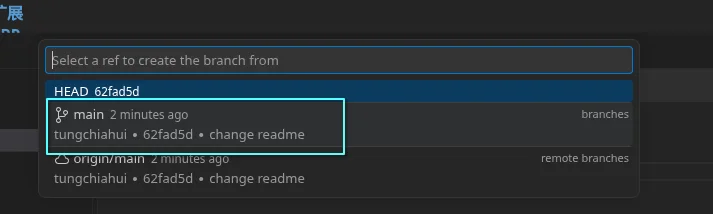
随便起个分支名字:
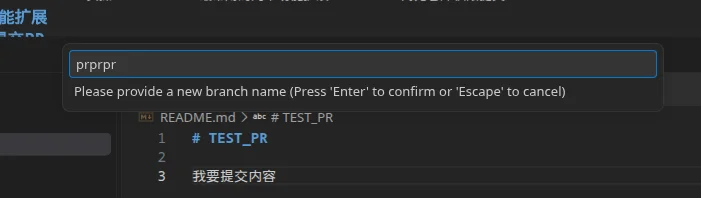
在新分支里,随便编辑点什么:
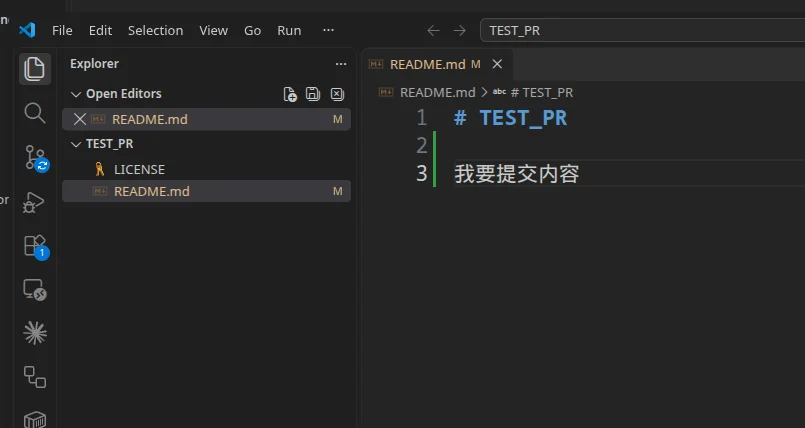
然后commit,push提交到你的仓库。
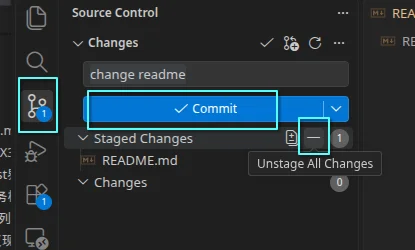
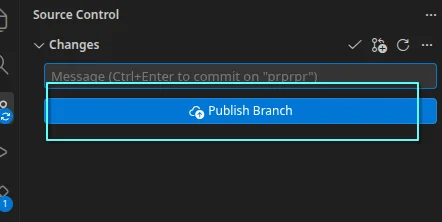
应该选自己的:
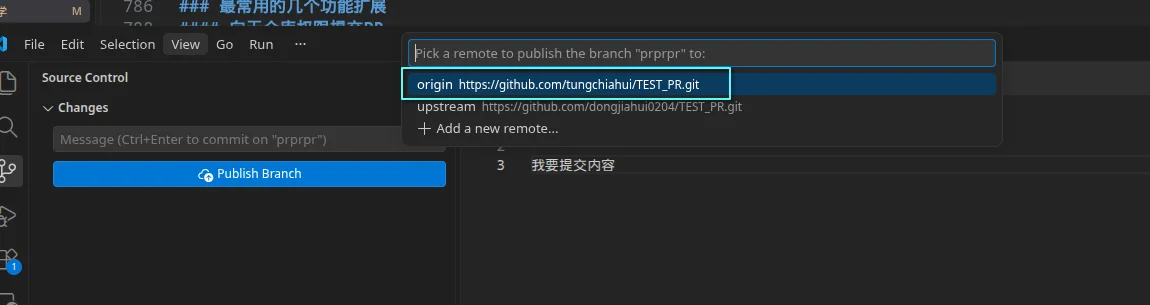
回到自己的仓库:
https://github.com/tungchiahui/TEST_PR
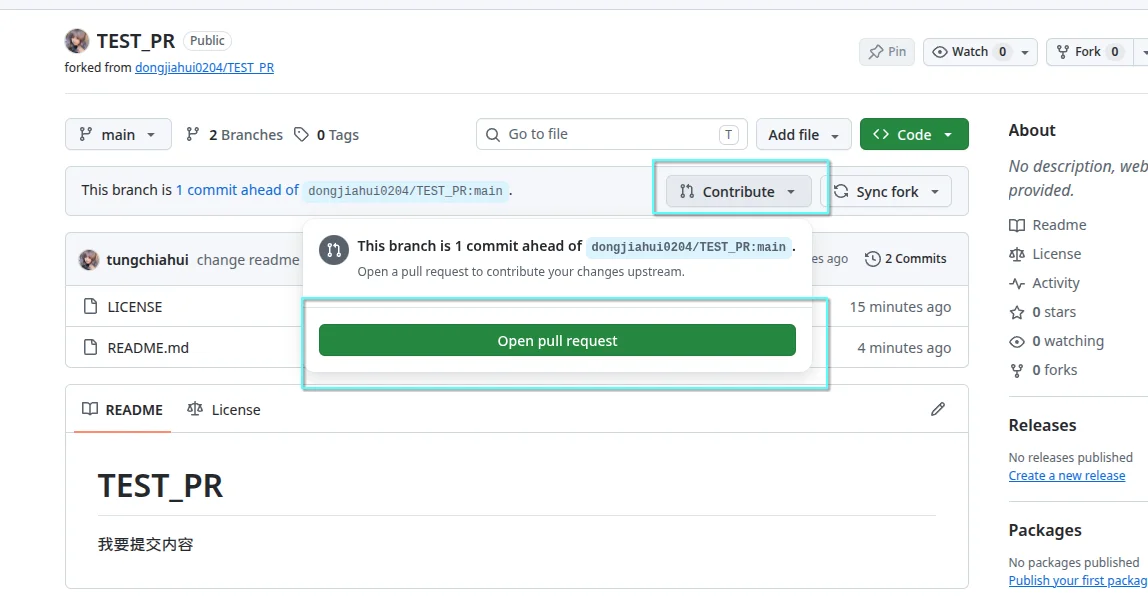
选择把自己的tungchiahui/TEST_PR的prprpr分支提交PR到dongjiahui0204/TEST_PR的main分支。
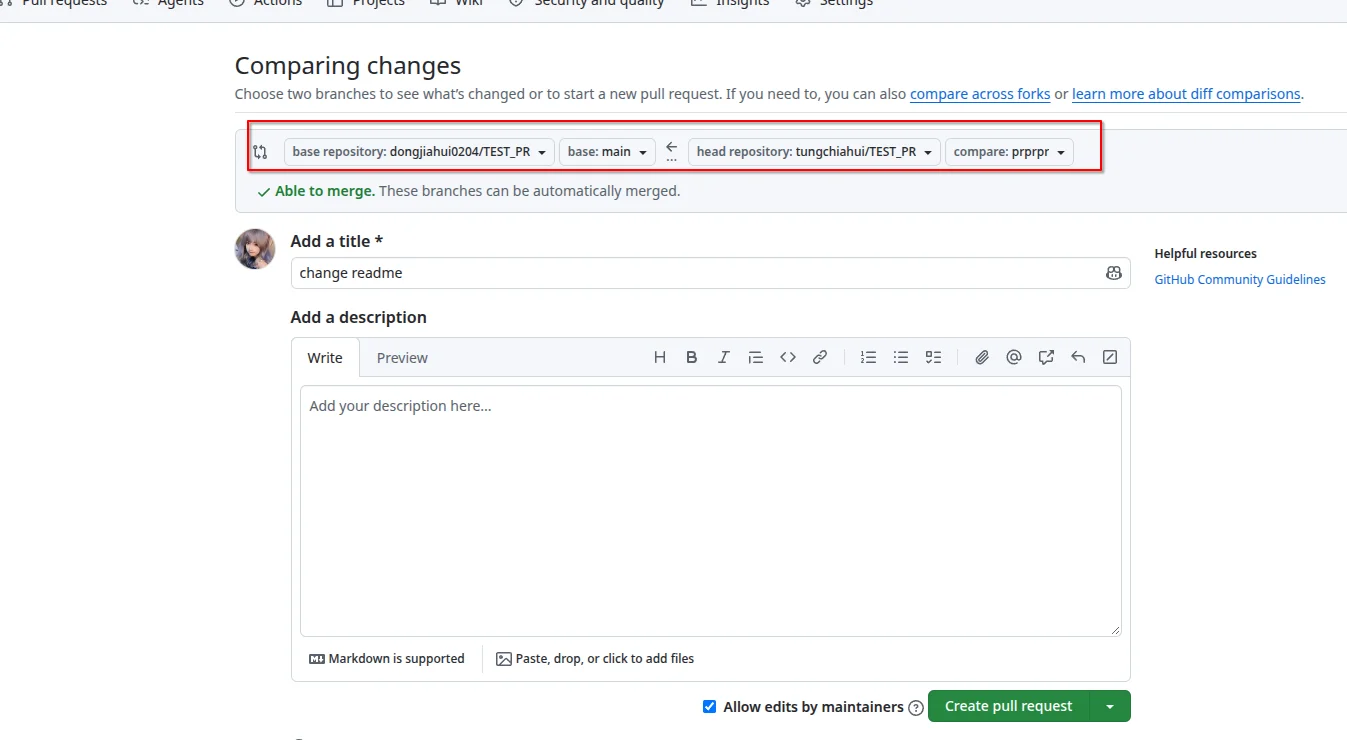
然后你写一些你提交的是什么东西写在这个描述里,然后好让人家维护者方便看你提交的是啥。
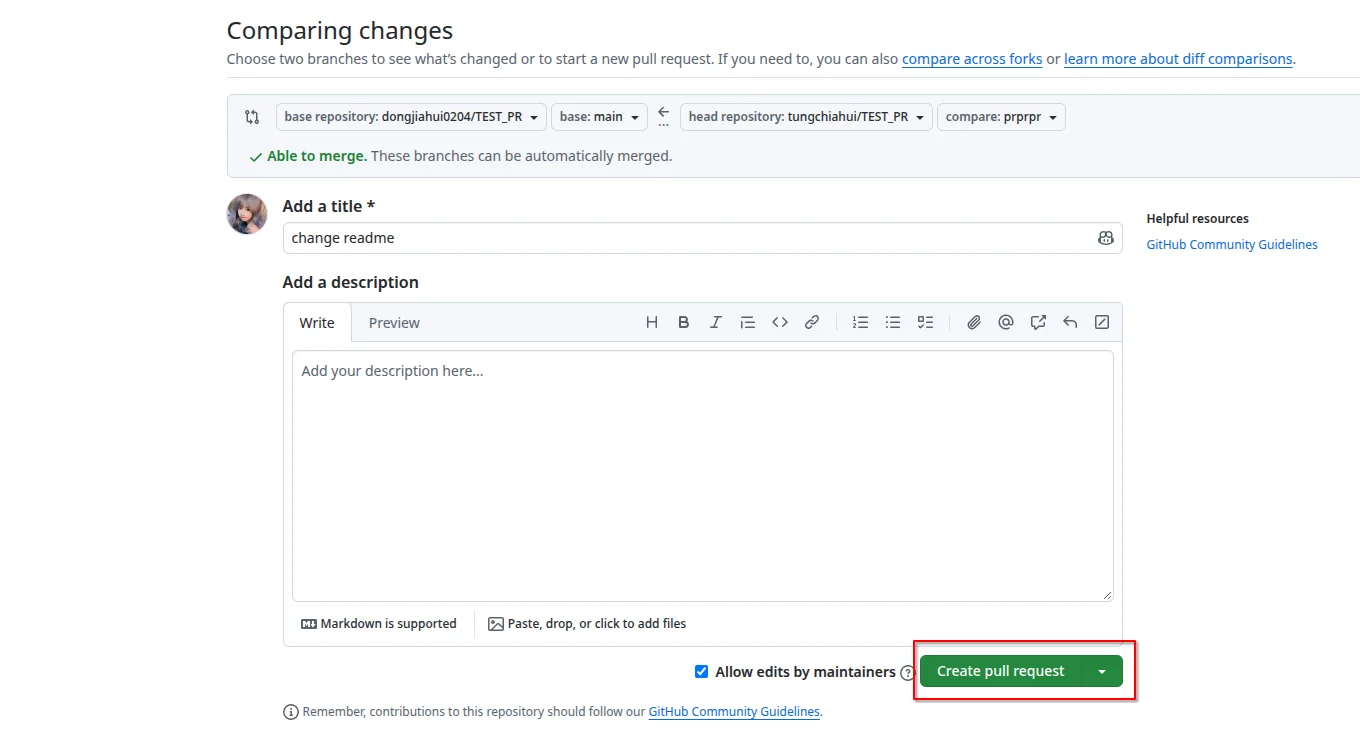
如下图你就提交成功了。
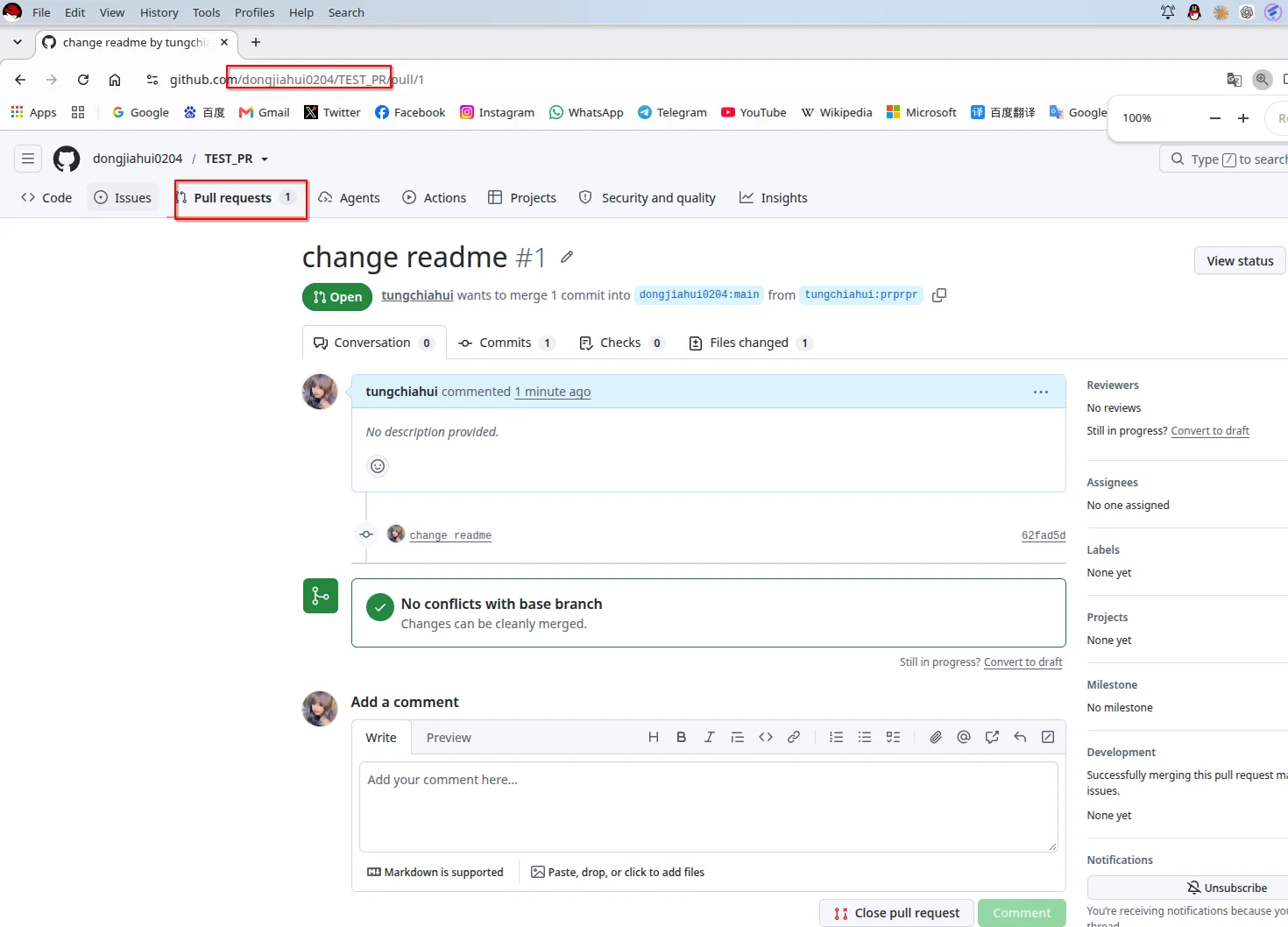
接下来,我切换dongjiahui0204账号介绍维护者如何合并别人提交上来的PR
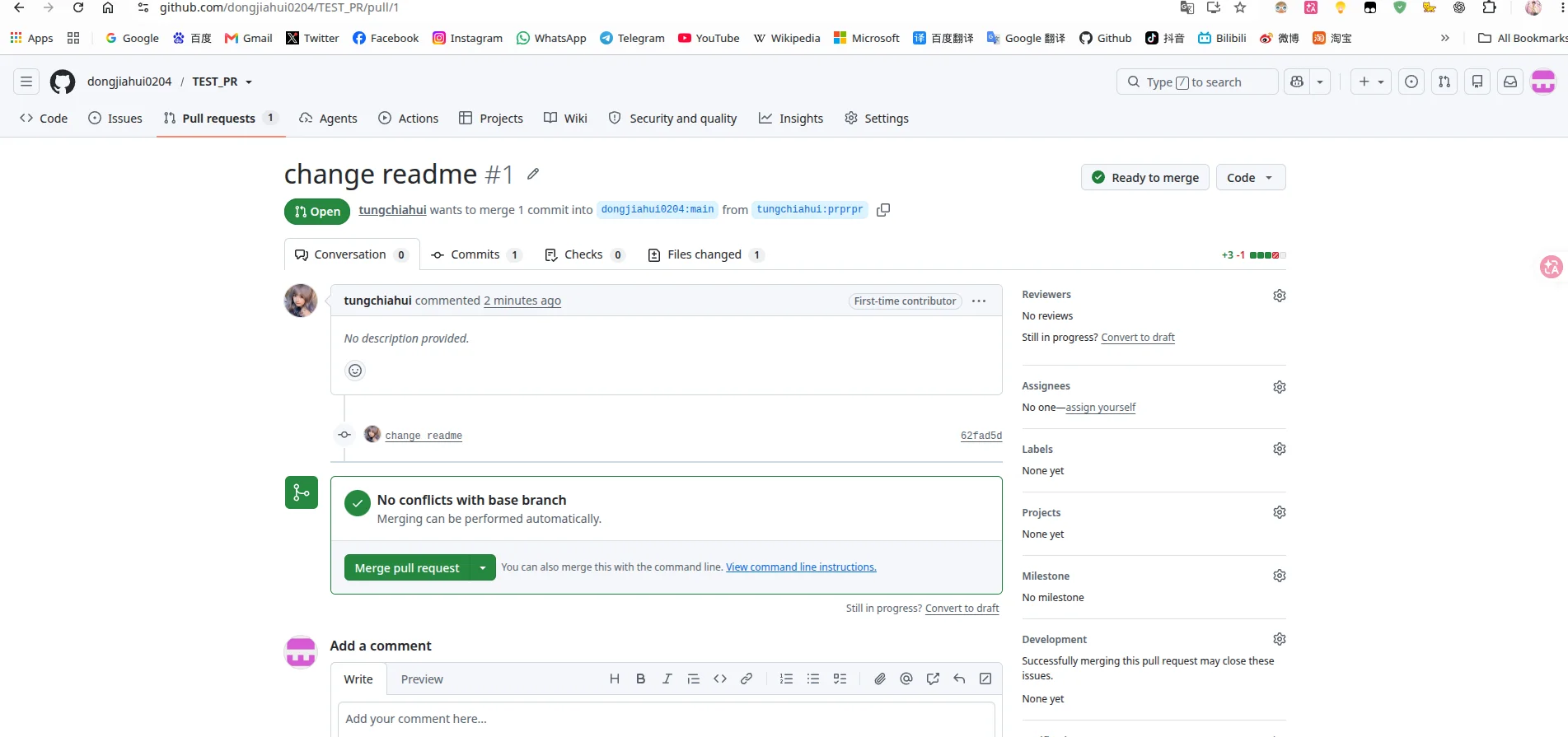
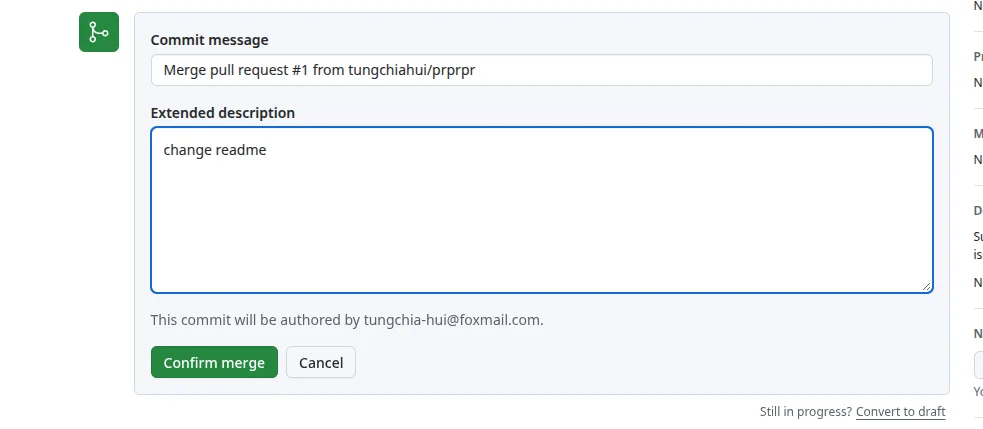
我可以点合并PR:
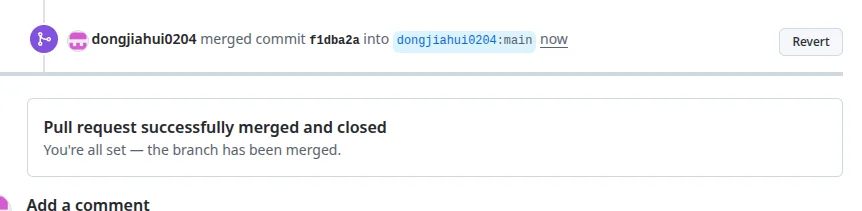
这就合并成功了
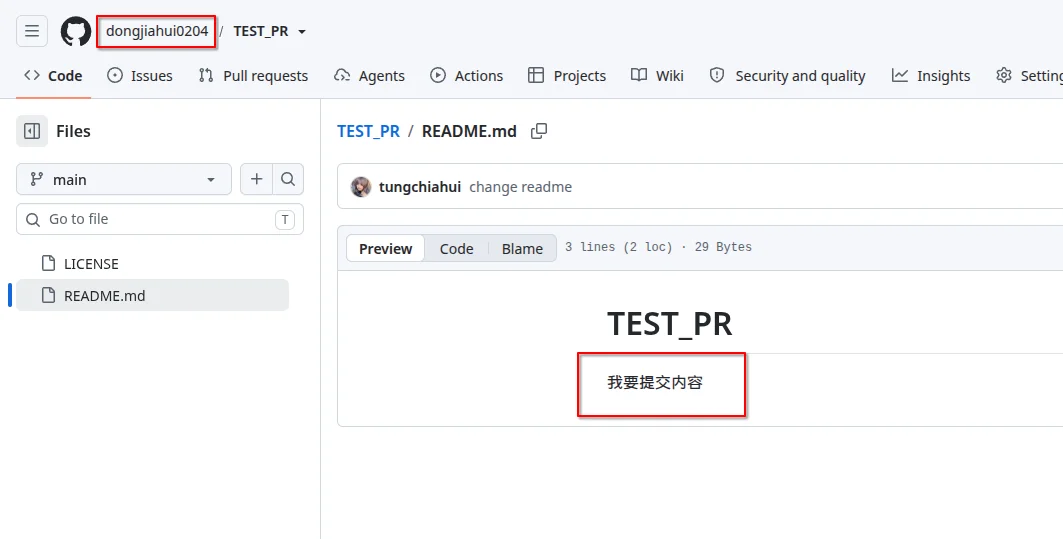
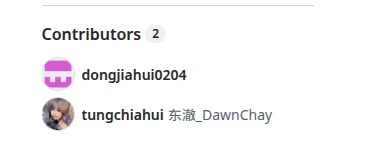
内容已经被合并了: