Wiki
安装Git
Existing English translations were reused. 23 current source blocks remain in Simplified Chinese, without triggering paid translation.
1.环境说明
本教程同时适用于 Windows 和 Linux。Windows 使用 PowerShell,Linux 使用 Bash;文件编辑统一使用 VS Code。
2.安装Git
2.1.Linux
以下命令适用于 Ubuntu、Debian 及其衍生发行版,其他发行版请使用对应的包管理器安装 Git。
sudo apt-get update
sudo apt-get install git
git --version
2.2.Windows
详看MSYS2配置环境教程,完成 Git 安装和 PATH 配置后,重新打开 PowerShell,确认可以执行:
git --version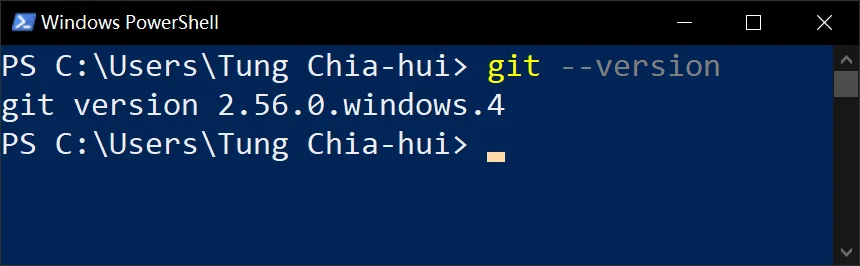
3.VScode安装
3.1.Linux
https://code.visualstudio.com/Download

If it is a Debian-based system, download the deb; if it is an RHEL-based system, download the rpm.
After downloading, click the browser, find the folder containing this installation package, and open a terminal at that path.

Debian-based: entersudo apt install ./codeThen press thetabkey to complete the filename, and press Enter.
RHEL-based: entersudo dnf install ./codethen presstabkey to complete the filename, and press Enter.
For example, after completion:
sudo dnf install ./code-1.102.1-1752598767.el8.x86_64.rpm
3.2.Windows
First, Baidu's official website:https://code.visualstudio.com/
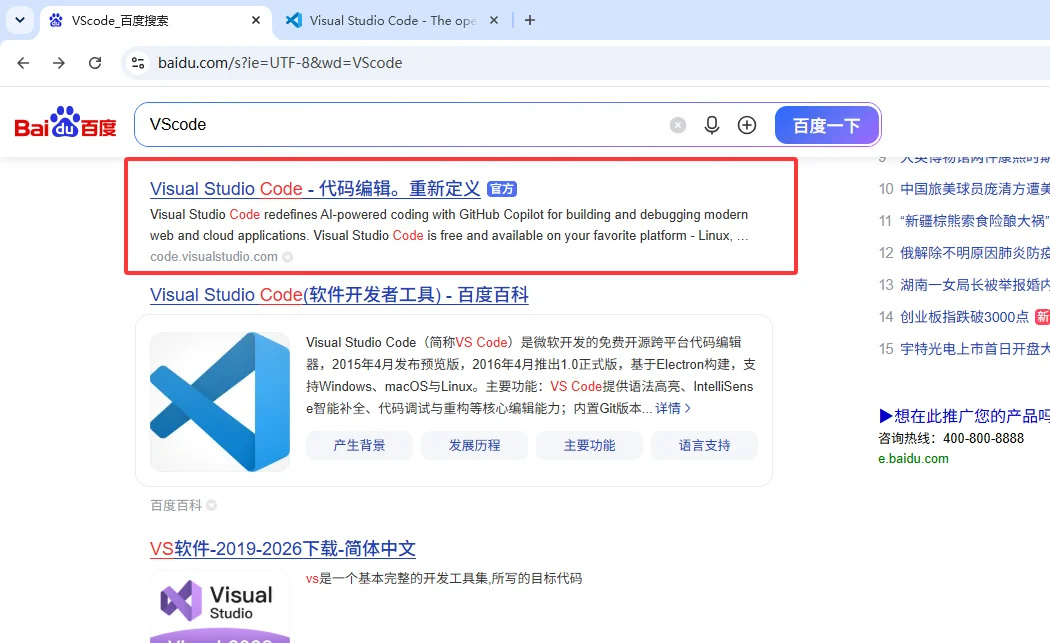
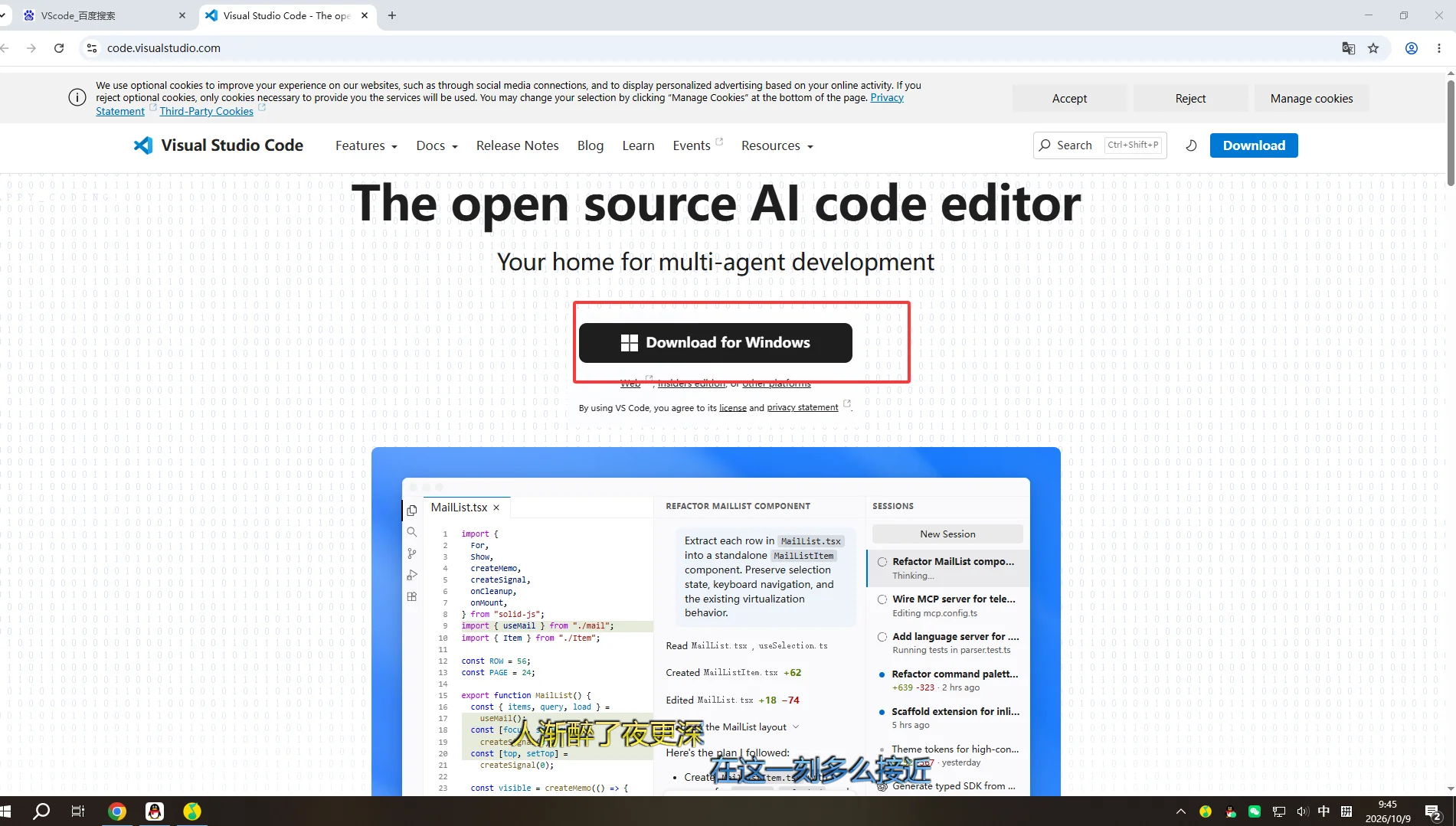
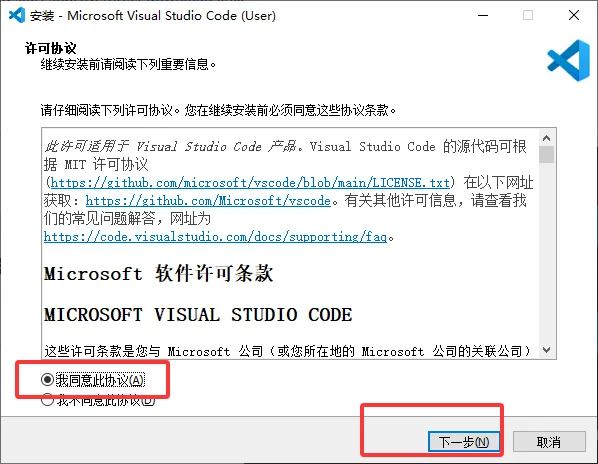
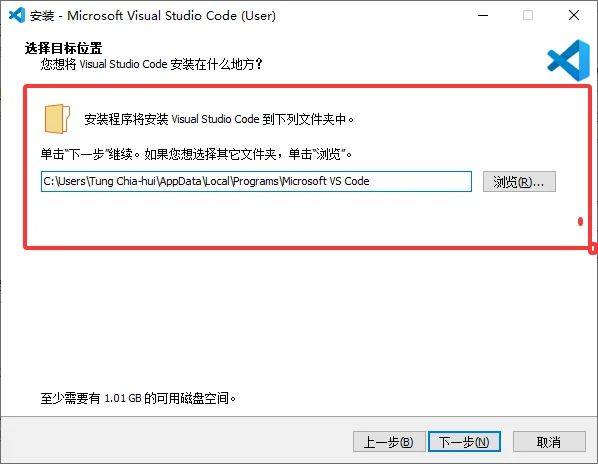
For the path below, it is recommended to use the default; you may also choose another location, but you need to ensure that the path is purely in English and that you have permissions for it (if you are unsure, it is recommended to use the default).
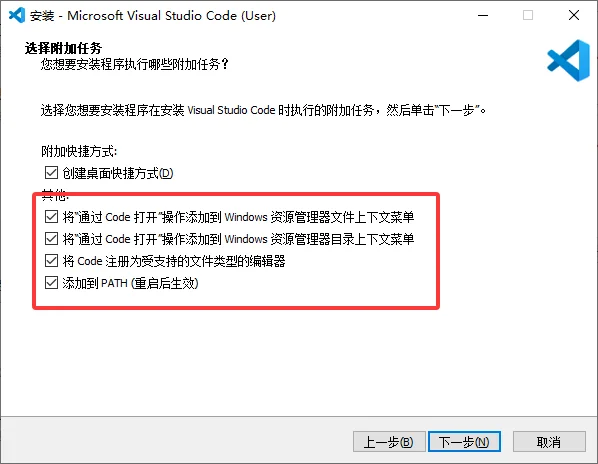
It must be checked like this
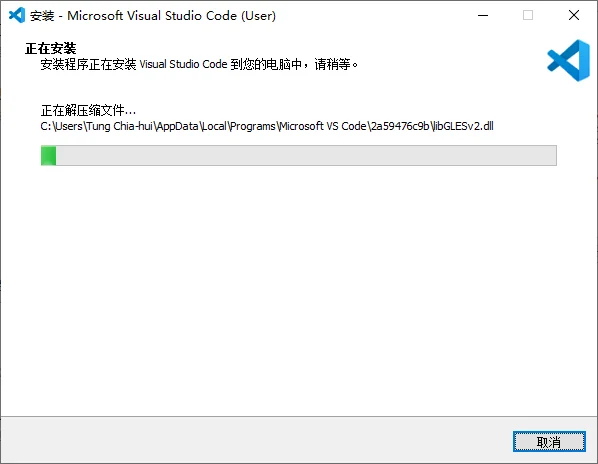
Wait for the progress bar to finish scrolling and it will be done.
3.3.验证
安装完成后,重新打开终端并执行:
git --version
code --version
两条命令都能输出版本信息后,即可进入后面的实操。
如果提示找不到 code,请检查 VS Code 的安装和 PATH 配置,再重新打开终端。
也可以先从桌面打开 VS Code,通过“文件 → 打开文件夹”进入练习目录,并在编辑器中创建和编辑文件。
4.设置git的用户与邮箱(必须设置!!!)
git config --global user.name "tungchiahui"
git config --global user.email tungchiahui@gmail.com5.Windows下配置VS Code的Git路径
如果 VS Code 已经能自动识别 Git,可以跳过本节。(Linux一定是能识别到git的,所以Linux直接跳过)
如果无法识别,按 Ctrl+Shift+P 打开命令面板,搜索并选择 Preferences: Open User Settings (JSON):
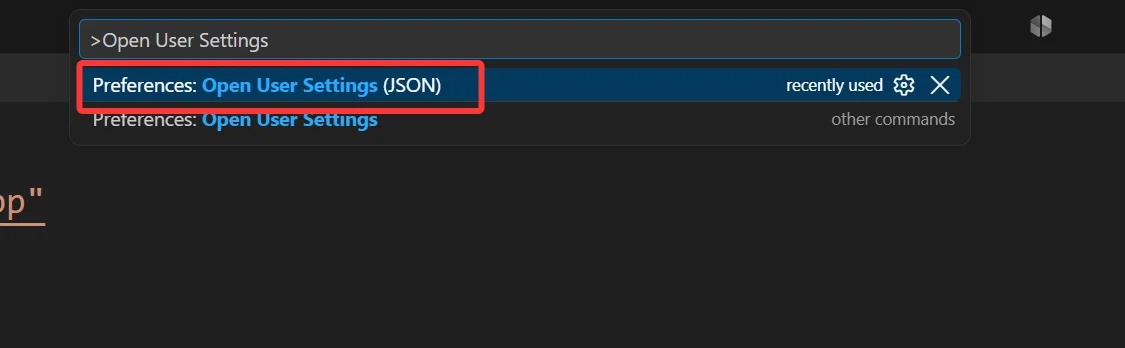
在设置 JSON 对象中加入以下属性;如果前面已有其他属性,注意用逗号分隔:
"git.path": "C:/msys64/ucrt64/bin/git.exe"这里的路径对应 MSYS2 安装在 C:/msys64、使用 UCRT64 Git 的情况,请按实际的 git.exe 位置填写。
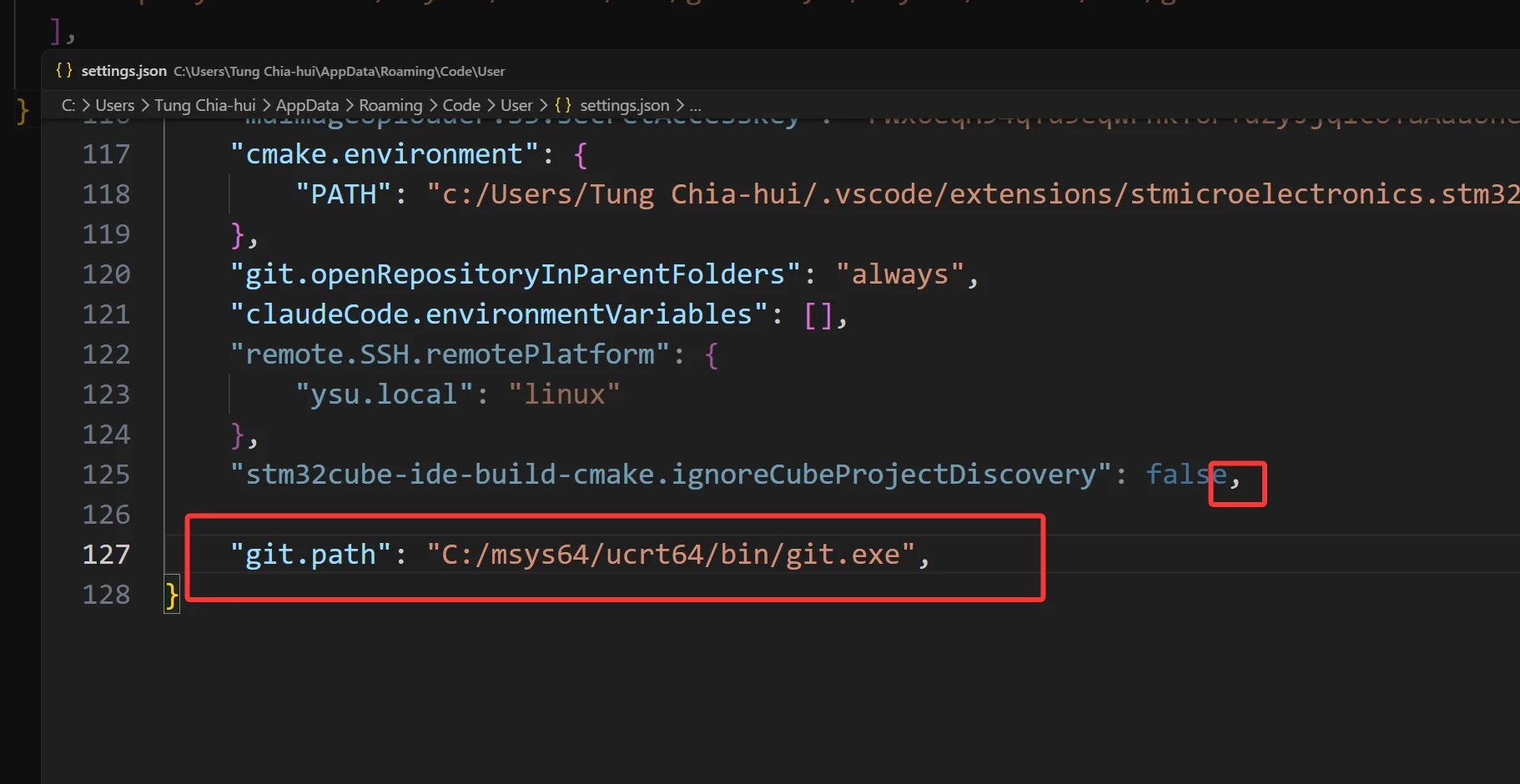
保存后重启 VS Code。
git.path 只决定 VS Code 使用哪个 Git,不会修改 PowerShell 的 PATH;终端中的 git --version 仍需能够正常执行。