Wiki
Linux Environment Setup (New)
Existing English translations were reused. 1 current source blocks remain in Simplified Chinese, without triggering paid translation.
(本教程为2026年9月创建的,可能与以后的版本有些出入)
1.Environment Introduction
Introduction to the tutorial environment:
-
System: Fedora 44 KDE Edition Linux
-
System Kernel: Linux 7.2.6-200.fc44.x86_64
-
Architecture: X86_64(amd64)
Other Linux environments are also acceptable.
2.Things to prepare
-
A Linux computer
-
An STM32F4 or higher board (currently using MDK6 with STM32F1 is rather troublesome)
-
The latest version of CubeMX
-
The latest version of VSCode
-
pyOcd (installation tutorial is provided below)
-
ST-Link driver (installation tutorial is provided below)
3.Install various software and environments
3.1.Install CubeMX

Download address:
https://www.st.com.cn/zh/development-tools/stm32cubemx.html
It is recommended to download the latest version (at this time, the latest version is 6.15.0).


Extract it

Open this software with root privilegesSetupSTM32CubeMX-6.18_1(not recommended)
sudo ./SetupSTM32CubeMX-6.18_1(Better suggestion: you can also open it without root privileges, but when choosing the installation path, pay attention to the following, and change it yourself to/home/xxxin one of the folders)
./SetupSTM32CubeMX-6.18_1
In the newly popped-up interface, just keep clicking Next. After the installation is complete, if the screen shown below appears, it has succeeded.

/usr/local/STMicroelectronics/STM32Cube/STM32CubeMX(If you did not install with root privileges, your path will not be this one; you need to select the corresponding path.) Enter this folder, then open a terminal and input
./STM32CubeMX
Click Help

Select Manage embedded software packages, and check the first latest firmware for STM32F1, F4, and H7.

Click install

Log in to the account

Then wait for the download and installation to complete

Just finish downloading it and you're good.
Next, you can configure the CubeMX application to create a desktop shortcut for quick access. For detailed instructions, see the Appimage section of theVinci Robot Team Linux Introductory Tutorial; you can use ctrl+F to quickly locate this section.
The desktop shortcut is as follows:
(If you did not install with root permissions, your path will not be this one/usr/local/STMicroelectronics/STM32Cube/STM32CubeMX/; you need to select the corresponding path.)
[Desktop Entry]
Name=STM32CubeMX
Exec=/usr/local/STMicroelectronics/STM32Cube/STM32CubeMX/STM32CubeMX
Icon=/usr/local/STMicroelectronics/STM32Cube/STM32CubeMX/help/STM32CubeMX.png
Type=Application
Categories=Development;Electronics;Embedded;
Comment=STM32CubeMX configuration and code generation tool
Terminal=false
Follow the tutorial, and you can achieve this effect.


3.2.Install VSCode
https://code.visualstudio.com/Download

If it is a Debian-based system, download the deb; if it is an RHEL-based system, download the rpm.
After downloading, click the browser, find the folder containing this installation package, and open a terminal at that path.

Debian-based: entersudo apt install ./codeThen press thetabkey to complete the filename, and press Enter.
RHEL-based: entersudo dnf install ./codethen presstabkey to complete the filename, and press Enter.
For example, after completion:
sudo dnf install ./code-1.102.1-1752598767.el8.x86_64.rpm
Then open VSCode and enter the following command in the terminal.
code
Then, a separate environment can be configured for use exclusively by the Keil Studio (MDK v6) plugin to avoid conflicts with the default environment.

Just configure some settings; simply follow what I say.
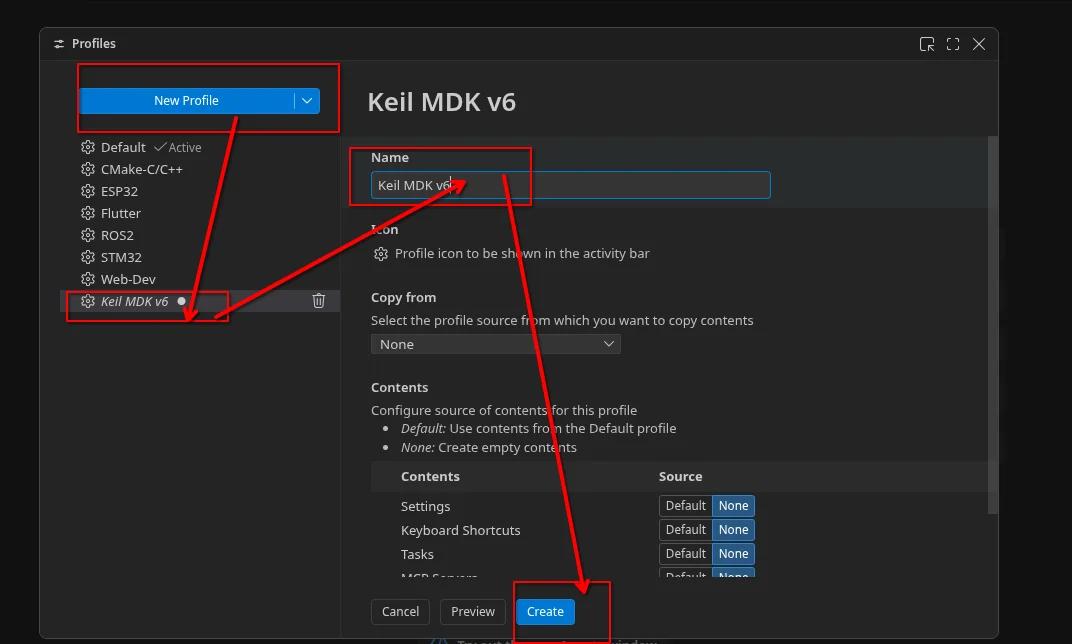
Post-creation selection configuration:
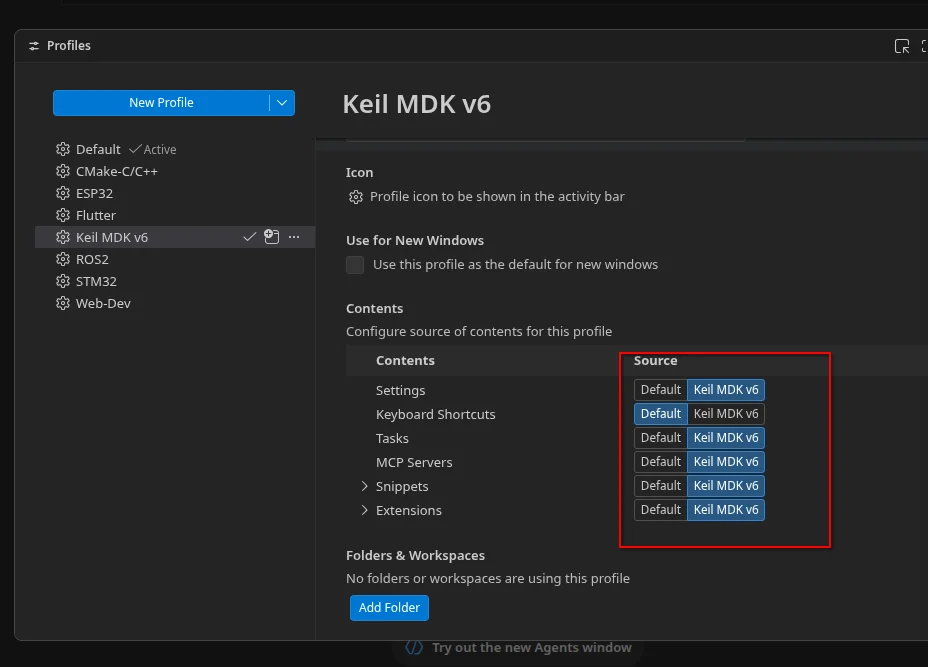
Select him
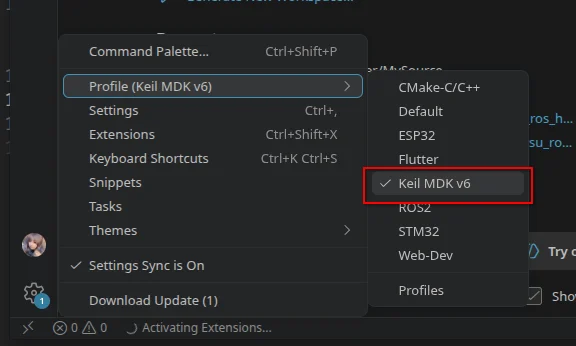
3.3.Install plugin
Searchkeil studio packJust install the first one
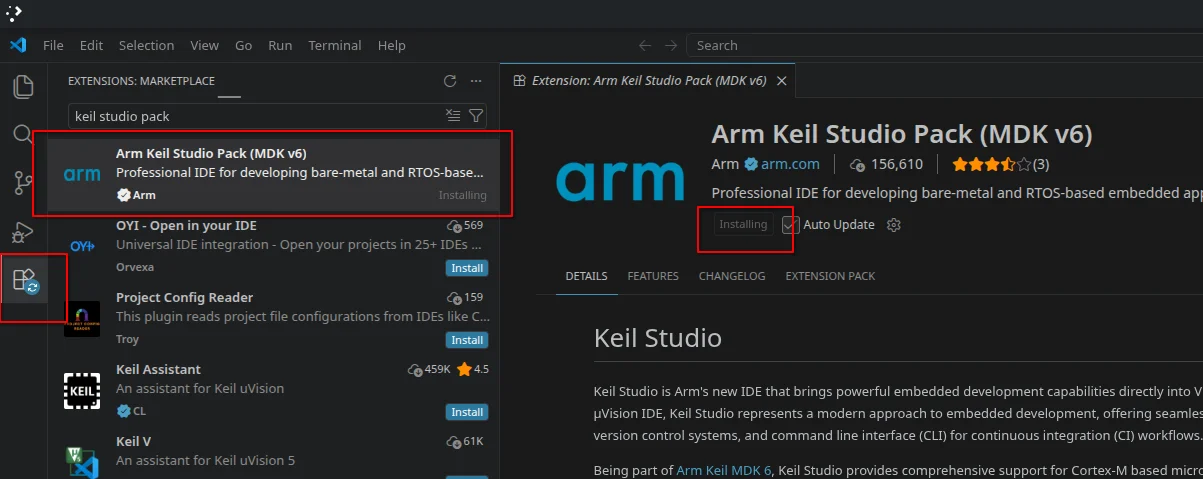
4.Environment Configuration
Official tutorial:https://mdk-packs.github.io/vscode-cmsis-solution-docs/installation.html
4.1.CubeMX path configuration:
Open a terminal:
find ~/ /usr/local /opt -type f -name STM32CubeMX 2>/dev/nullGenerally, it will output the directory of your CubeMX executable file, for example:
/usr/local/STMicroelectronics/STM32Cube/STM32CubeMX/STM32CubeMXThen you copy/usr/local/STMicroelectronics/STM32Cube/STM32CubeMXThat is sufficient; do not copy the lastSTM32CubeMX.
Open VSCode settings:
SearchCMSIS Solution Environment Variables:
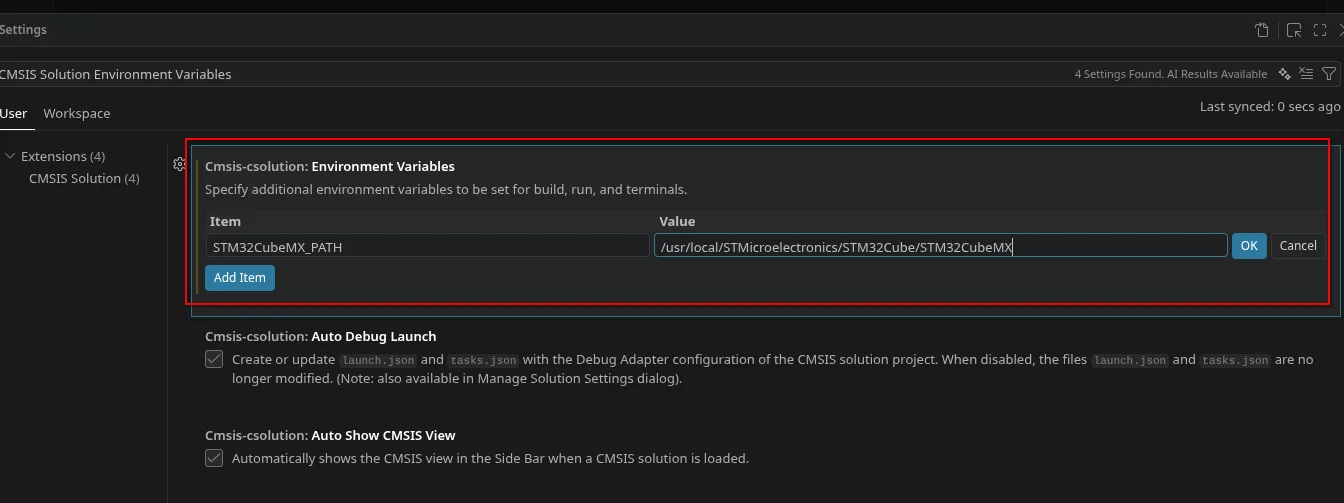
Once added, simply close this interface.
5.Create a simple routine
5.1.Create a project
Click the sidebar'sCMSIS, as shown in the figure below,
- The first is create
keil mdk6project - The second is convert the
keil mdk5project into akeil mdk6project - The third is browse various Arm examples
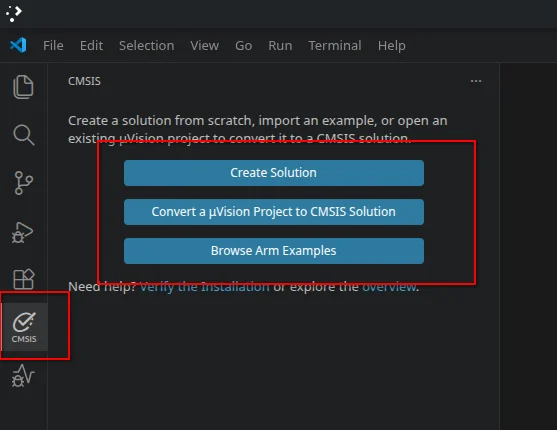
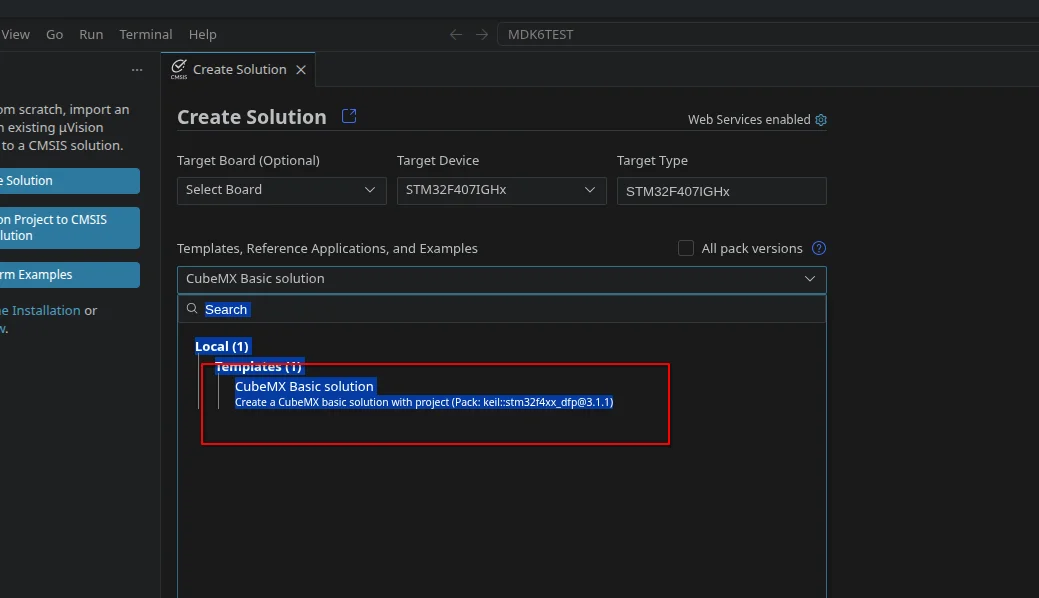
SelectCreate New SolutionThen select Device, and then search for the chip, for examplestm32f407ig
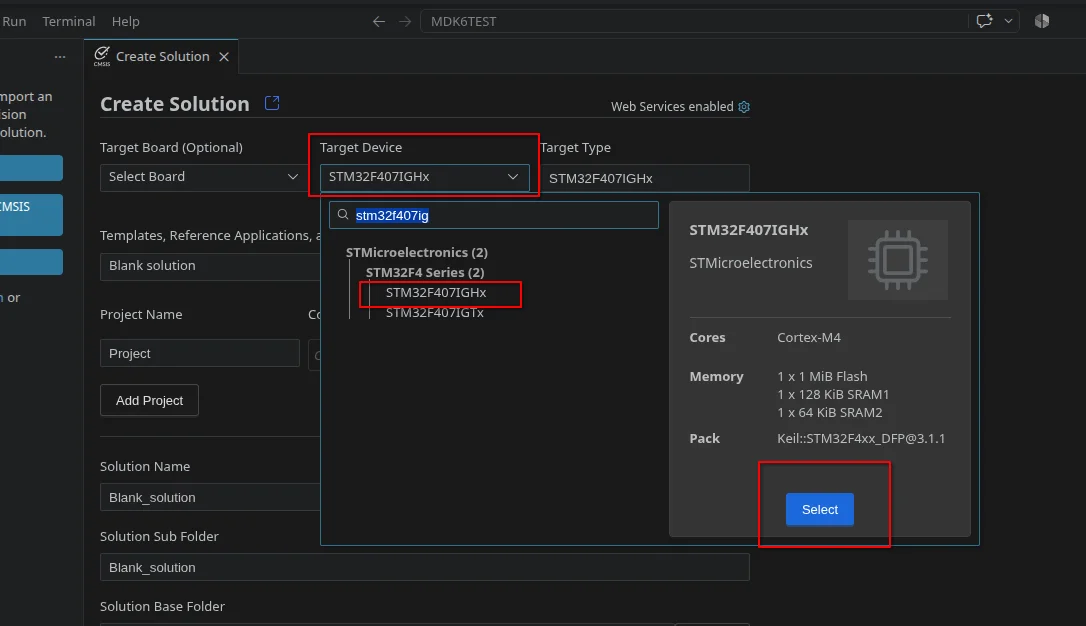
TemplatesSelectCubeMX Basic solution
Solution Base FolderThe directory where the workspace is located may contain multiple project/solution. (The directory where the project folder is located)Solution Sub FolderIt is usually a subdirectory under the workspace. (Project folder name)
I chose here/home/tungchiahui/UserFolder/MySource/MDK6Projects/to store the project. (You can choose any empty folder you created yourself with a pure English path to store it.) Then the project name ismdk6_test
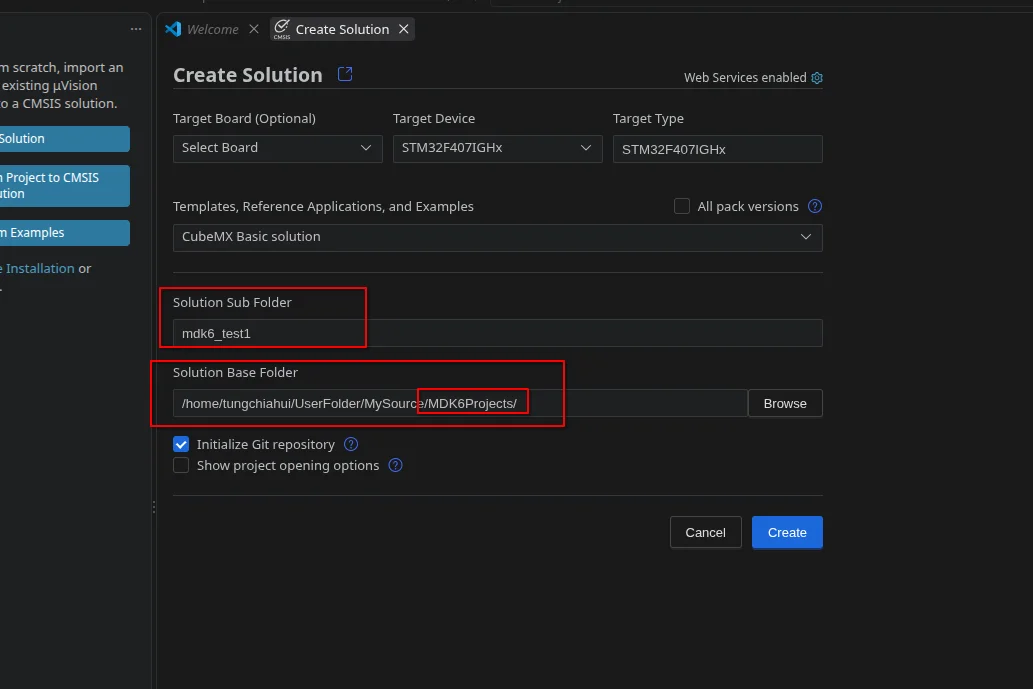
After clicking Create, the VScode workspace will automatically jump to the project folder.
5.2.Add License
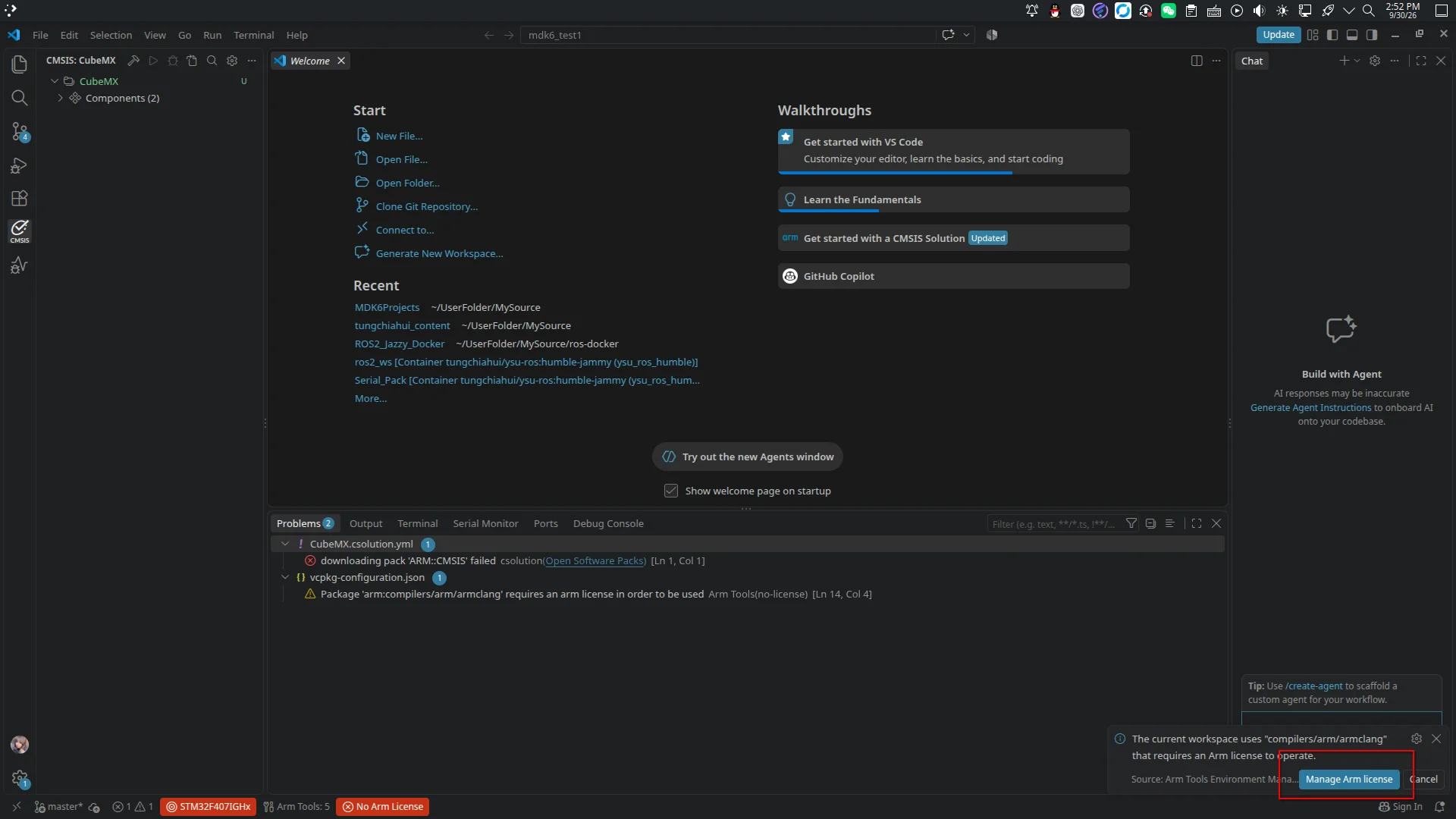
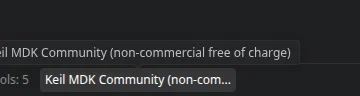
A prompt may appear in the lower right corner asking you to add a license, though we did not use one.armclang(ac6)It will also request it, but in fact you can proceed without granting a license; however, you may grant a community license by clicking as shown in the figure below.
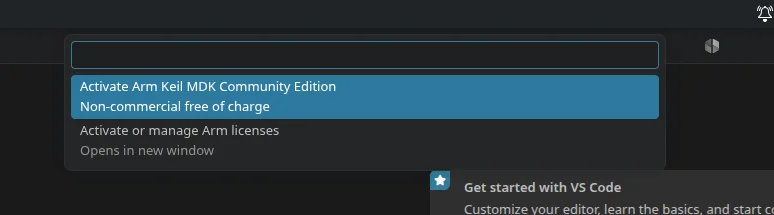
License successful
5.3.Pack installation
5.3.1.Install CMSIS
First open the following website:
https://www.keil.arm.com/packs
SearchCMSIS,
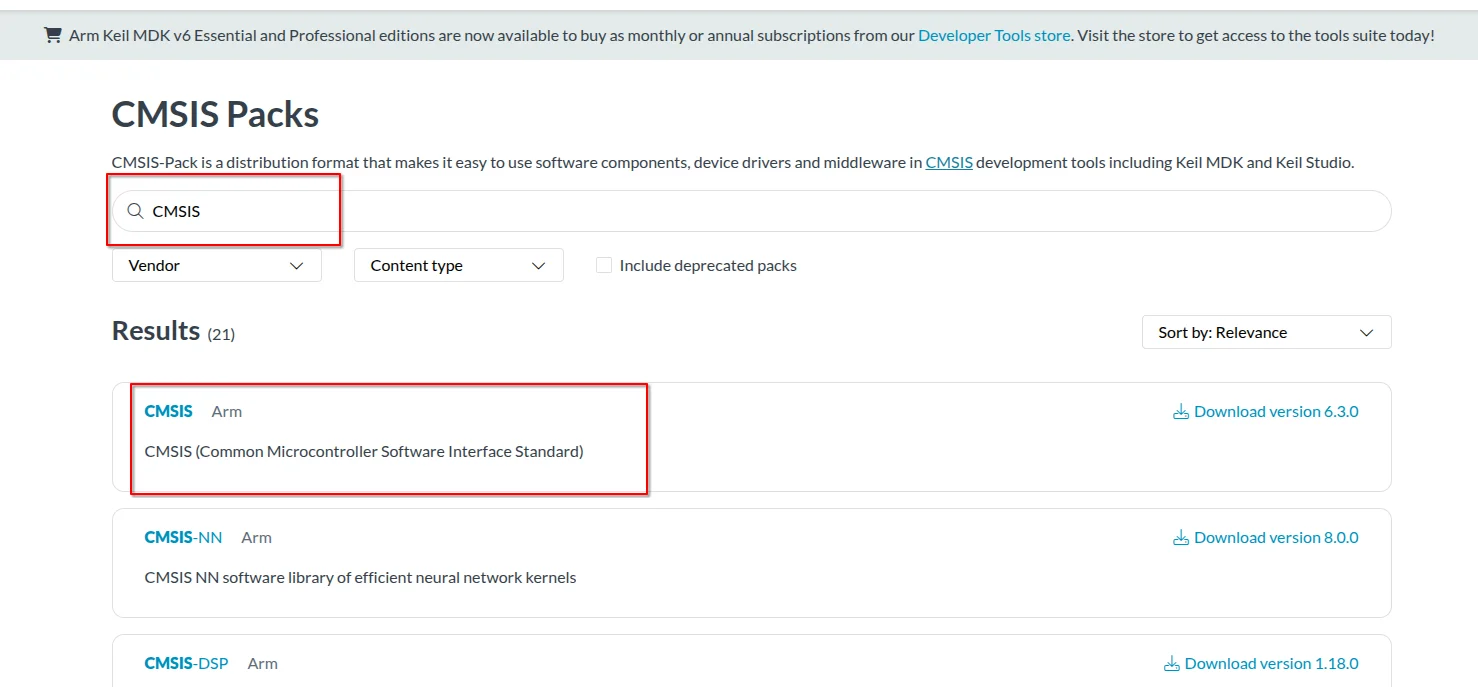
Copycpackget addCommand
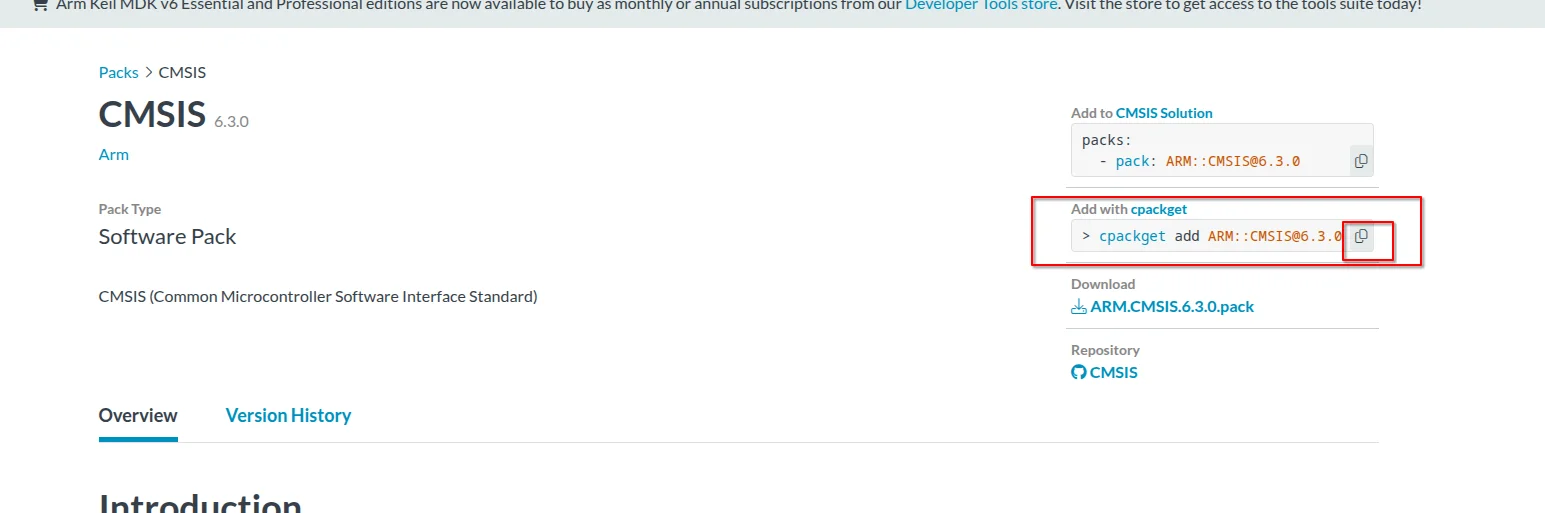
Pressctrl + ~to toggle VSCode's built-in terminal, and type the command you copied into the terminal, for example:
cpackget add ARM::CMSIS@6.3.0It will start downloading aggressively:

Press here on the keyboardA
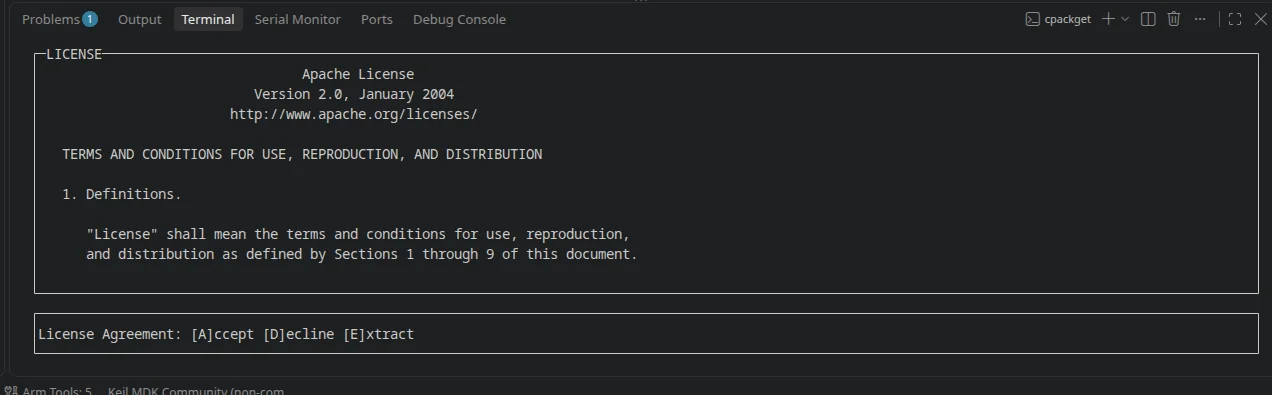
Installation complete:

5.3.2.Install device DFP
Then open the following website:
https://www.keil.arm.com/devices
Search and select the device you want, for example hereSTM32F407IGHx
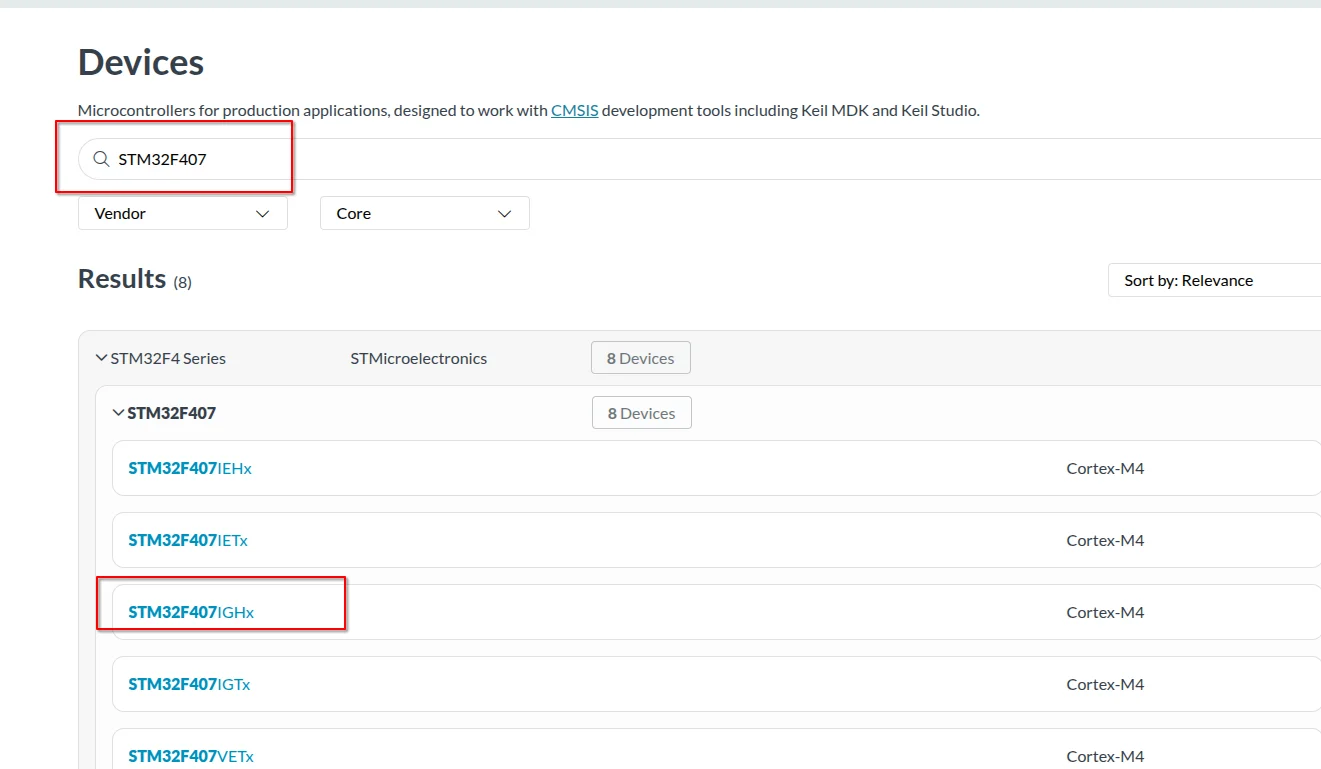
Click thatCMSIS Pack:
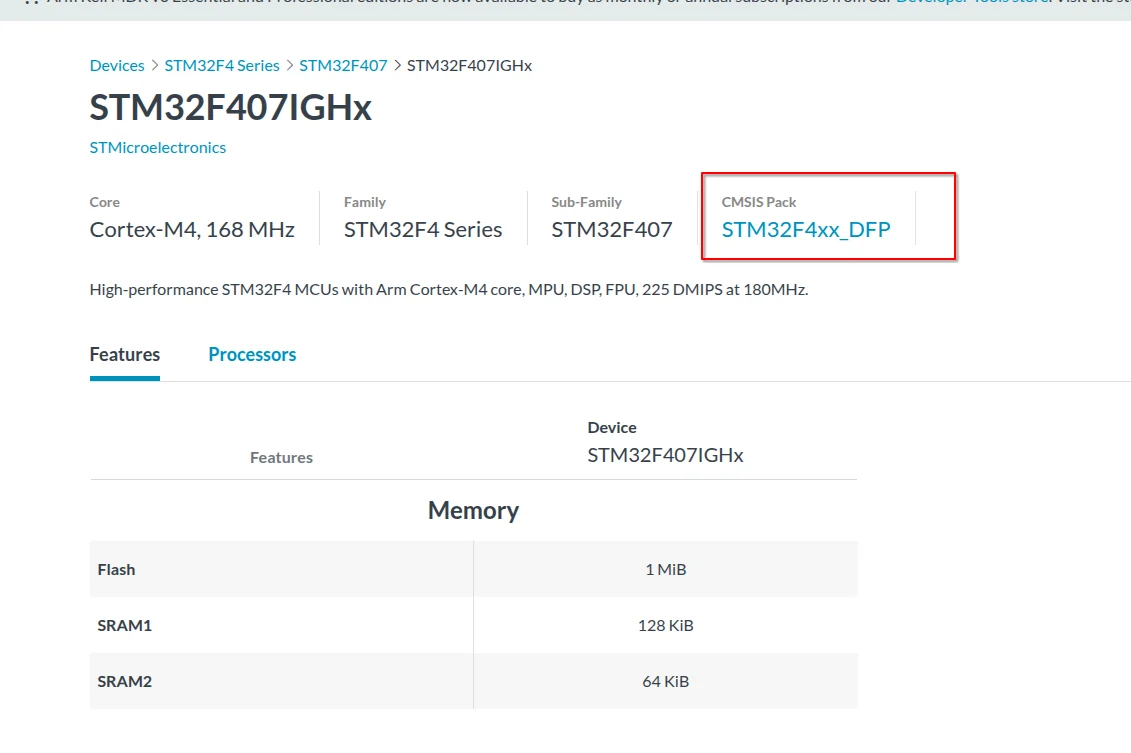
Copycpackget addCommand
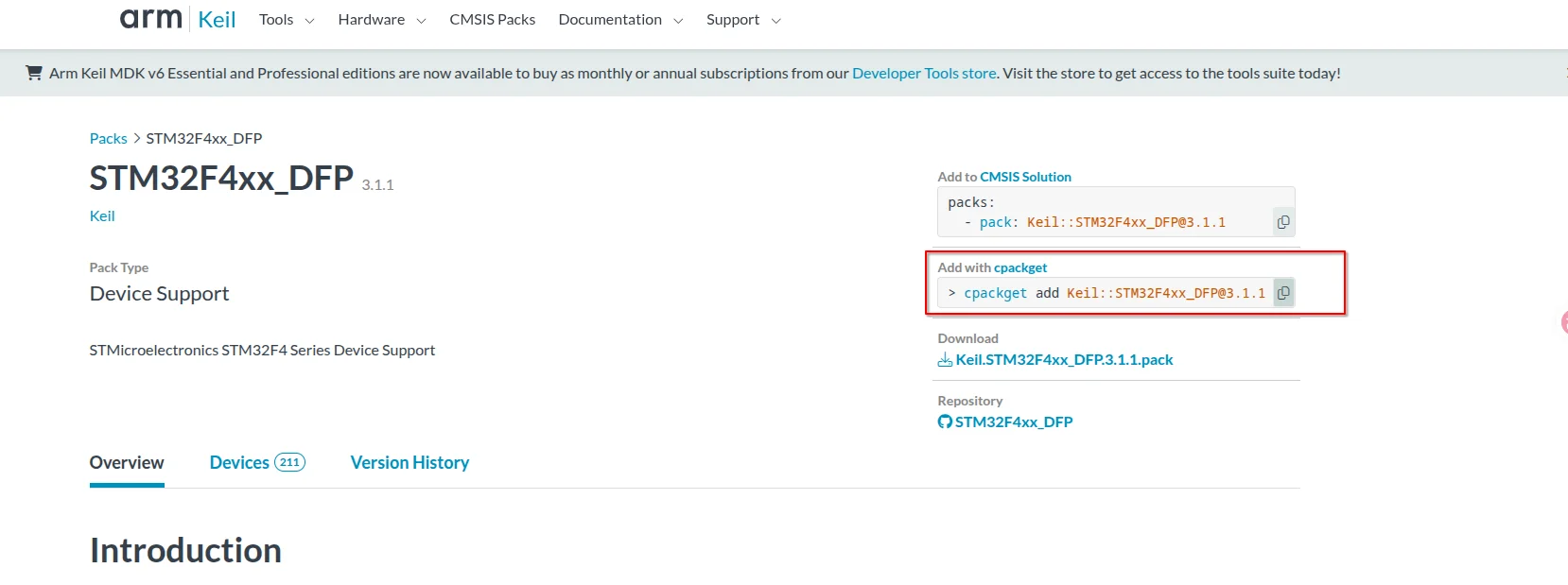
Pressctrl + ~to toggle VSCode's built-in terminal, and type the command you copied into the terminal, for example:
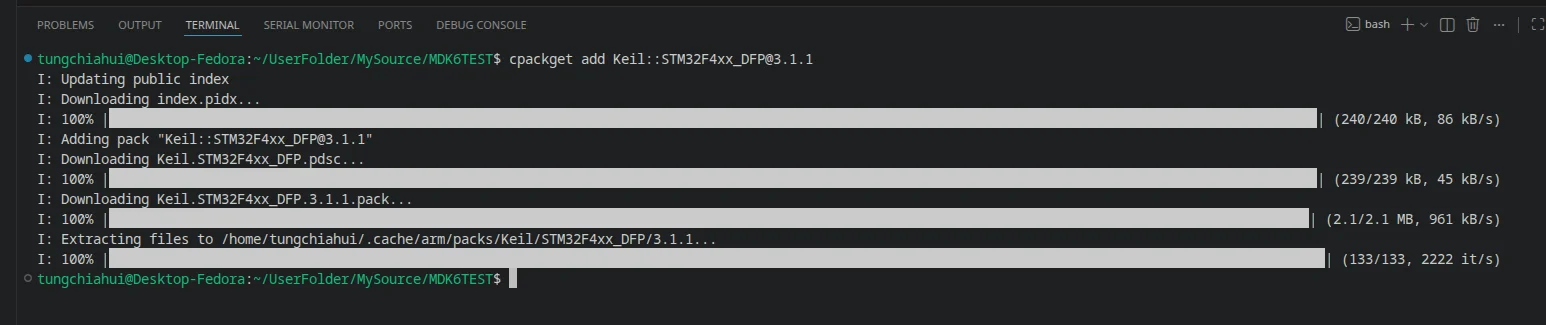
cpackget add Keil::STM32F4xx_DFP@3.1.1It will start downloading aggressively:

Press here on the keyboardA
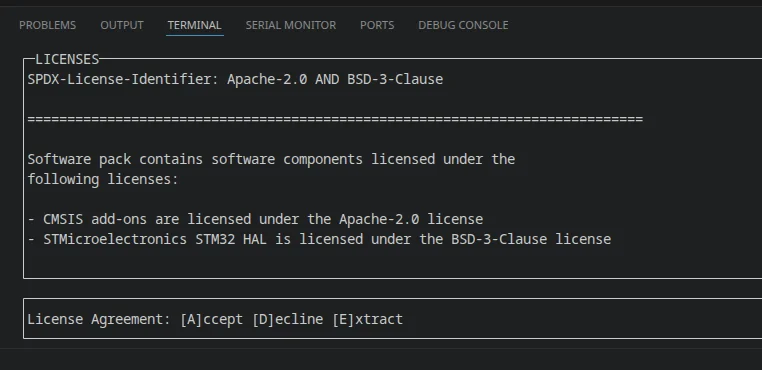
Installation complete:
ThenCtrl + Shift + PSearch:
developer:reload window5.4.Open the CubeMX generator
5.4.1.Graphical
Click directly:
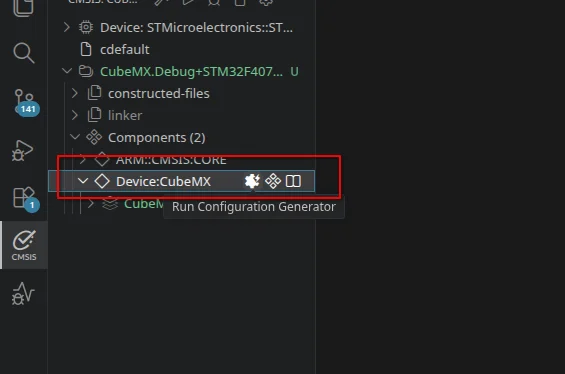
If the interface does not pop up, tested in practiceArm CMSIS Solution 1.70.0it can pop up, whereasArm CMSIS Solution 1.72.0does not pop up, this may be a bug (Issue #550), you can first downgrade or directly open CubeMX using the terminal.
5.4.2.Terminal
When the following problem occurs, you can only open CubeMX in the terminal:

csolution CubeMX.csolution.yml run \
  -g CubeMX \
-a STM32F407IGHx5.5.Configure the project with CubeMX (no need to teach this, configure it yourself)
Successfully launch CubeMX:
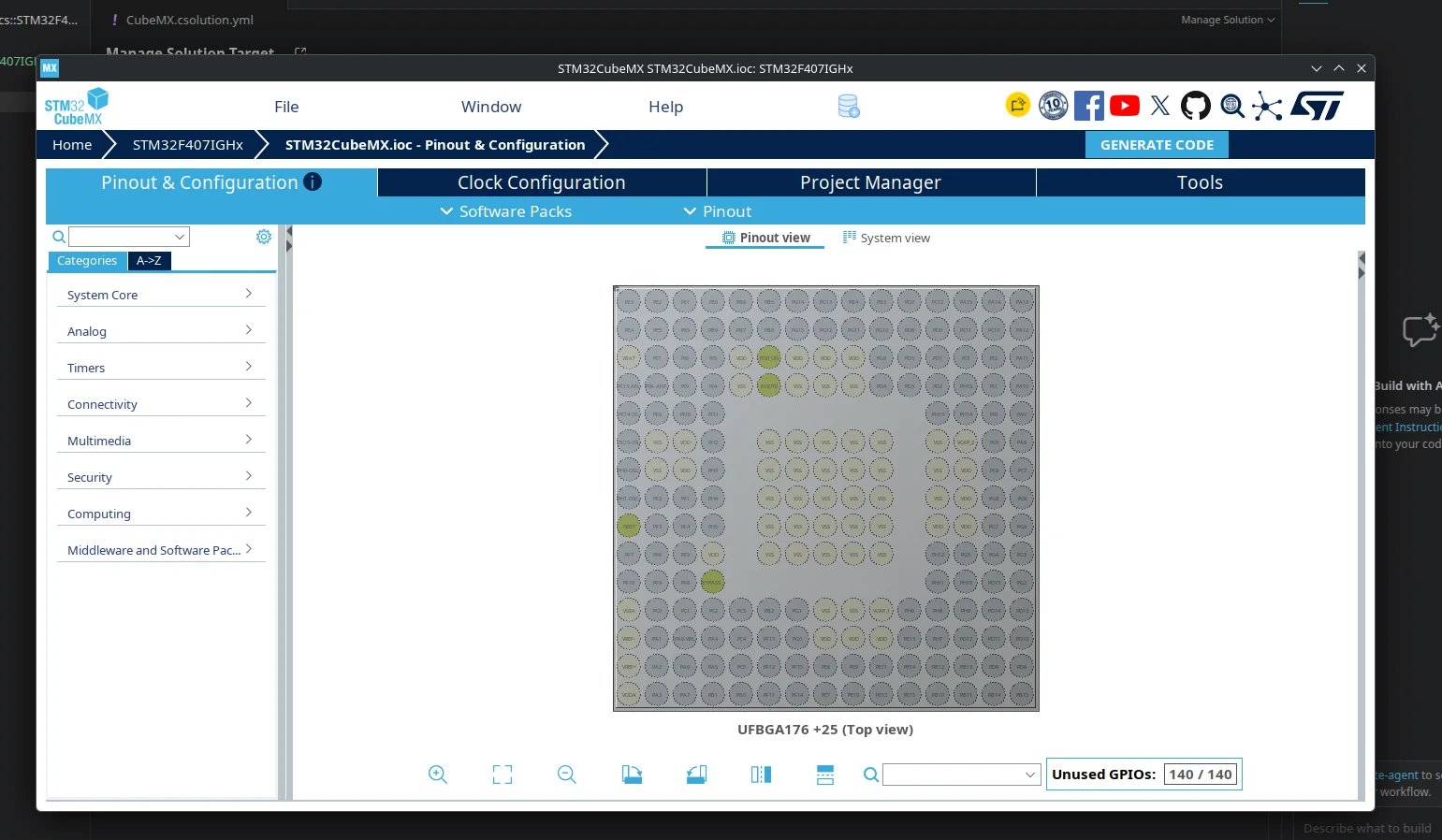
Next, proceed with configuration,
Here I have mainly configured the following settings:
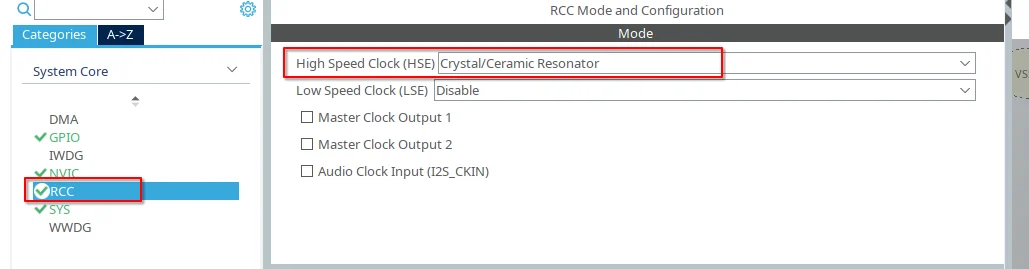
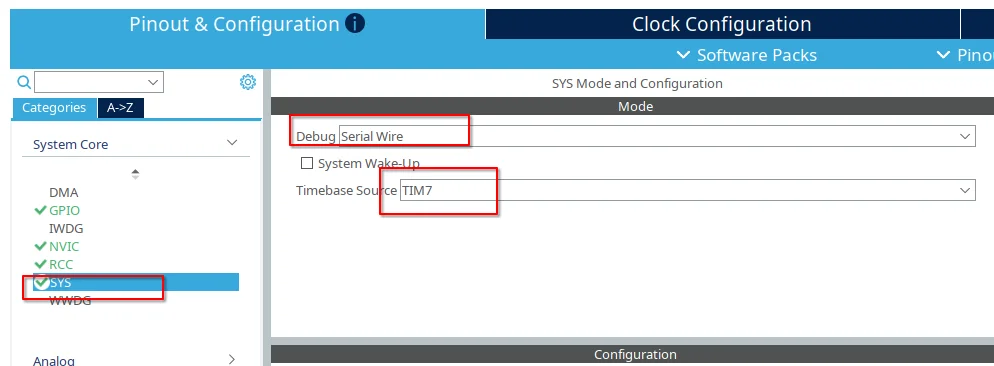
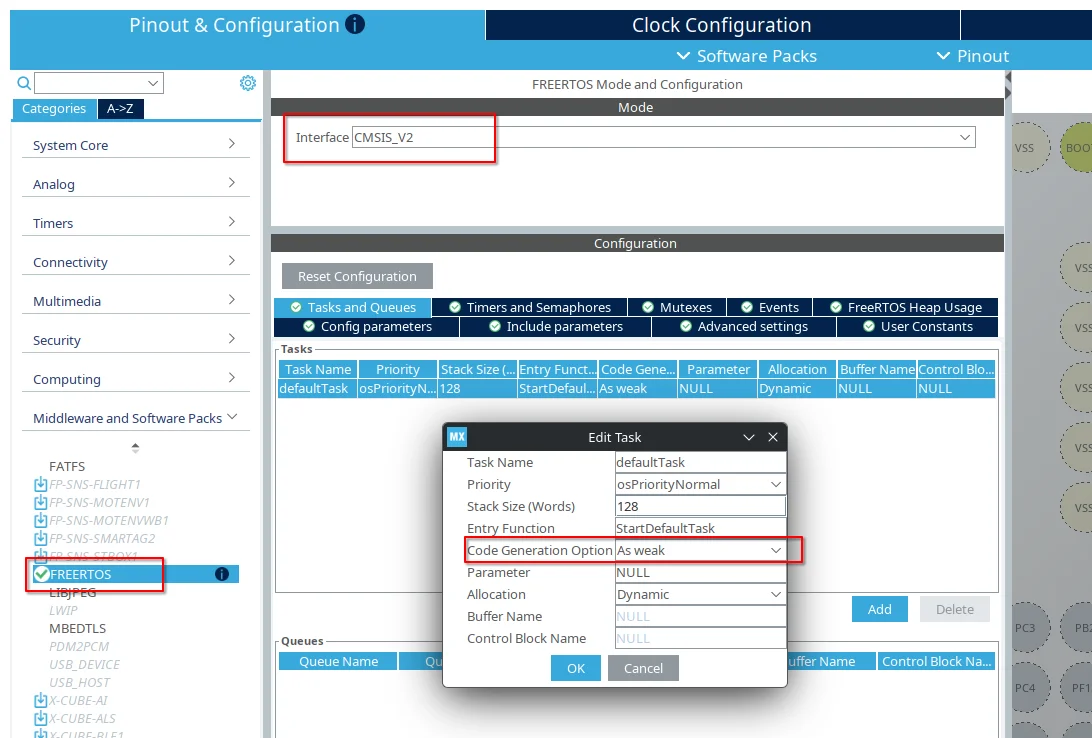
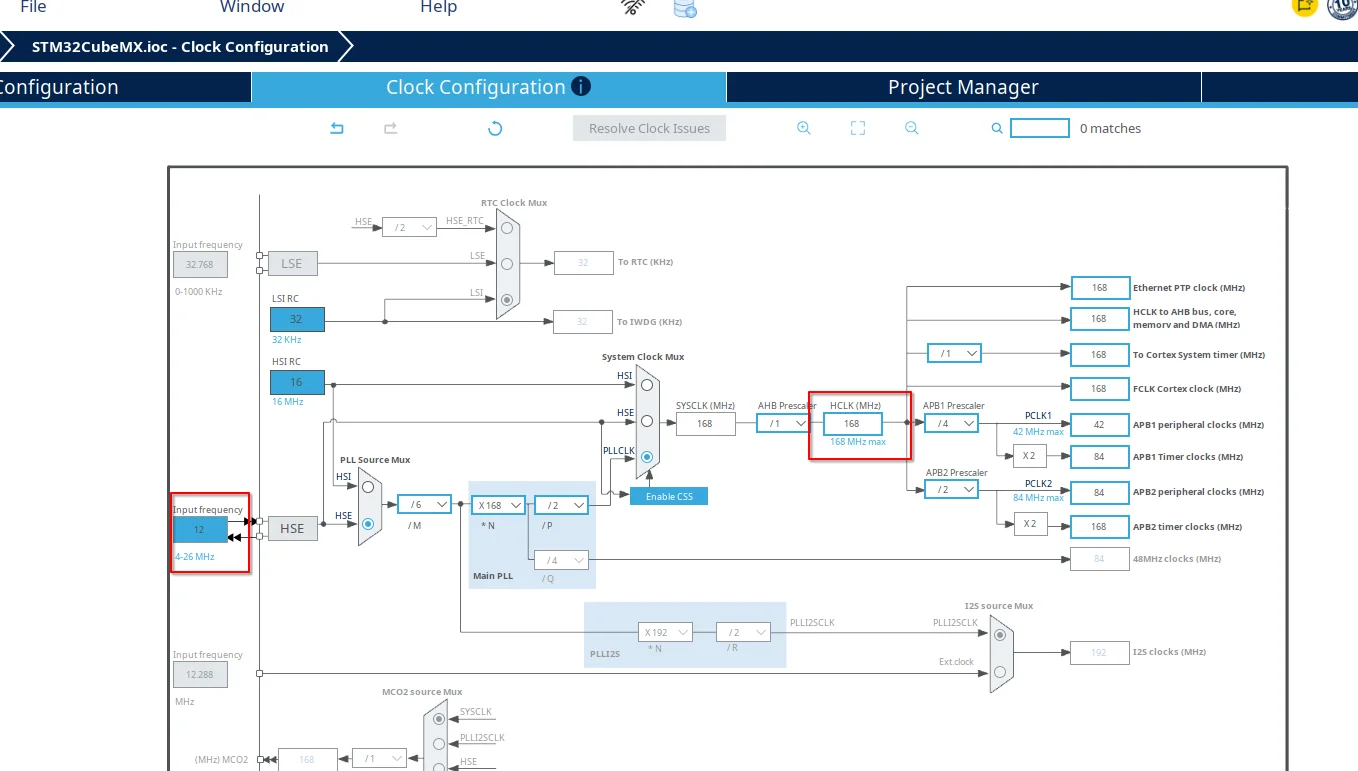
and turned on an LED for testing
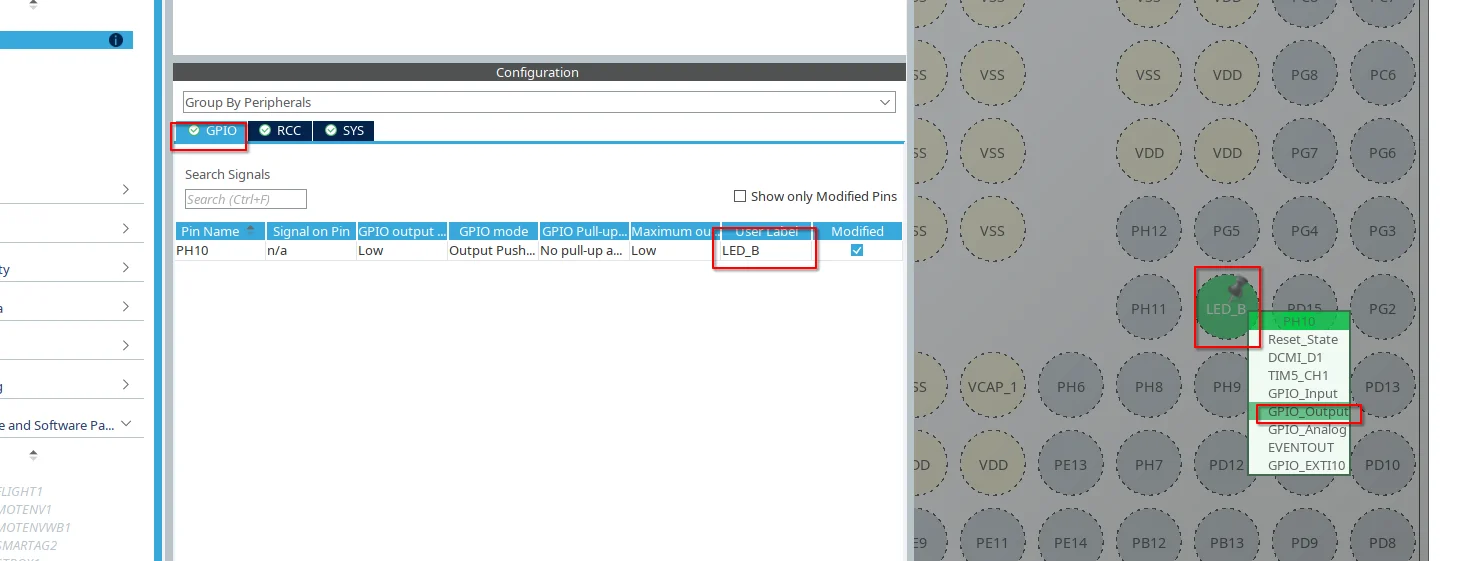
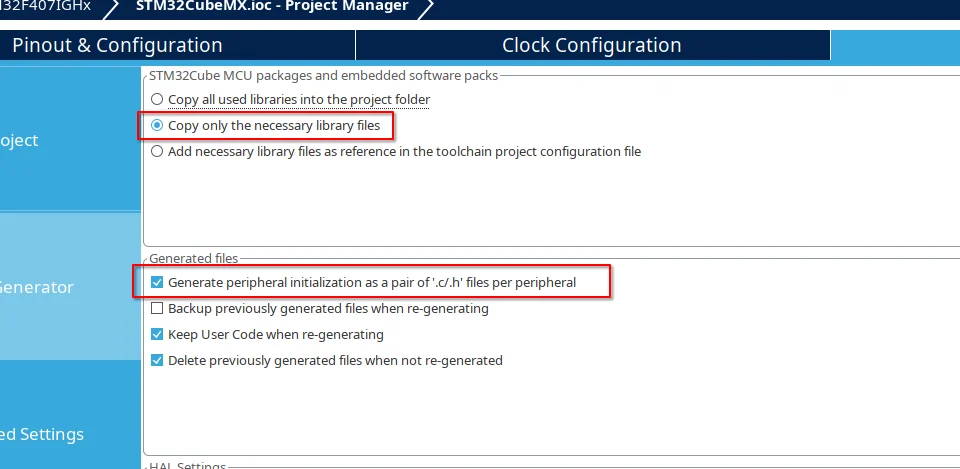
After configuration is complete, note that the settings here must also be modified according to the figure below:
| The compiler you selected in MDK6/csolution | The corresponding toolchain on the CubeMX side |
|---|---|
AC6 |
MDK-ARM |
IAR |
EWARM |
GCC |
STM32CubeIDE / Makefile / CMake |
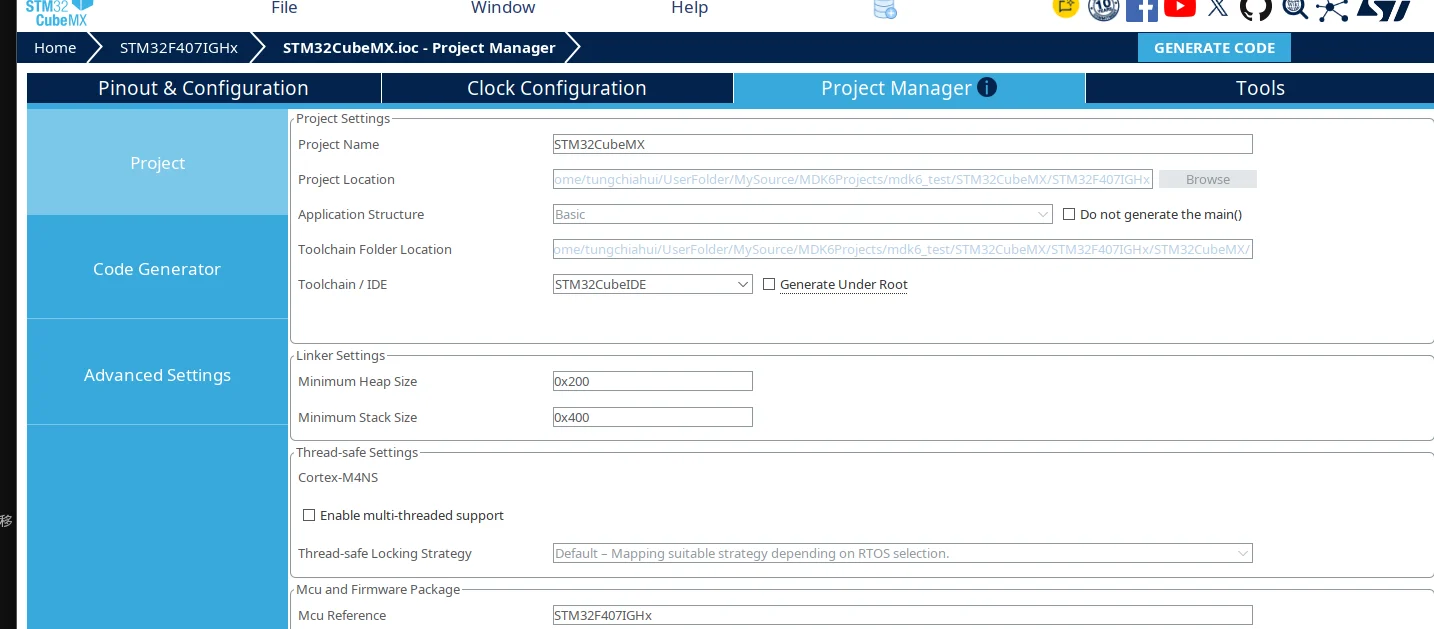
Here I chooseSTM32CubeIDE(because the official example usesSTM32CubeIDEas the example), I have also only testedSTM32CubeIDE, which is fine. You can test the other two options yourself, but it is actually unnecessary—just chooseSTM32CubeIDEand that is enough.
The official ST definition of Generate Under Root is:
- ✅ Checked: Put the STM32CubeIDE project files directly into the CubeMX project root directory
- ❌ Unchecked: Generate a separate STM32CubeIDE/ toolchain directory
So we do not check it.
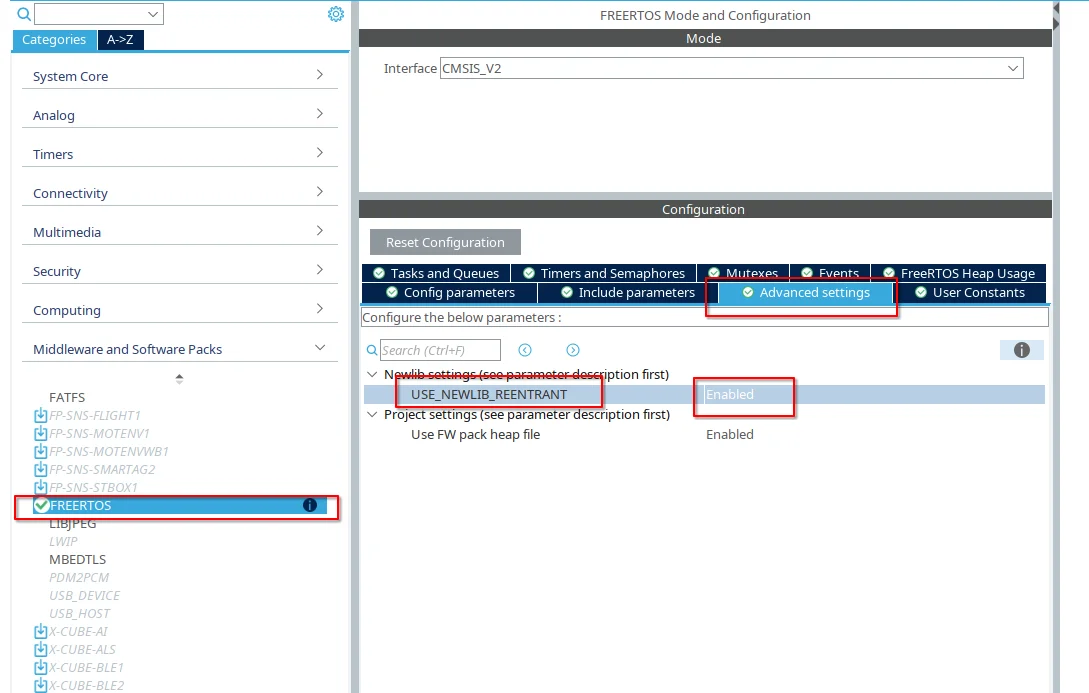
There is an issue here: with the GCC compiler (as long as you use GCC/newlib + FreeRTOS), you need to enableconfigUSE_NEWLIB_REENTRANT, so we need to first configure it in the FreeRTOS settings:
5.6.Download firmware and generate configuration
Clickgenerate codeAfterwards, if a prompt pops up asking you to download FW, select yes.
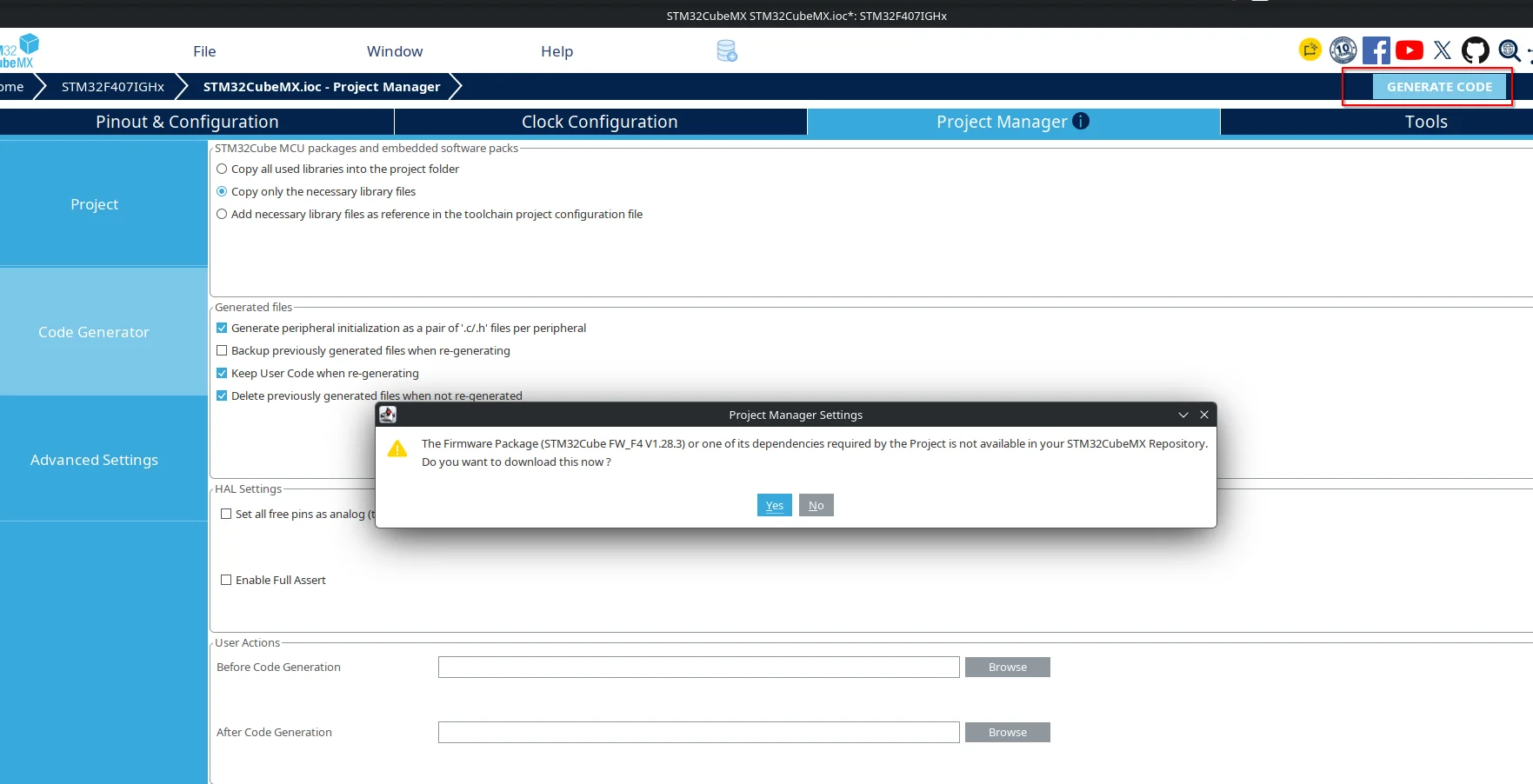
Choose the followingdon't ask me again
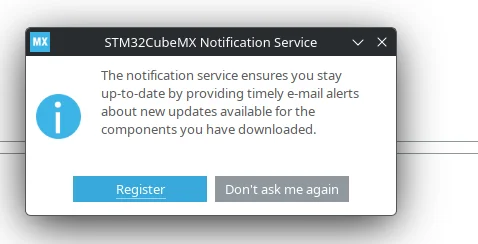
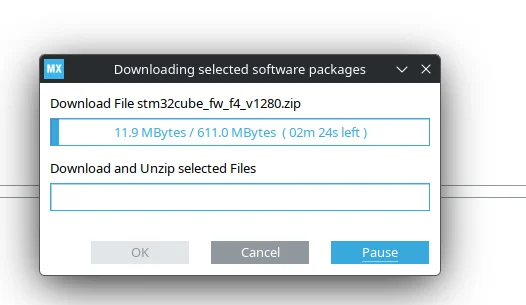
It will automatically start downloading the firmware (depending on your network environment; generally, a direct connection works, and if necessary, you can take certain measures).
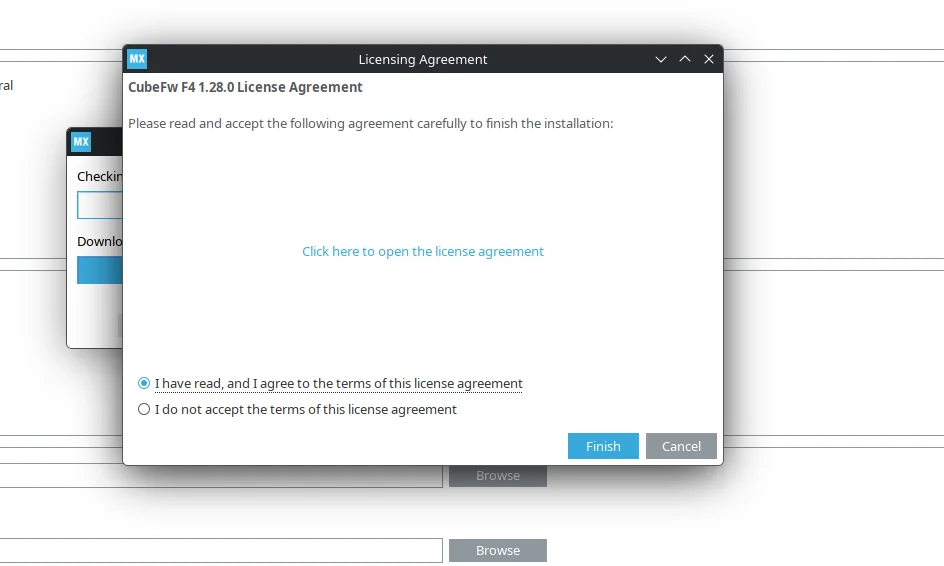
Consent to sublicense
Extraction will start automatically
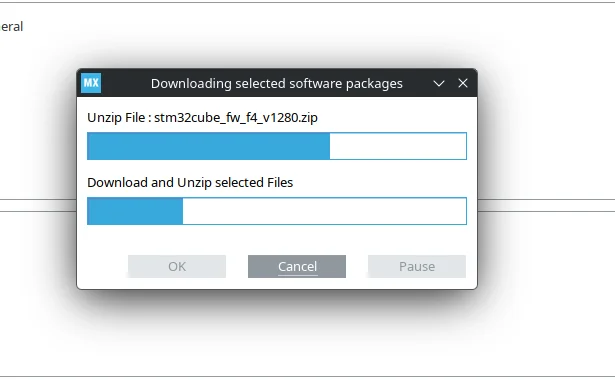
This completes the code generation. Click close and close CubeMX.
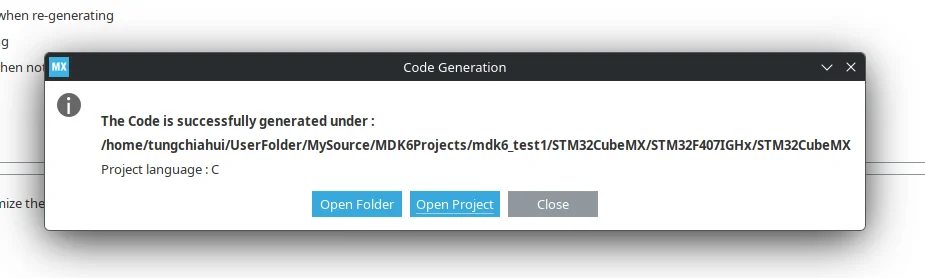
5.7.Modify configuration:
5.7.1.Arm Tools Environment Configuration
ThenCtrl + Shift + PSearch:
Arm Tools: Configure Arm Tools Environment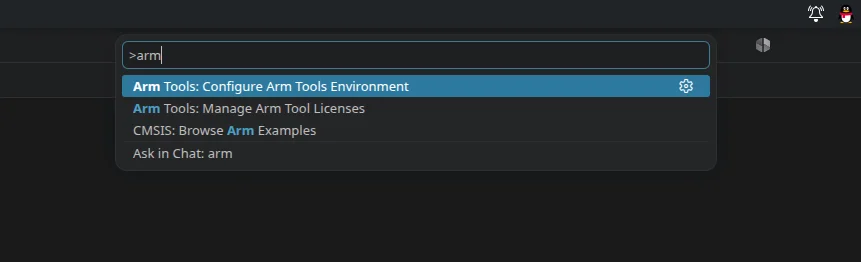
Enter the Arm Tools Environment Manager.
Install at least:
Arm CMSIS-Toolbox
MDK-Toolbox
GCC compiler for ARM CPUs
Kitware's CMake tool
Ninja Build- Arm CMSIS-Toolbox
FindArm CMSIS-Toolbox,select2.15.0,For this version, it is best to choose this one first. Later, once you understand what this thing is for, you can select other versions.
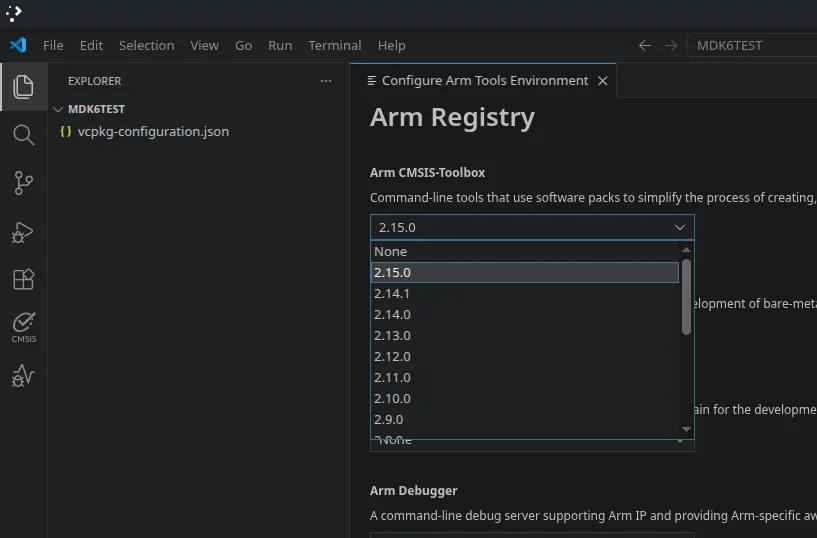
The pop-up interface keeps selecting总是允许
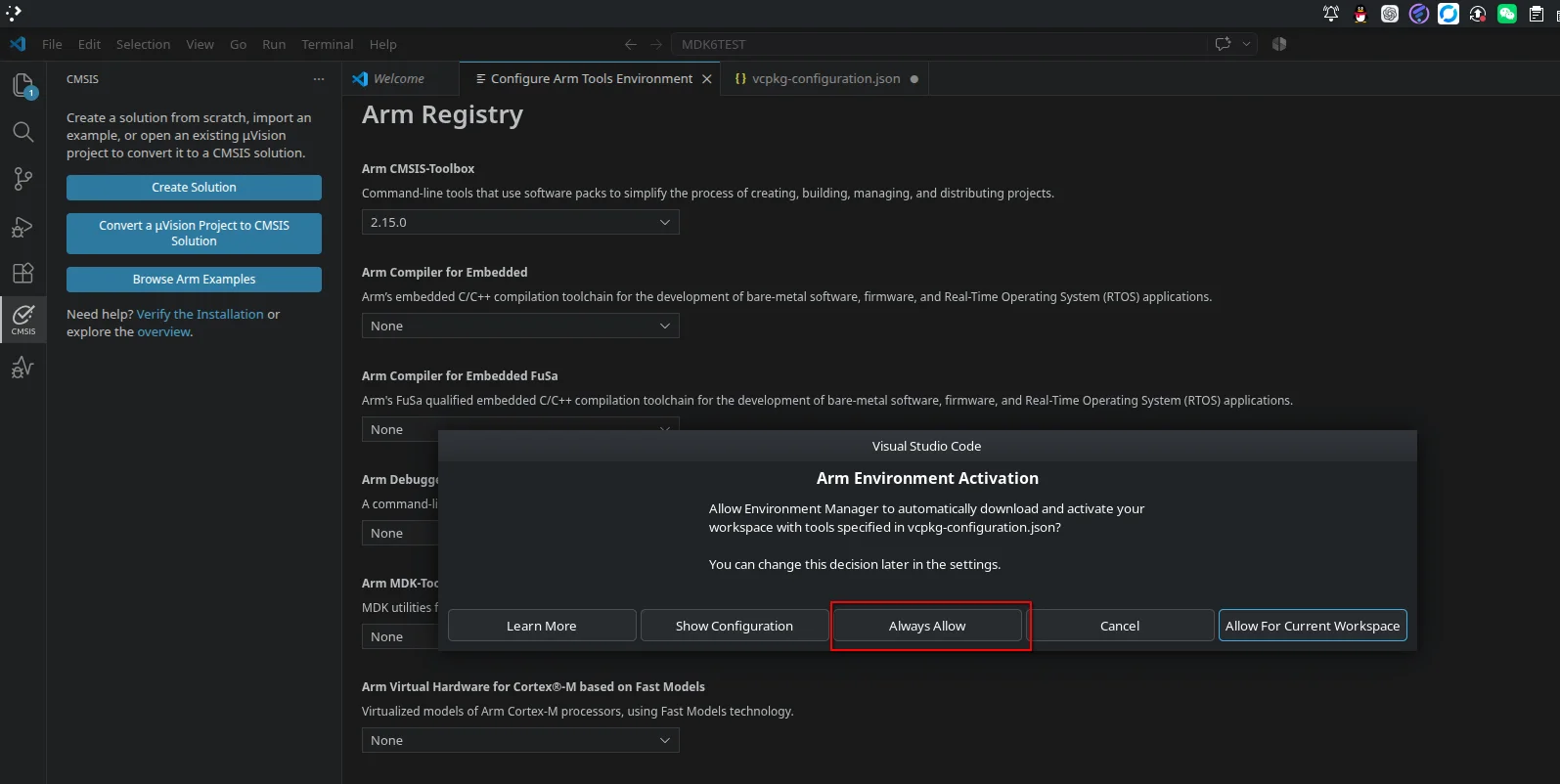
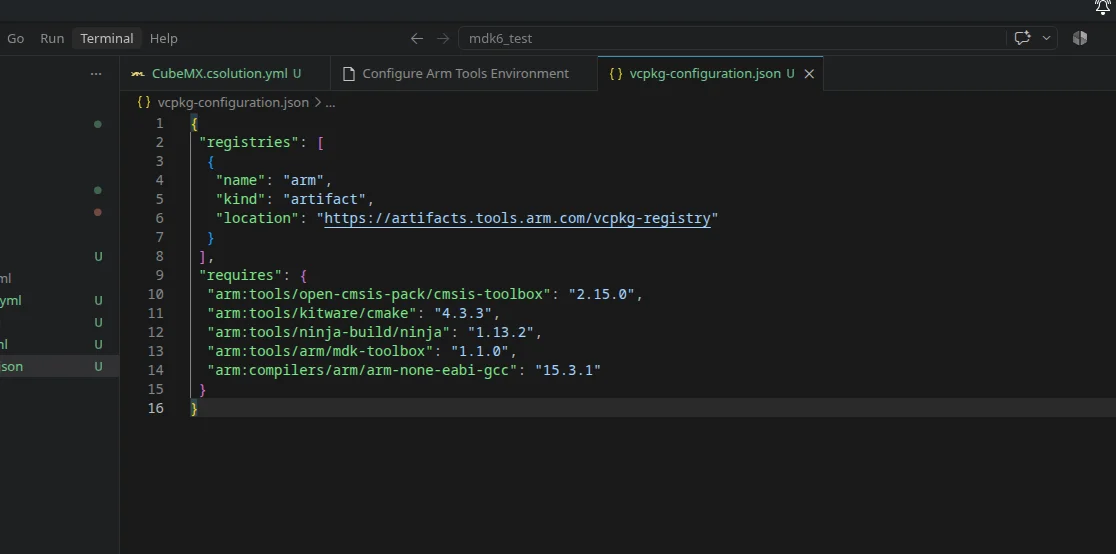
This pop-upvcpkg-configuration.jsonyou useCtrl + Shelp him save it
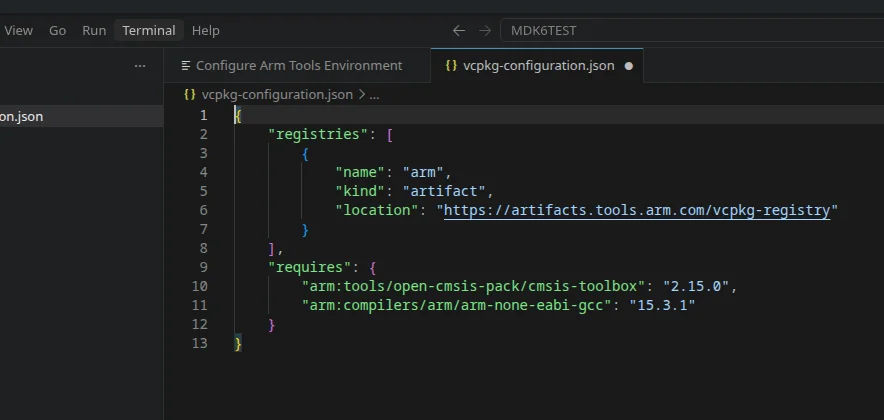
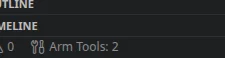
The download will start here in the lower left corner, and when the download is complete, it will appearArm Tools:xAs shown in the figure below:
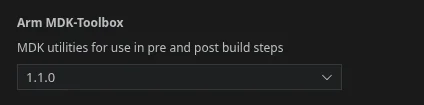
- MDK-Toolbox
Just select the latest version.
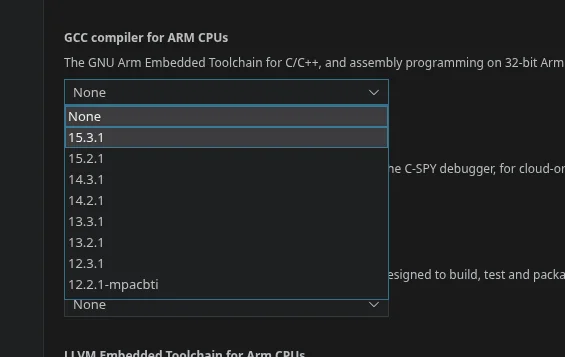
- GCC compiler for ARM CPUs
不用
Arm Compiler for Embedded的原因是Arm Clang(AC6)目前只支持C++17标准,而有很多C++20很爱好用的特性无法用,即便Arm Clang(AC6)很强,咱们还是放弃使用了,咱们用Arm GCC编译器.
Select the latest version; the higher the version, the higher the C/C++ standard supported.
Then it can be closed at the same timeArm Compiler for Embedded, we do not need toArm Clang(AC6)

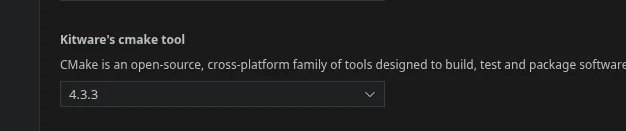
- Kitware's CMake tool
Just select the latest version.
- Ninja Build
Just select the latest version.

This pop-upvcpkg-configuration.jsonyou useCtrl + Shelp him save it
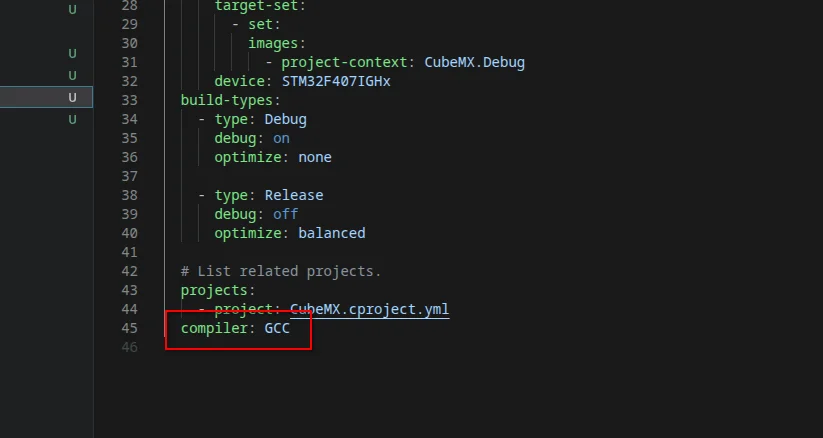
5.7.2.Compiler selection for solution
OpenCubeMX.csolution.yml
Change the following fromAC6toGCC
5.7.3.
Generated by CubeMX, the startup_stm32f407ighx.s requires these symbols from CubeMX's own set of GCC linker script, but CMSIS-Toolbox now uses its automatically generated default gcc_linker_script.ld.
The official CMSIS-Toolbox CubeMX documentation actually specifically emphasizes this point:
The linker script generated by CubeMX is strongly bound to the startup/system initialization code, so the linker script generated by CubeMX should be used.
And the official path for GCC is,./STM32CubeMX/<target_name>/STM32CubeMX/<device_name>.ld
OpenCubeMX.cproject.yml, at the very bottom add:
  linker:
    - script: ./STM32CubeMX/STM32F407IGHx/STM32CubeMX/STM32F407xx_FLASH.ld
for-compiler: GCC-
This
linkeris at the same level ascomponentsandoutputand belongs to the same level, that is, it belongs toprojectthe next level. -
Here
./STM32CubeMX/STM32F407IGHx/STM32CubeMX/STM32F407xx_FLASH.ldis generated by CubeMX.ld. Go check whether the path is actually this and whether the file name is this. It may need to be modified and cannot be copied directly.
6.First compilation
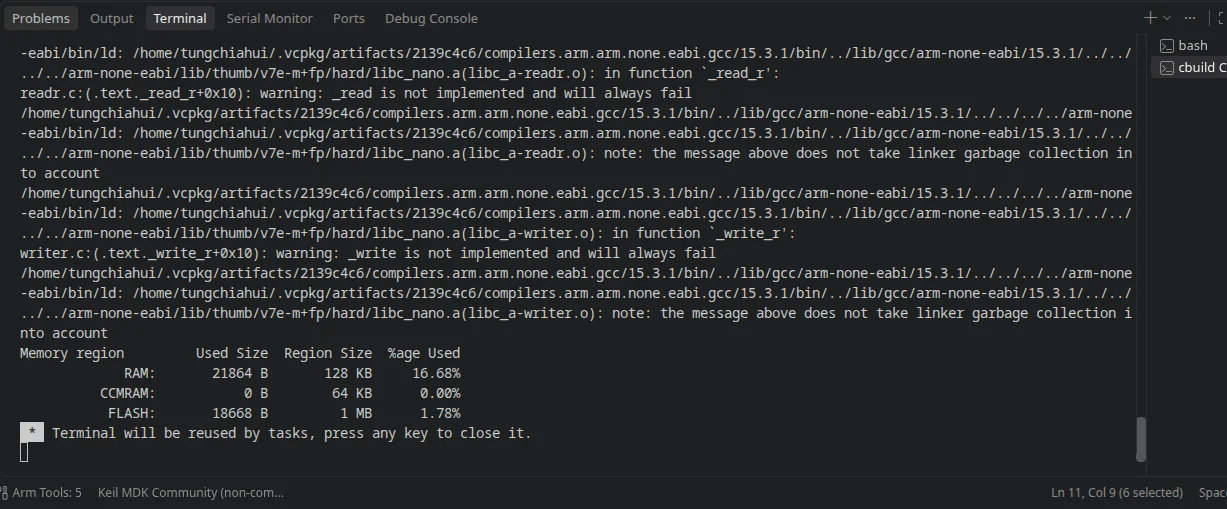
Next, compile
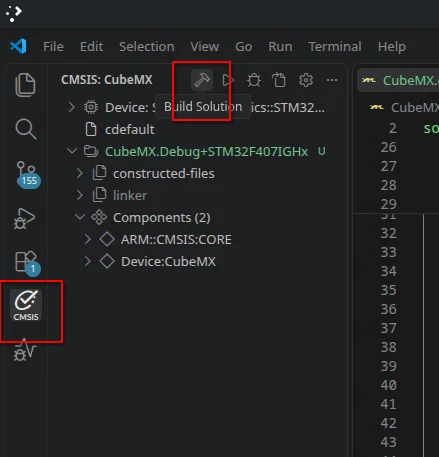
Compilation successful
7.Configure as a standard project
7.1.Configure C/C++ standard
OpenCubeMX.cproject.yml, at the very bottom add:
These two belong toprojectthe next level of:
Here I take C23 and C++23 as examples. In practice, you may not need such a high standard; decide on the standard yourself. We also only use C++20.
  # List the programming languages used in the project.
  language-C: c23
  language-CPP: c++23
The following are specific values that can be entered for these two options:
language-C:
Documentation: https://open-cmsis-pack.github.io/cmsis-toolbox/YML-Input-Format/#language-c

Language standard to apply for compiling C source files.

For example c17, or gnu11.

Allowed Values:

c90
gnu90
c99
gnu99
c11
gnu11
c17
gnu17
c23
gnu23

Source: cproject.schema.json
language-CPP:
Documentation: https://open-cmsis-pack.github.io/cmsis-toolbox/YML-Input-Format/#language-cpp
Language standard to apply for compiling C++ source files.
For example c++17 or gnu++17.
Allowed Values:
c++98
gnu++98
c++03
gnu++03
c++11
gnu++11
c++14
gnu++14
c++17
gnu++17
c++20
gnu++20
c++23
gnu++23
Source: cproject.schema.json7.2.Configure the STM32 C++ standard project
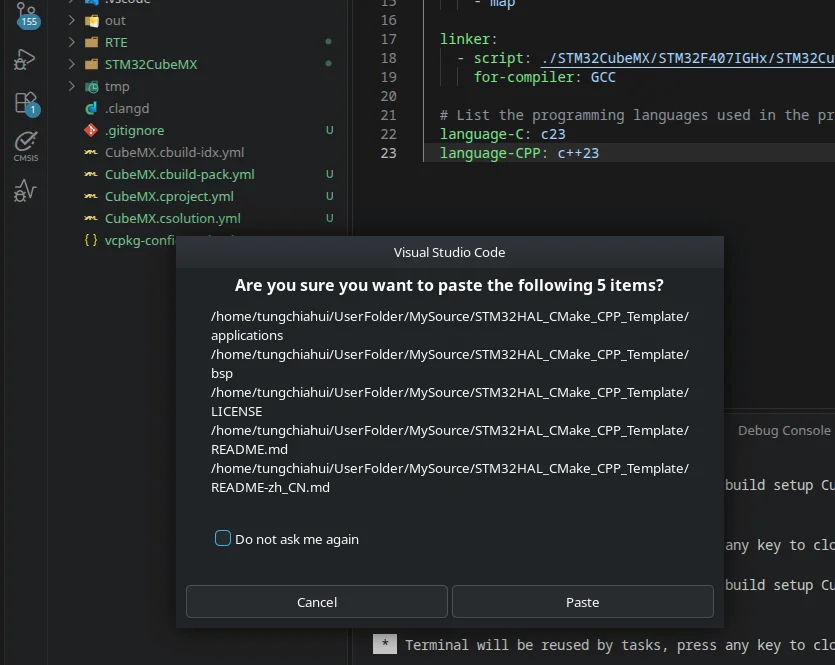
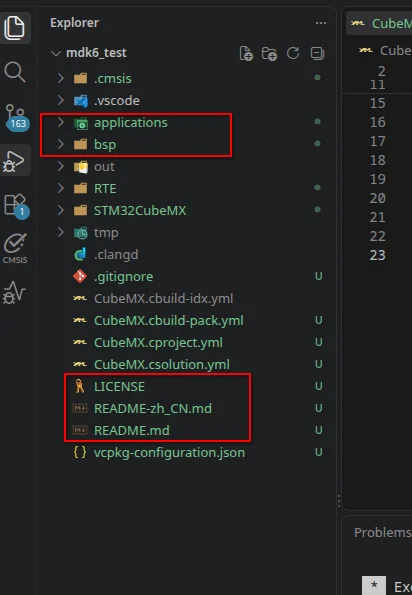
git clone Copy everything in the folder to the project directorymdk6_test:
OpenCubeMX.cproject.yml:
We want to add:
add-path:
groups:
files:add-pathandgroupsbelongs toprojectthe next level of
The official definition is:
- add-path: add C/C++ include path
- groups: add source groups
- files: add specific source files
For example, the engineering here:
 # List the include paths to be used by the compiler.
  add-path:
    - ./applications/Inc
    - ./bsp/boards/Inc

  # List the groups of source files to be compiled.
  groups:
    - group: applications
      files:
        - file: ./applications/Src/cpp_interface.cpp
    - group: bsp/boards
      files:
        - file: ./bsp/boards/Src/bsp_delay.cpp
Save it after writing.
Then openmain.c
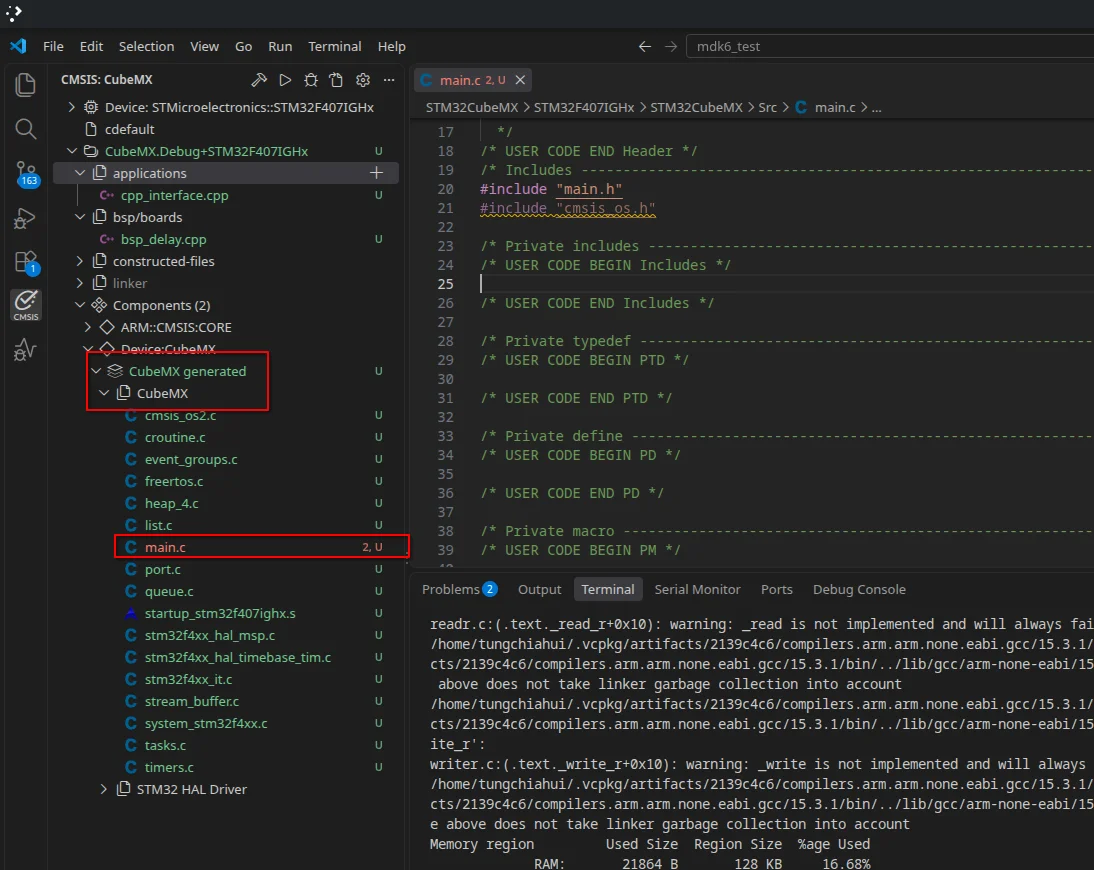
Add at this location:
/* USER CODE BEGIN Includes */
#include "cpp_interface.h"
/* USER CODE END Includes */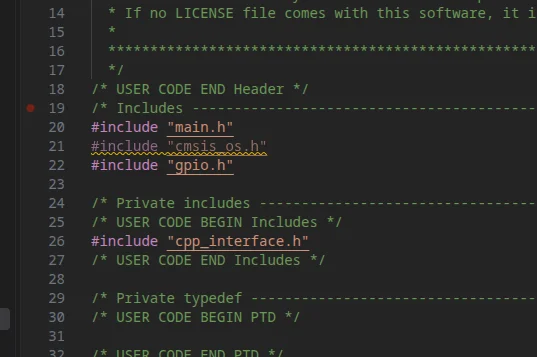
  /* USER CODE BEGIN 2 */
  cpp_main();
  /* USER CODE END 2 */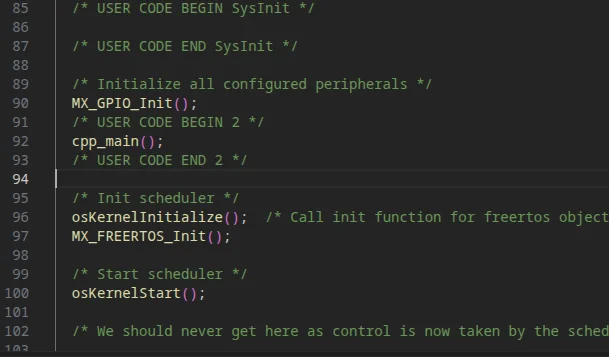
Then opencpp_interface.cppand findisRTOS.
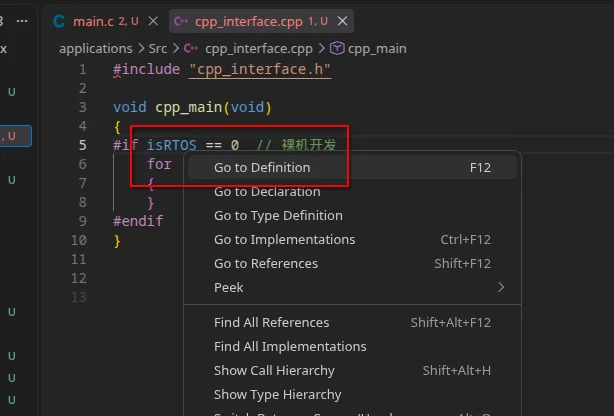
GiveisRTOSChange to 1
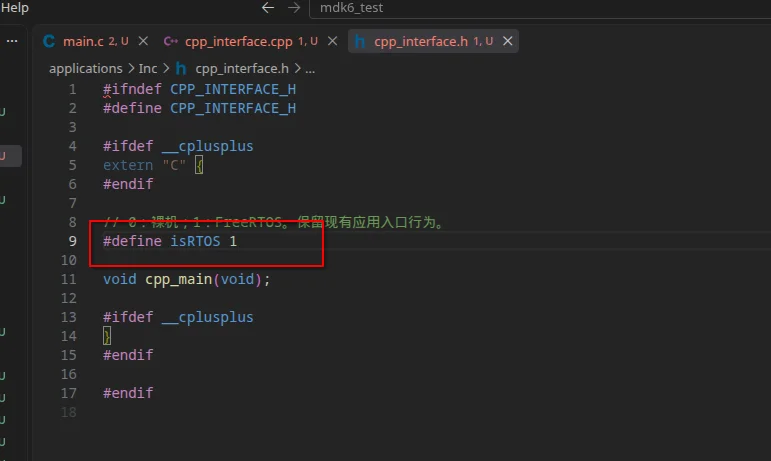
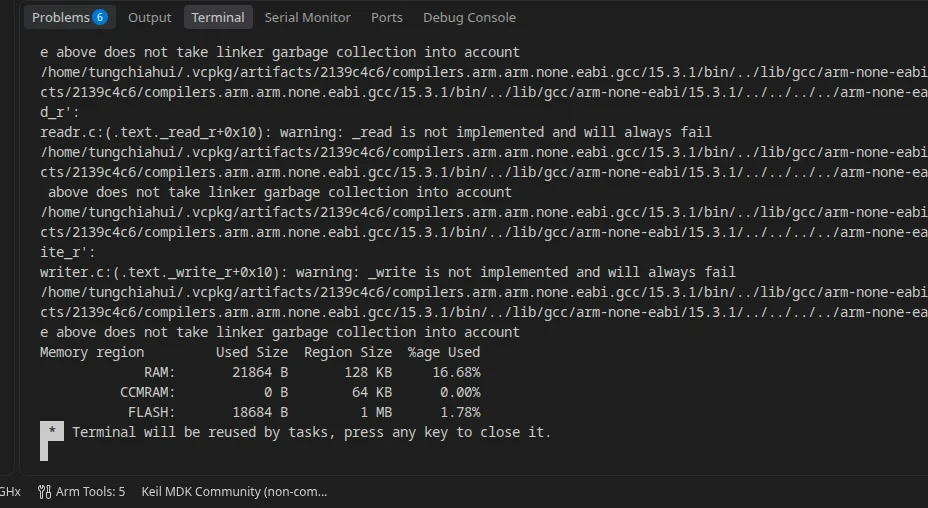
Try compiling once:
7.3.Light up a lamp
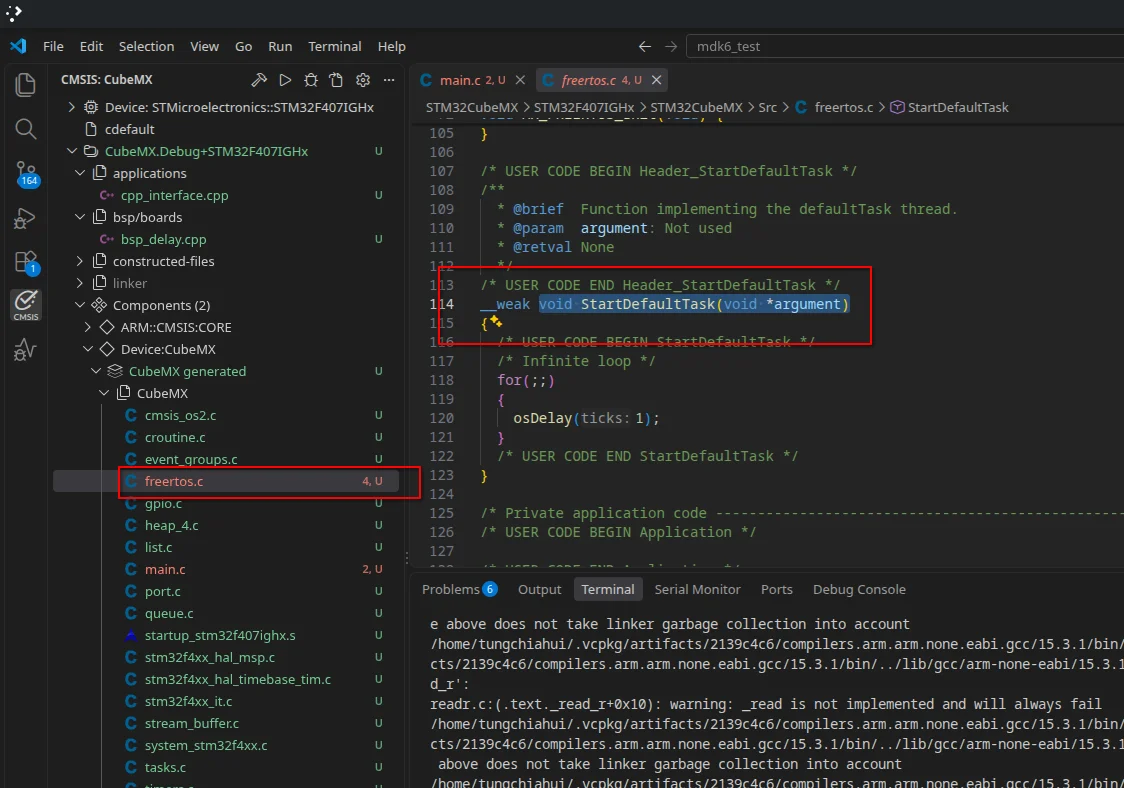
Copy thisvoid StartDefaultTask(void *argument).
Gocpp_interface.cppDo a simple test:
#include "cpp_interface.h"
#include "cmsis_os.h"
#include "main.h"

void cpp_main(void)
{
#if isRTOS == 0  // 裸机开发
    for (;;)
    {
    }
#endif
}

extern "C"
void StartDefaultTask(void *argument)
{
    for (;;)
    {
        HAL_GPIO_TogglePin(LED_B_GPIO_Port , LED_B_Pin);
        osDelay(500);
    }
}
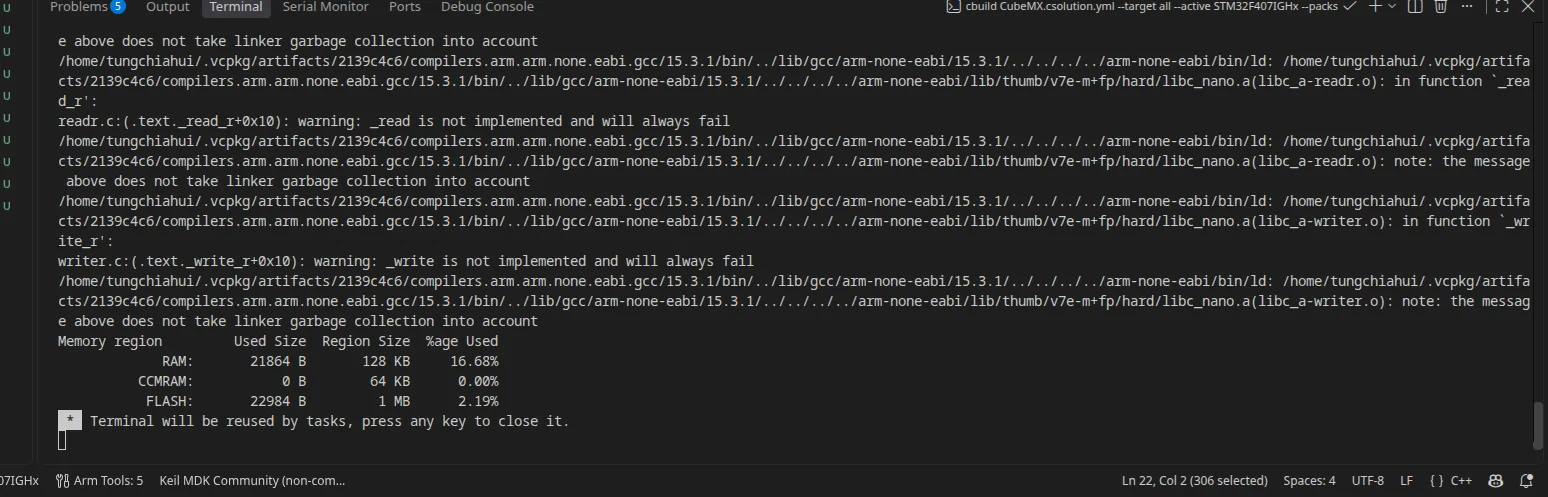
Try compiling once:
8.Configure Debugger
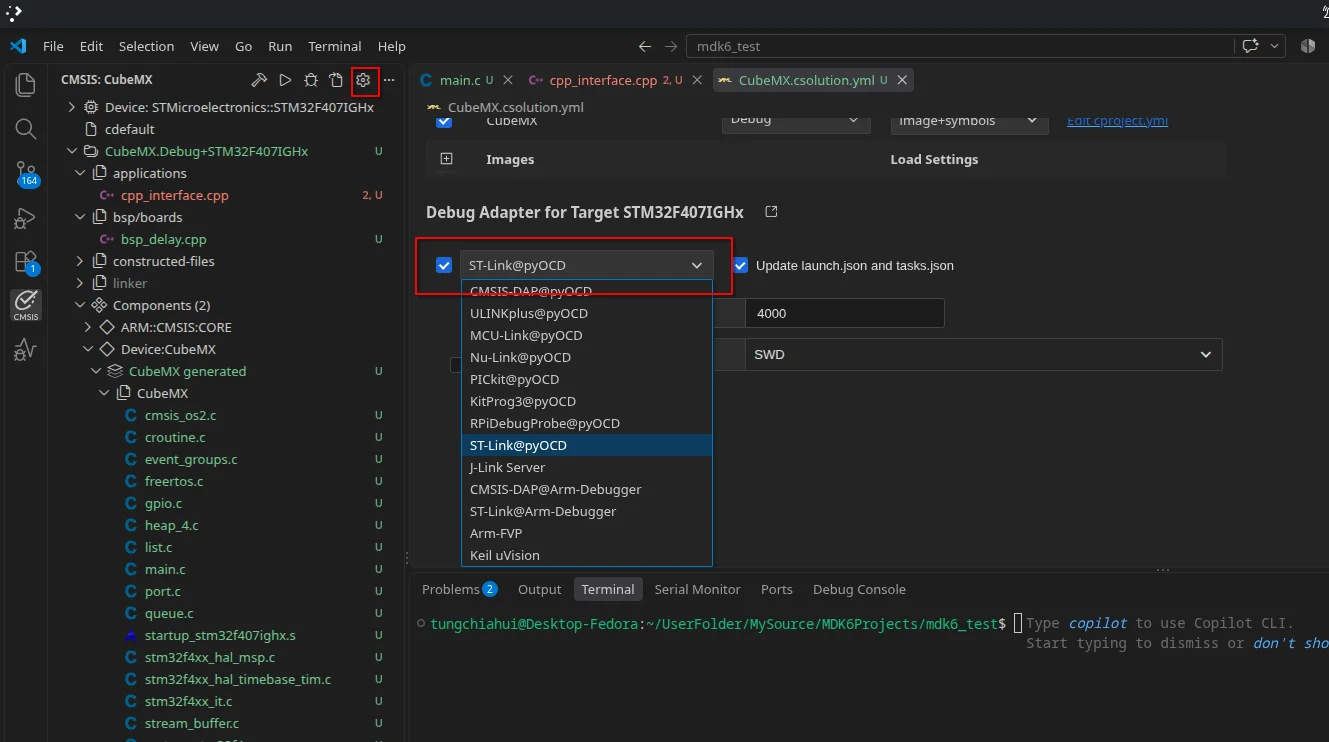
Click Settings, findDebug Adapter for Target STM32F407IGHx:
You can choose from a particularly large number of Debuggers, such asST-Link,J-Link,CMSIS-DAPand so on.