Wiki
Plugin Usage Tutorial
Existing English translations were reused. 22 current source blocks remain in Simplified Chinese, without triggering paid translation.
1.CubeMX install FW
Click Help

Select Manage embedded software packages, and check the first latest firmware for STM32F1, F4, and H7.

Click install

You can choose without logging in to an account.do not ask me again
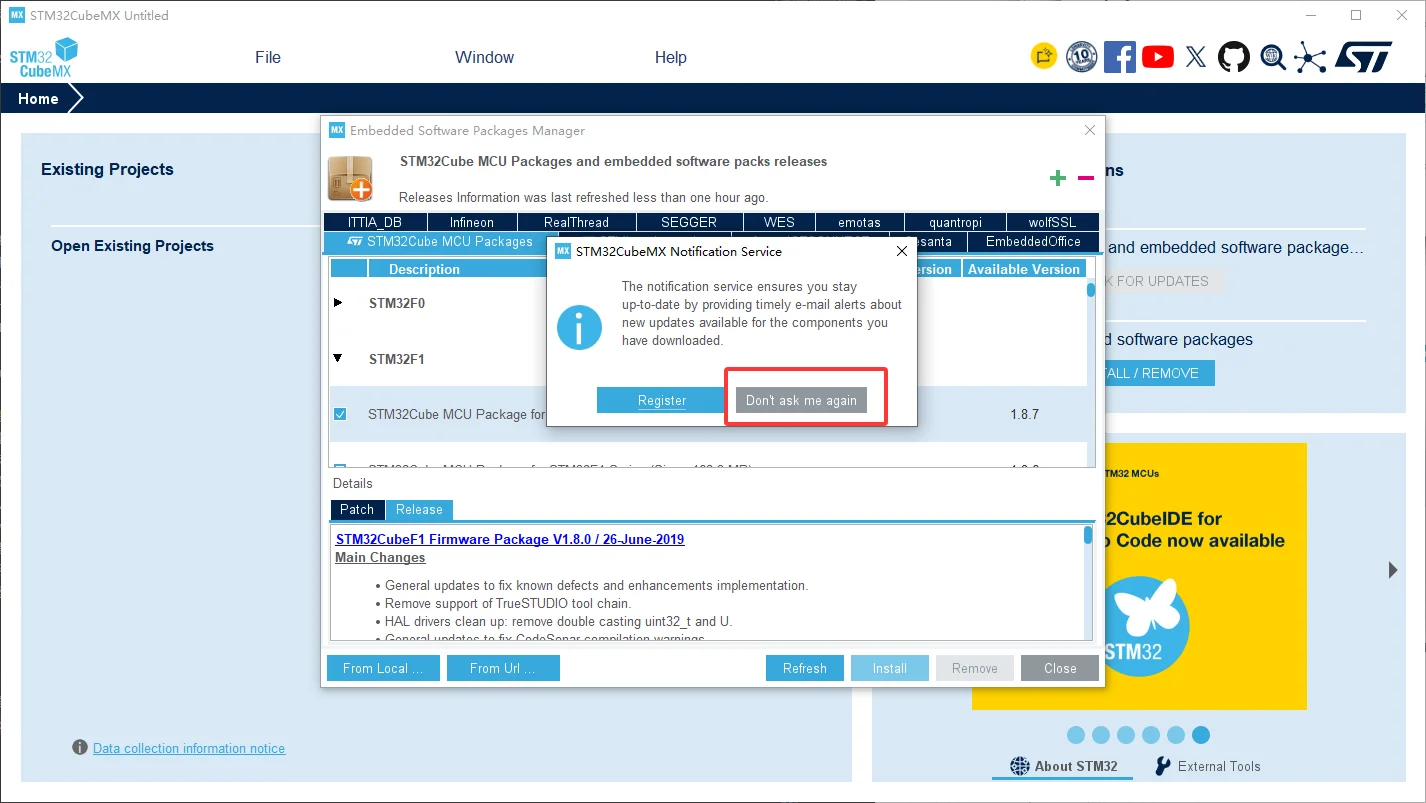
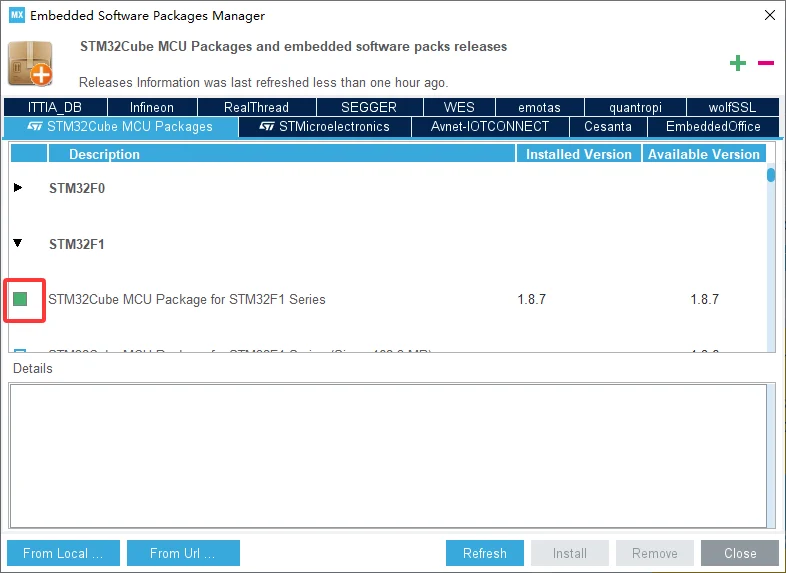
Then wait for the download and installation to complete

Just finish downloading it and you're good.
2.VScode install plugin
Then open VSCode and enter the following command in the terminal.
code
Then, an environment can be configured to be used exclusively by the CubeIDE plugin, avoiding conflicts with the default environment.

Configure some settings according to your own habits; it is also fine to temporarily follow mine for the ones you do not understand.

Select STM32

Then install some plugins

Find the followingSTM32CubeIDE for Visual Studio CodePlugin installation

On the right, this prompt appears and you need to select install (a goodscientific networkis required)

Next, some environment installations will be performed.

You can also install some other plugins, such as Codex and others. It's up to you.

3.OpenOCD Usage Notes
3.1.Select the debugger and MCU model.
OpenOCD generally determines through a .cfg configuration file: which debugger to use + which MCU to connect to
openocd -f interface/调试器.cfg -f target/芯片系列.cfgFirst parameter: depends on which debugger you use
| Debugger | OpenOCD Configuration | Description |
|---|---|---|
| ST-Link V2 / V2-1 / V3 | "interface/stlink.cfg" |
Most common for STM32 |
| DAPLink | "interface/cmsis-dap.cfg" |
DAPLink implementation CMSIS-DAP |
| CMSIS-DAP | "interface/cmsis-dap.cfg" |
Many third-party debuggers use |
| J-Link | "interface/jlink.cfg" |
SEGGER J-Link |
| FTDI type JTAG/SWD | "interface/ftdi/xxx.cfg" |
Select according to specific hardware |
Second parameter: which STM32 series to look at
| STM32 Series | Common Model Examples | OpenOCD Target |
|---|---|---|
| STM32C0 | C011, C031, C071 | "target/stm32c0x.cfg" |
| STM32F0 | F030, F072 | "target/stm32f0x.cfg" |
| STM32F1 | F103C8, F103RC | "target/stm32f1x.cfg" |
| STM32F2 | F205, F207 | "target/stm32f2x.cfg" |
| STM32F3 | F303, F334 | "target/stm32f3x.cfg" |
| STM32F4 | F405, F407, F429, F446 | "target/stm32f4x.cfg" |
| STM32F7 | F746, F767 | "target/stm32f7x.cfg" |
| STM32G0 | G030, G070, G0B1 | "target/stm32g0x.cfg" |
| STM32G4 | G431, G474 | "target/stm32g4x.cfg" |
| STM32H5 | H503, H563, H573 | "target/stm32h5x.cfg" |
| STM32H7 | H743, H750, H745, H747 | "target/stm32h7x.cfg" |
| STM32H7RS | H7R3, H7S3 | "target/stm32h7rsx.cfg" |
| STM32L0 | L031, L073 | "target/stm32l0.cfg" |
| STM32L1 | L151, L152 | "target/stm32l1.cfg" |
| STM32L4 / L4+ | L432, L476, L496, L4R5 | "target/stm32l4x.cfg" |
| STM32L5 | L552, L562 | "target/stm32l5x.cfg" |
| STM32N6 | N657, etc. | "target/stm32n6x.cfg" |
| STM32U0 | U031, U073 | "target/stm32u0x.cfg" |
| STM32U3 | U385, etc. | "target/stm32u3x.cfg" |
| STM32U5 | U575, U585, U5A5 | "target/stm32u5x.cfg" |
| STM32WB | WB55, etc. | "target/stm32wbx.cfg" |
| STM32WBA2 | WBA2xx | "target/stm32wba2x.cfg" |
| STM32WBA5 | WBA5xx | "target/stm32wba5x.cfg" |
| STM32WBA6 | WBA6xx | "target/stm32wba6x.cfg" |
| STM32WL | WL55, WLE5 | "target/stm32wlx.cfg" |
| STM32C5 | C53, C54, C55, C56, C59, C5A | See the explanation below |
Pay special attention to the STM32C5:
For now, do not hardcode C5 astarget/stm32c5x.cfg, The reason is that OpenOCD support for STM32C5 is very new. It was only in July 2026 that a stm32c5x.cfg support patch was submitted to OpenOCD Gerrit; the filename in the patch is indeedtarget/stm32c5x.cfg。 However, it has not yet been fully released in OpenOCD, so we need to wait for a while.
3.2.Test device connection
We use thestm32f103c8andst-link:
So use
openocd -f interface/stlink.cfg -f target/stm32f1x.cfgYou can plug it in and run a test:
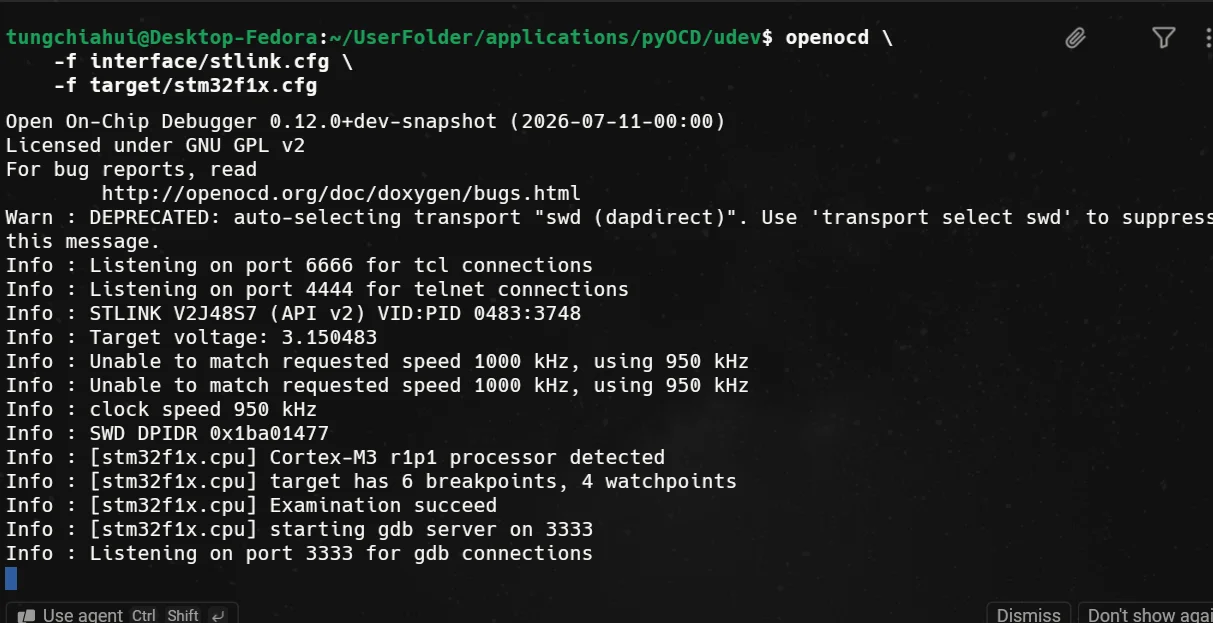
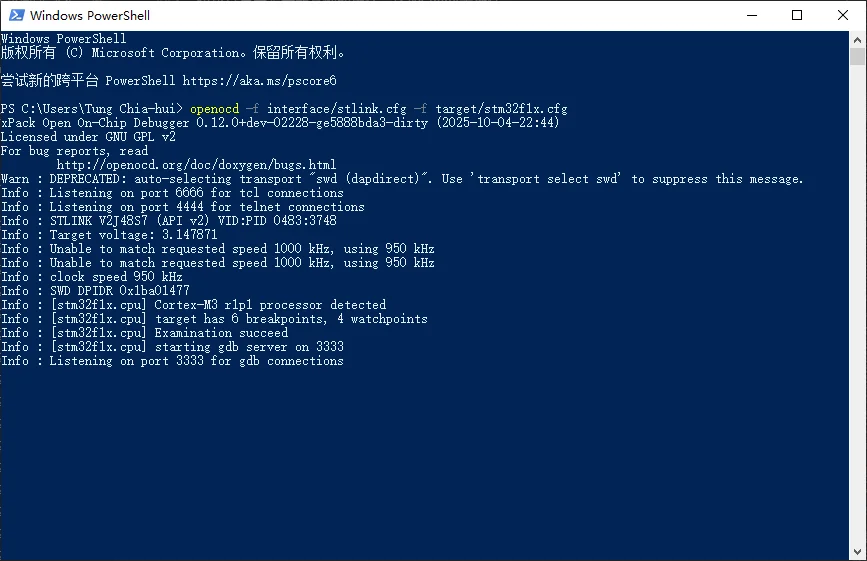
As shown in the figure above, the connection has been successfully established.
Several key logs are explained respectively:
Info : STLINK V2J48S7 ...
→ OpenOCD 正常识别 ST-Link。

Info : Target voltage: 3.150483
→ 目标板供电正常,约 3.15 V。

Info : SWD DPIDR 0x1ba01477
→ SWD 通信已经建立。

Info : [stm32f1x.cpu] Cortex-M3 r1p1 processor detected
→ 已经真正识别并连接 MCU 核心。

Info : target has 6 breakpoints, 4 watchpoints
→ Cortex-M3 的硬件断点/数据观察点正常。

Info : Examination succeed
→ Target 初始化成功。

最后:
Info : [stm32f1x.cpu] starting gdb server on 3333
Info : Listening on port 3333 for gdb connections
→ OpenOCD 的 GDB Server 已经正式启动,可以给 VS Code / STM32Cube 调试器连接了。4.Project Creation and Testing
4.1.Create a project using CubeMX
Click to enter the microcontroller selection button

Search for the corresponding chip and double-click the corresponding chip option.

Do some configuration. The following are all very basic things that you definitely already know before watching this video.


Just open any IO for testing, such as the GPIO of an LED.


FreeRTOS also needs to be configured.


本例在用户目录中实现 StartDefaultTask() 来替换默认任务函数,需要CubeMX生成的同名函数为弱定义。
可以在FreeRTOS的 Tasks and Queues 中,将 defaultTask 的 Code Generation Option 设为 As weak,重新生成后确认该函数带有 __weak,避免两个普通定义产生冲突。参考ST社区说明。
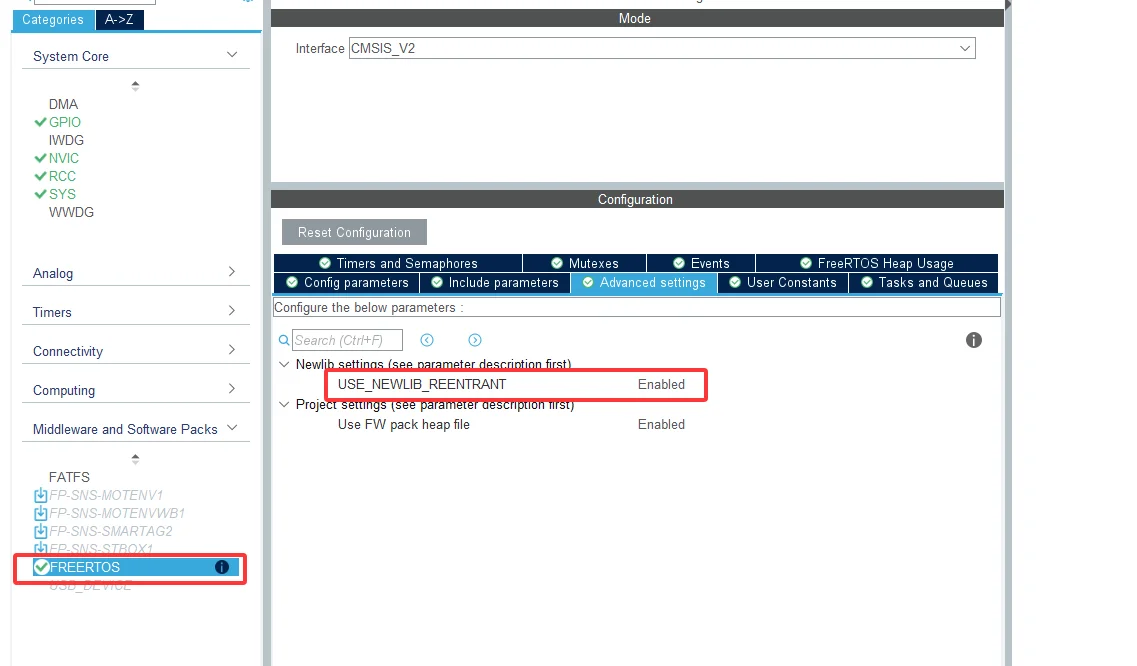
These folders also need to be configured properly. Finally, select CMake for Toolchain and GCC for the compiler (it is normal that there is no compiler selection option in versions 6.14.1 and earlier).


4.2.Configure and compile the project
Open a terminal in the project folder (or simply open VSCode here).

code .After opening VSCode, remember to switch to the `STM32` configuration

Select Yes here to configure the CMake preset

Generally, selecting Debug is sufficient.

It may show a very long dialog box; this isSTM32Cube Coreprompted. You directly click Yes to start the download (this automatically deploys various environments).
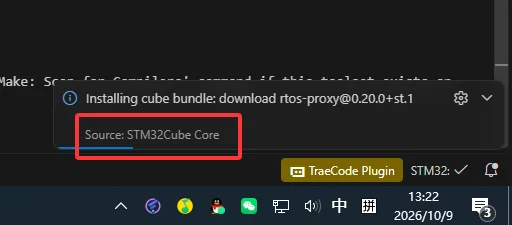
Anyway, the bottom right corner isSTM32Cube Corea prompt asking you to install it. Just go ahead and install it. The prompt may differ across versions, but in any case, just install it.
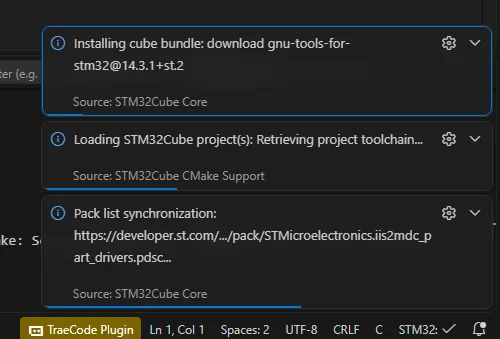
After the above environment deployment is complete,
Find a C language code file and open it, then a prompt will appear in the bottom right corner to install a C/C++ extension. You can install it or not; it also provides code suggestions, but its code suggestions are simply pathetic compared to the built-in clangd. If you are a beginner and don't know how to set up code suggestions, I suggest you follow my steps below and just don't install this C/C++ extension.
By default, clangd code suggestions are used.
You can try out the code suggestions and see if they are really powerful.

For compilation, either of the two builds shown in the figure will work.

4.3.Port the standard C/C++ project template by author tungchiahui
Clone the repository with the git clone command:https://github.com/tungchiahui/STM32HAL_CMake_CPP_Template
git clone https://github.com/tungchiahui/STM32HAL_CMake_CPP_Template.git把仓库里的除了.git以外的东西都复制到我们的STM32工程根目录。

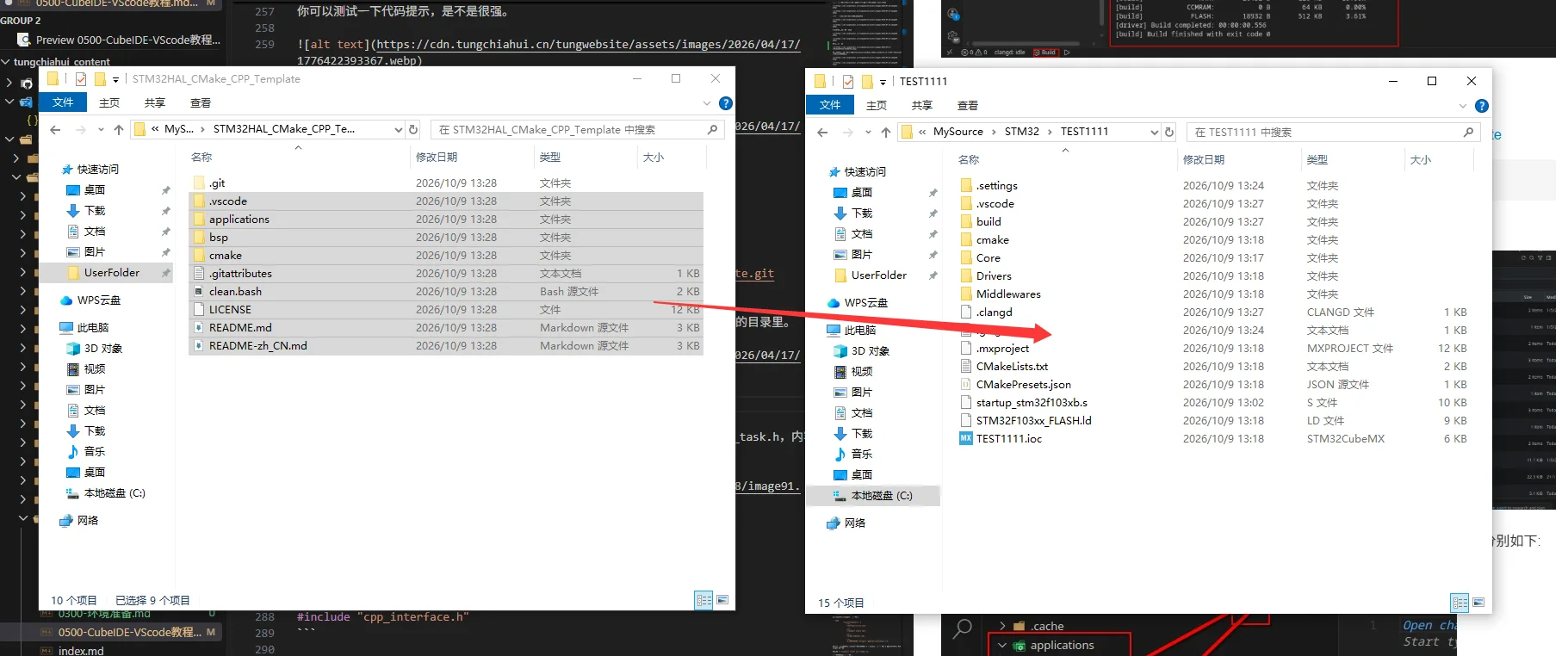
模板中的用户代码按功能模块组织,每个模块的 .cpp、.hpp(或 .c、.h)放在同一个文件夹里。复制后的目录结构如下:
STM32工程根目录/
├── applications/
│   └── main/
│       ├── cpp_interface.cpp
│       └── cpp_interface.h
├── bsp/
│   └── boards/
│       ├── common/
│       │   └── struct_typedef.h
│       └── delay/
│           ├── bsp_delay.cpp
│           └── bsp_delay.hpp
└── cmake/
    ├── stm32cubemx/            # CubeMX生成的配置
    └── user/
        └── CMakeLists.txt     # 用户代码的配置
cmake/user/CMakeLists.txt 已经把 applications 和 bsp/boards 加入头文件搜索路径,所以引用用户头文件时统一使用“模块目录/头文件名”的写法:
#include "main/cpp_interface.h"
#include "delay/bsp_delay.hpp"
#include "common/struct_typedef.h"
在这两个目录下新增模块时,沿用这个写法即可,不需要为每个模块单独添加头文件搜索路径。
打开CubeMX生成的 Core/Src/main.c,在 USER CODE BEGIN Includes 和 USER CODE END Includes 之间加上:
#include "main/cpp_interface.h"然后在 main() 的 USER CODE BEGIN 2 和 USER CODE END 2 之间调用 cpp_main(),此时系统时钟和外设已经初始化完成:
cpp_main();注意 applications/main/cpp_interface.h 中的 isRTOS 设置:
- 裸机使用默认值
0,业务代码可以写在cpp_main()的无限循环中; - 使用FreeRTOS时要改成
1,使cpp_main()执行完初始化后返回,程序才能继续创建任务并启动调度器。 - 下面沿用前面配置了FreeRTOS的工程,因此先将
isRTOS改为1。
然后打开工程根目录的 CMakeLists.txt,在CubeMX原有的 add_subdirectory(cmake/stm32cubemx) 后面添加 add_subdirectory(cmake/user),引用用户代码的配置:
# Add STM32CubeMX generated sources
add_subdirectory(cmake/stm32cubemx)

# Add USER generated sources
add_subdirectory(cmake/user)
在同一个顶层 CMakeLists.txt 中,保留原有的C语言标准设置,并在 project() 之前增加C++标准设置(模板的 README-zh_CN.md 中也有说明):
# Setup compiler settings
set(CMAKE_C_STANDARD 11 CACHE STRING "C language standard")
set(CMAKE_C_STANDARD_REQUIRED ON)
set(CMAKE_C_EXTENSIONS ON)

set(CMAKE_CXX_STANDARD 20 CACHE STRING "C++ language standard")
set(CMAKE_CXX_STANDARD_REQUIRED ON)
set(CMAKE_CXX_EXTENSIONS ON)
然后在 applications 下新建 led_task 文件夹,把 led_task.cpp 和 led_task.h 都放进去:
applications/
├── main/
│   ├── cpp_interface.cpp
│   └── cpp_interface.h
└── led_task/
    ├── led_task.cpp
└── led_task.happlications/led_task/led_task.cpp:
#include "led_task/led_task.h"
#include "cmsis_os.h"
#include "main.h"

int32_t t;

extern "C"
void StartDefaultTask(void *argument)
{
  for(;;)
  {
    HAL_GPIO_TogglePin(GPIOC,GPIO_PIN_13);
    ++t;
    osDelay(500);
  }
}applications/led_task/led_task.h:
#ifndef LED_TASK_H
#define LED_TASK_H

#include "main/cpp_interface.h"

#endif
然后打开 cmake/user/CMakeLists.txt,把刚才新建的源文件添加到 Applications_Src 列表中:
set(Applications_Src
    ${CMAKE_CURRENT_SOURCE_DIR}/../../applications/main/cpp_interface.cpp
    ${CMAKE_CURRENT_SOURCE_DIR}/../../applications/led_task/led_task.cpp
)
只需要登记新增的 .c、.cpp 文件,.h、.hpp 不需要列为编译源文件。因为 applications 已经是头文件搜索根目录,led_task 模块也不需要额外添加搜索路径。
详细介绍(可以不看):cmake/stm32cubemx/CMakeLists.txt 由CubeMX管理,重新生成代码时可能更新,因此用户代码的源文件列表和头文件搜索路径统一维护在 cmake/user/CMakeLists.txt 中,顶层 CMakeLists.txt 通过 add_subdirectory(cmake/user) 加载它。这个用户配置文件已经包含在模板里,前面复制时就已经带过来了。
The great task is accomplished; let's try compiling once. As shown in the figure below, all the newly added files have been compiled.

4.4.Download the program to the board
Before downloading, you must first configure:
4.4.1.Configure the native gdb debugger (only for St-link and J-link)
If you are not using ST-Link or J-Link, continue reading below
Click according to the following image; see which debugger you are, and select that one.
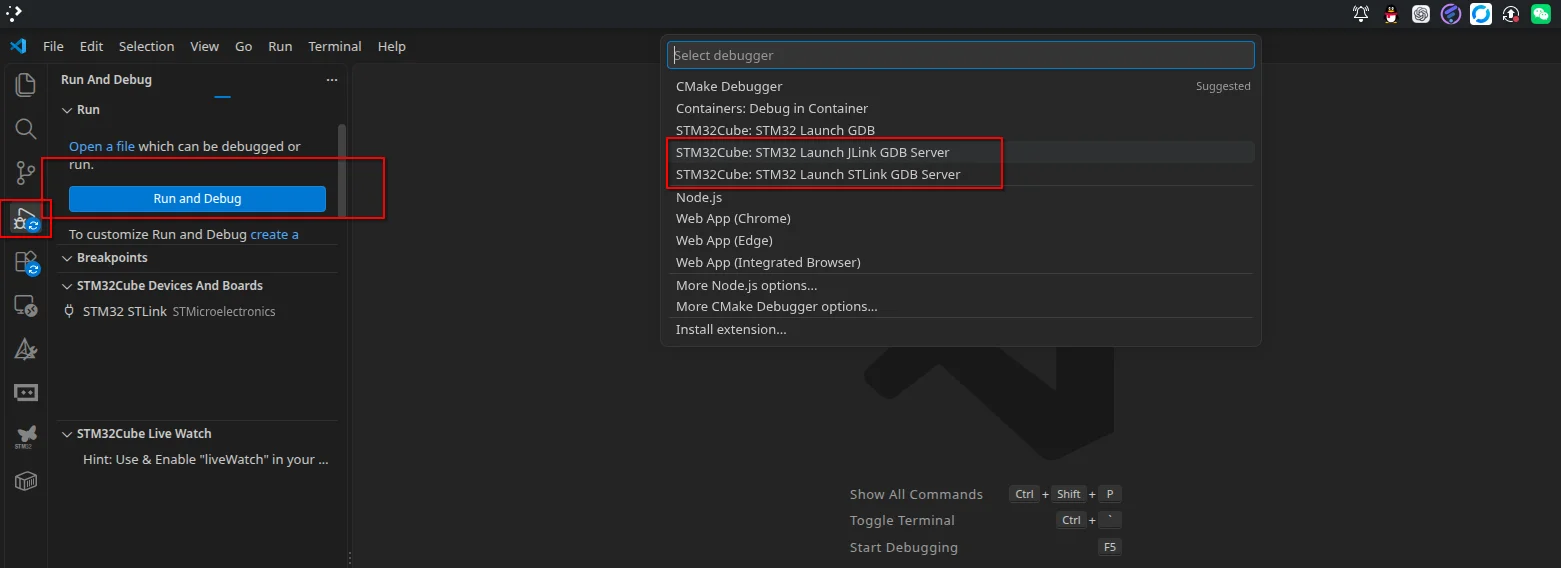
If the corresponding device is not visible here, or if you encounter permission issues, please seeUSB permission issues on Linux.
4.4.1.1.原生ST-Link
You can update the ST-Link driver:
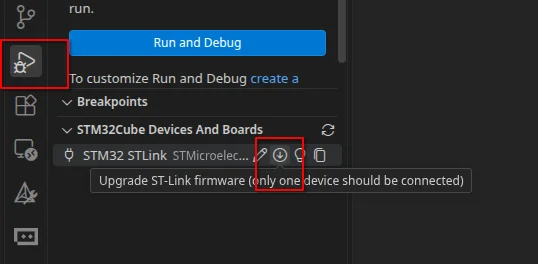
4.4.1.2.Native JLink
First install the bundle for jlink-gdbserver, as shown in the figure below:

4.4.2.Use the OpenOCD service to drive the native GDB debugger
When you want to use a debugger other thanST-LinkandJ-Link:
先点调试,让他生成launch.json:
openOCD接管SelectSTM32Cube: STM32 Launch GDB:
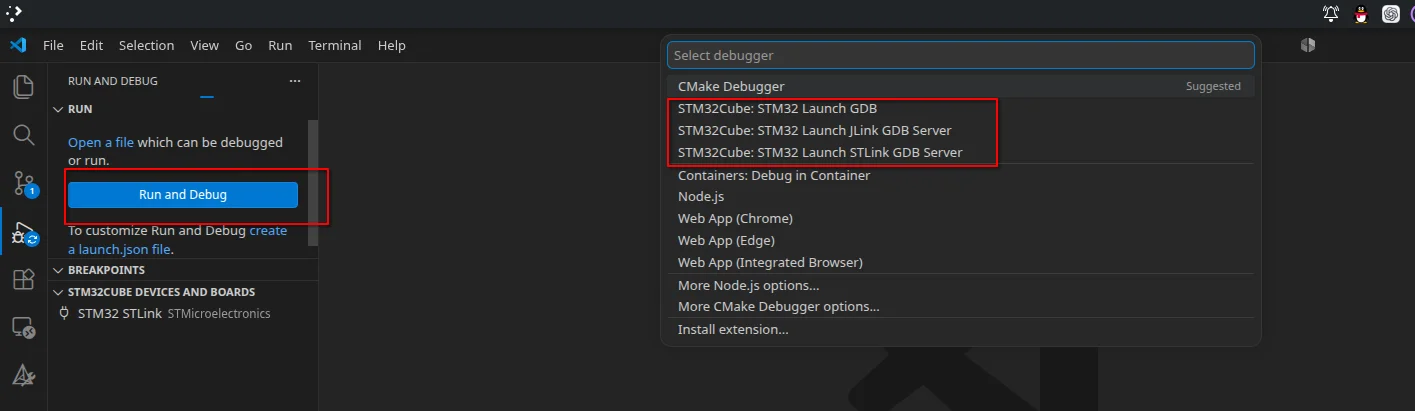
Then selectopenocd:
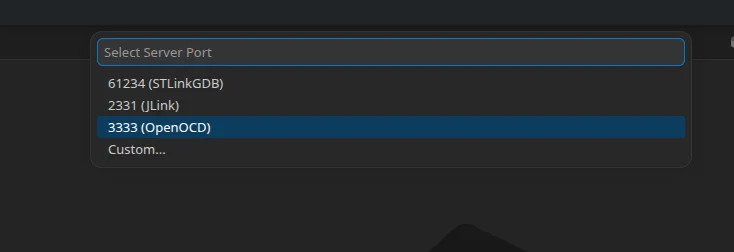
After a while, the debugging will definitely fail, and then it will prompt youopen launch.json
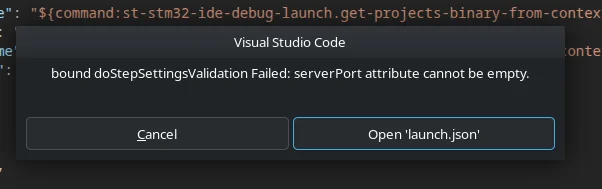
Then click STM32Cube: STM32 Launch GDB:
launch.jsonThe content is as follows:
{
    // Use IntelliSense to learn about possible attributes.
    // Hover to view descriptions of existing attributes.
    // For more information, visit: https://go.microsoft.com/fwlink/?linkid=830387
    "version": "0.2.0",
    "configurations": [
        {
            "type": "stgdbtarget",
            "request": "launch",
            "name": "STM32Cube: Launch Generic GDB Server",
            "origin": "snippet",
            "cwd": "${workspaceFolder}",
            "preBuild": "${command:st-stm32-ide-debug-launch.build}",
            "program": "${command:st-stm32-ide-debug-launch.get-projects-binary-from-context1}",
            "gdb": "${command:st-stm32-ide-debug-launch.get-gdb-executable}",
            "deviceName": "${command:st-stm32-ide-debug-launch.get-device-name}",
            "deviceCore": "${command:st-stm32-ide-debug-launch.get-core-name}",
            "deviceTrustzone": "${command:st-stm32-ide-debug-launch.get-trustzone-status}",
            "serverExe": "",
            "serverParameters": [],
            "serverHost": "localhost",
            "serverPort": "",
            "serverCwd": "",
            "runEntry": "main",
            "imagesAndSymbols": [
                {
                    "imageFileName": "${command:st-stm32-ide-debug-launch.get-projects-binary-from-context1}",
                    "imageOffset": "",
                    "symbolFileName": "${command:st-stm32-ide-debug-launch.get-projects-binary-from-context1}",
                    "symbolOffset": ""
                }
            ]
        },
        {
            "type": "stgdbtarget",
            "request": "attach",
            "name": "STM32Cube: Launch GDB Client",
            "origin": "snippet",
            "cwd": "${workspaceFolder}",
            "preBuild": "${command:st-stm32-ide-debug-launch.build}",
            "program": "${command:st-stm32-ide-debug-launch.get-projects-binary-from-context1}",
            "gdb": "${command:st-stm32-ide-debug-launch.get-gdb-executable}",
            "serverHost": "localhost",
            "serverPort": "${command:st-stm32-ide-debug-launch.get-server-port}",
            "runEntry": "main",
            "imagesAndSymbols": [
                {
                    "imageFileName": "${command:st-stm32-ide-debug-launch.get-projects-binary-from-context1}",
                    "imageOffset": "",
                    "symbolFileName": "${command:st-stm32-ide-debug-launch.get-projects-binary-from-context1}",
                    "symbolOffset": ""
                }
            ]
        }
    ]
}
Where do we need to make changes?
Mainly:
serverExe: Just enter the binary program nameopenocdoropenocd.exeserverParameters: enter those two OpenOCD parameters, refer to The two -f parameters of openocdserverHost: The OpenOCD GDB Server listens on localhost by default, generally no need to changeserverPort: The default GDB port of OpenOCD is3333serverCwd: EnterserverExeWhich directory is this binary program located in- Add
liveWatchparameter (important)
serverExe:
For Linux, enter openocd For Windows, enter openocd.exe
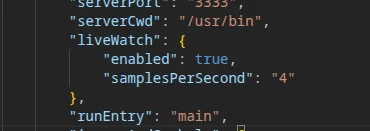
serverParametersFollow this format:
Those two-fThe parameters are given bythe two -f parameters of OpenOCDIt can be seen that:
interface/stlink.cfgtarget/stm32f1x.cfg
However, in addition to these two, some parameters are also required:
            "serverParameters": [
                "-f",
                "interface/stlink.cfg",

                "-c",
                "transport select swd",

                "-f",
                "target/stm32f1x.cfg",

                "-c",
                "$_TARGETNAME configure -gdb-max-connections 2"],
Here it is recommended to arrange the parameters in the order above: first the probe → then the communication protocol → then the MCU → and finally modify the parameters of this MCU target
Here-c transport select xxxis the protocol selection:
| Actual debugging method | Configuration |
|---|---|
| STM32 commonly used SWD | transport select swd |
| JTAG | transport select jtag |
We generally useswdso choosetransport select swd.
Whereas this-c $_TARGETNAME configure -gdb-max-connections 2allows this OpenOCD target to simultaneously accept at most 2 GDB client connections.
Normal debugging already occupies one:
OpenOCD :3333
    ↑
    └── GDB #1
         普通 Debug
We also need to useLive Watch,so set the parameter to2after:
                  ┌─ GDB #1:普通 Debug
STM32 ← OpenOCD ──┤
└─ GDB #2:Live WatchserverCwd:
Directly search using terminal commands:
# Linux
which openocd

# Windows
where.exe openocd
Linux, as shown in the figure above, is/usr/bin/openocdthereforeserverCwdfill in/usr/bin.
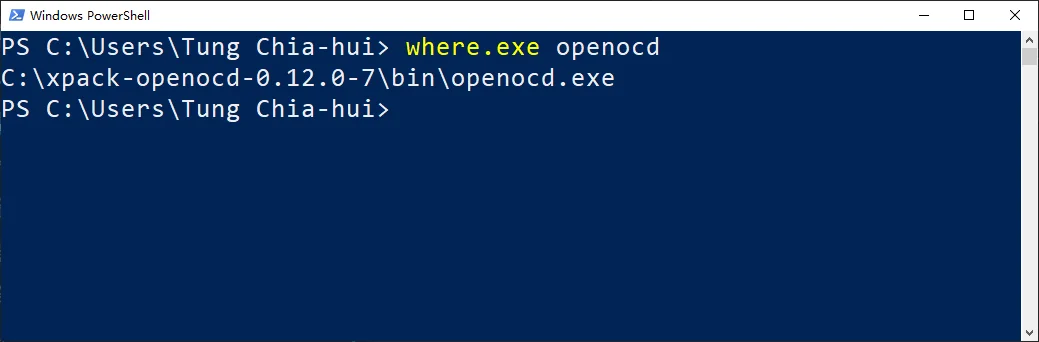
Windows is as shown aboveC:\xpack-openocd-0.12.0-7\bin\openocd.exe,soserverCwdfill inC:\xpack-openocd-0.12.0-7\bin。 But you cannot directly fill inC:\xpack-openocd-0.12.0-7\bin,because injson中\is an escape character, so stupid Windows should fill inC:/xpack-openocd-0.12.0-7/binor double backslashesC:\\xpack-openocd-0.12.0-7\\bin。
- Add
liveWatchParameters
AtserverCwd later,runEntry prefix with:
            "liveWatch": {
                "enabled": true,
                "samplesPerSecond": "4"
            },
Finally:
Linux:
{
    // Use IntelliSense to learn about possible attributes.
    // Hover to view descriptions of existing attributes.
    // For more information, visit: https://go.microsoft.com/fwlink/?linkid=830387
    "version": "0.2.0",
    "configurations": [
        {
            "type": "stgdbtarget",
            "request": "launch",
            "name": "STM32Cube: Launch Generic GDB Server",
            "origin": "snippet",
            "cwd": "${workspaceFolder}",
            "preBuild": "${command:st-stm32-ide-debug-launch.build}",
            "program": "${command:st-stm32-ide-debug-launch.get-projects-binary-from-context1}",
            "gdb": "${command:st-stm32-ide-debug-launch.get-gdb-executable}",
            "deviceName": "${command:st-stm32-ide-debug-launch.get-device-name}",
            "deviceCore": "${command:st-stm32-ide-debug-launch.get-core-name}",
            "deviceTrustzone": "${command:st-stm32-ide-debug-launch.get-trustzone-status}",
            "serverExe": "openocd",
            "serverParameters": [
                "-f",
                "interface/stlink.cfg",

                "-c",
                "transport select swd",

                "-f",
                "target/stm32f1x.cfg",

                "-c",
                "$_TARGETNAME configure -gdb-max-connections 2"],
            "serverHost": "localhost",
            "serverPort": "3333",
            "serverCwd": "/usr/bin",
            "liveWatch": {
                "enabled": true,
                "samplesPerSecond": "4"
            },
            "runEntry": "main",
            "imagesAndSymbols": [
                {
                    "imageFileName": "${command:st-stm32-ide-debug-launch.get-projects-binary-from-context1}",
                    "imageOffset": "",
                    "symbolFileName": "${command:st-stm32-ide-debug-launch.get-projects-binary-from-context1}",
                    "symbolOffset": ""
                }
            ]
        },
        {
            "type": "stgdbtarget",
            "request": "attach",
            "name": "STM32Cube: Launch GDB Client",
            "origin": "snippet",
            "cwd": "${workspaceFolder}",
            "preBuild": "${command:st-stm32-ide-debug-launch.build}",
            "program": "${command:st-stm32-ide-debug-launch.get-projects-binary-from-context1}",
            "gdb": "${command:st-stm32-ide-debug-launch.get-gdb-executable}",
            "serverHost": "localhost",
            "serverPort": "${command:st-stm32-ide-debug-launch.get-server-port}",
            "runEntry": "main",
            "imagesAndSymbols": [
                {
                    "imageFileName": "${command:st-stm32-ide-debug-launch.get-projects-binary-from-context1}",
                    "imageOffset": "",
                    "symbolFileName": "${command:st-stm32-ide-debug-launch.get-projects-binary-from-context1}",
                    "symbolOffset": ""
                }
            ]
        }
    ]
}
Windows:
{
    // Use IntelliSense to learn about possible attributes.
    // Hover to view descriptions of existing attributes.
    // For more information, visit: https://go.microsoft.com/fwlink/?linkid=830387
    "version": "0.2.0",
    "configurations": [
        {
            "type": "stgdbtarget",
            "request": "launch",
            "name": "STM32Cube: Launch Generic GDB Server",
            "origin": "snippet",
            "cwd": "${workspaceFolder}",
            "preBuild": "${command:st-stm32-ide-debug-launch.build}",
            "program": "${command:st-stm32-ide-debug-launch.get-projects-binary-from-context1}",
            "gdb": "${command:st-stm32-ide-debug-launch.get-gdb-executable}",
            "deviceName": "${command:st-stm32-ide-debug-launch.get-device-name}",
            "deviceCore": "${command:st-stm32-ide-debug-launch.get-core-name}",
            "deviceTrustzone": "${command:st-stm32-ide-debug-launch.get-trustzone-status}",
            "serverExe": "openocd.exe",
            "serverParameters": [
                "-f",
                "interface/stlink.cfg",

                "-c",
                "transport select swd",

                "-f",
                "target/stm32f1x.cfg",

                "-c",
                "$_TARGETNAME configure -gdb-max-connections 2"],
            "serverHost": "localhost",
            "serverPort": "3333",
            "serverCwd": "C:/xpack-openocd-0.12.0-7/bin",
            "liveWatch": {
                "enabled": true,
                "samplesPerSecond": "4"
            },
            "runEntry": "main",
            "imagesAndSymbols": [
                {
                    "imageFileName": "${command:st-stm32-ide-debug-launch.get-projects-binary-from-context1}",
                    "imageOffset": "",
                    "symbolFileName": "${command:st-stm32-ide-debug-launch.get-projects-binary-from-context1}",
                    "symbolOffset": ""
                }
            ]
        },
        {
            "type": "stgdbtarget",
            "request": "attach",
            "name": "STM32Cube: Launch GDB Client",
            "origin": "snippet",
            "cwd": "${workspaceFolder}",
            "preBuild": "${command:st-stm32-ide-debug-launch.build}",
            "program": "${command:st-stm32-ide-debug-launch.get-projects-binary-from-context1}",
            "gdb": "${command:st-stm32-ide-debug-launch.get-gdb-executable}",
            "serverHost": "localhost",
            "serverPort": "${command:st-stm32-ide-debug-launch.get-server-port}",
            "runEntry": "main",
            "imagesAndSymbols": [
                {
                    "imageFileName": "${command:st-stm32-ide-debug-launch.get-projects-binary-from-context1}",
                    "imageOffset": "",
                    "symbolFileName": "${command:st-stm32-ide-debug-launch.get-projects-binary-from-context1}",
                    "symbolOffset": ""
                }
            ]
        }
    ]
}4.4.3.How to enter debug
4.4.3.1.Display 1
If you are like the figure below, please do as follows:
If not, please scroll down to see display 2 below.

After clickingRun and Debug,the figure is as follows:
ST-LinkSelectSTM32cube: STM32 Launch STLink GDB ServerJ-LinkSelectSTM32Cube: STM32 LaunchJLink GDB ServeropenOCD接管SelectSTM32Cube: Launch Generic GDB Server
4.4.3.2.Display 2
If you are like the figure below, please do as follows:

The reason you see the above is probably that you already have a generatedlaunch.jsonnow. (You can simply click it directly.)
4.4.4.Enter debug
Then this bar will appear, and it will download the program to the board (only J-link) 
Then the program was successfully downloaded and entered Debug

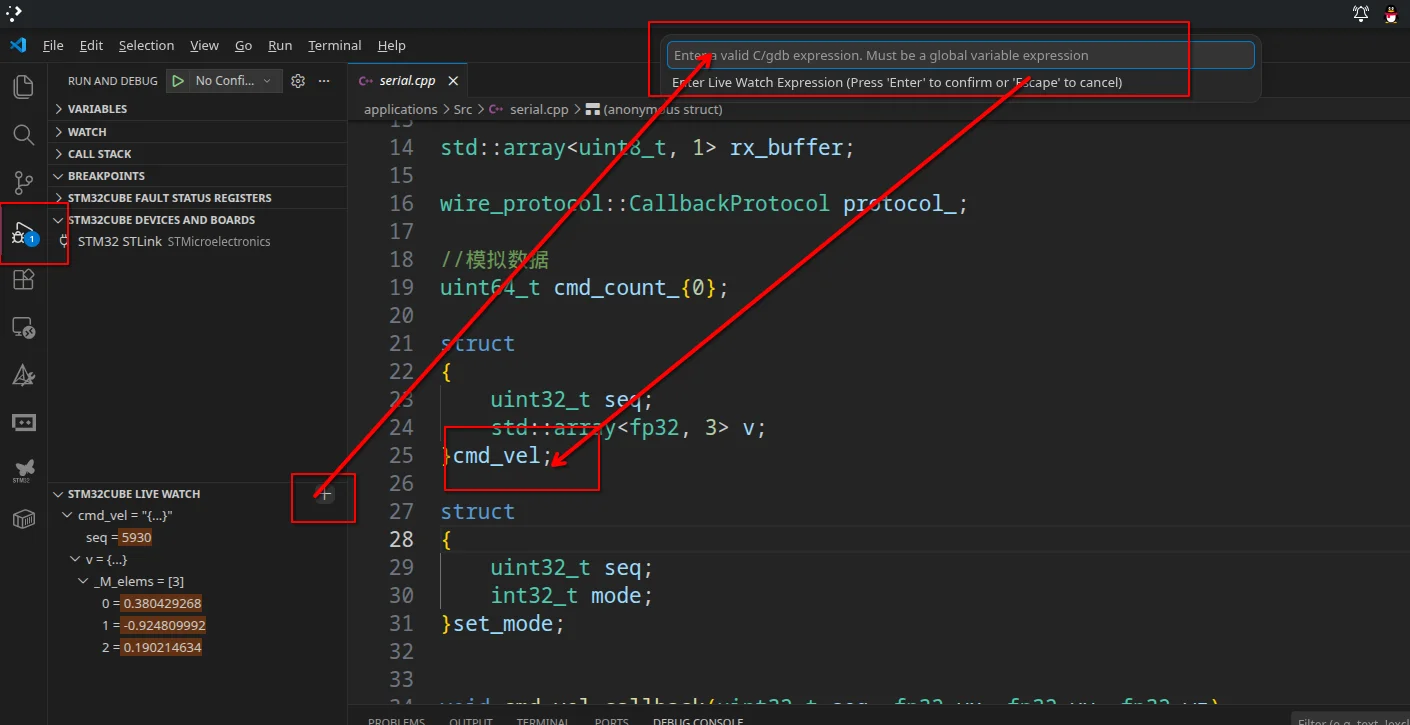
As shown in the figure below, enter the variable you want to monitor in the top box, and it will be added to the real-time watch box.
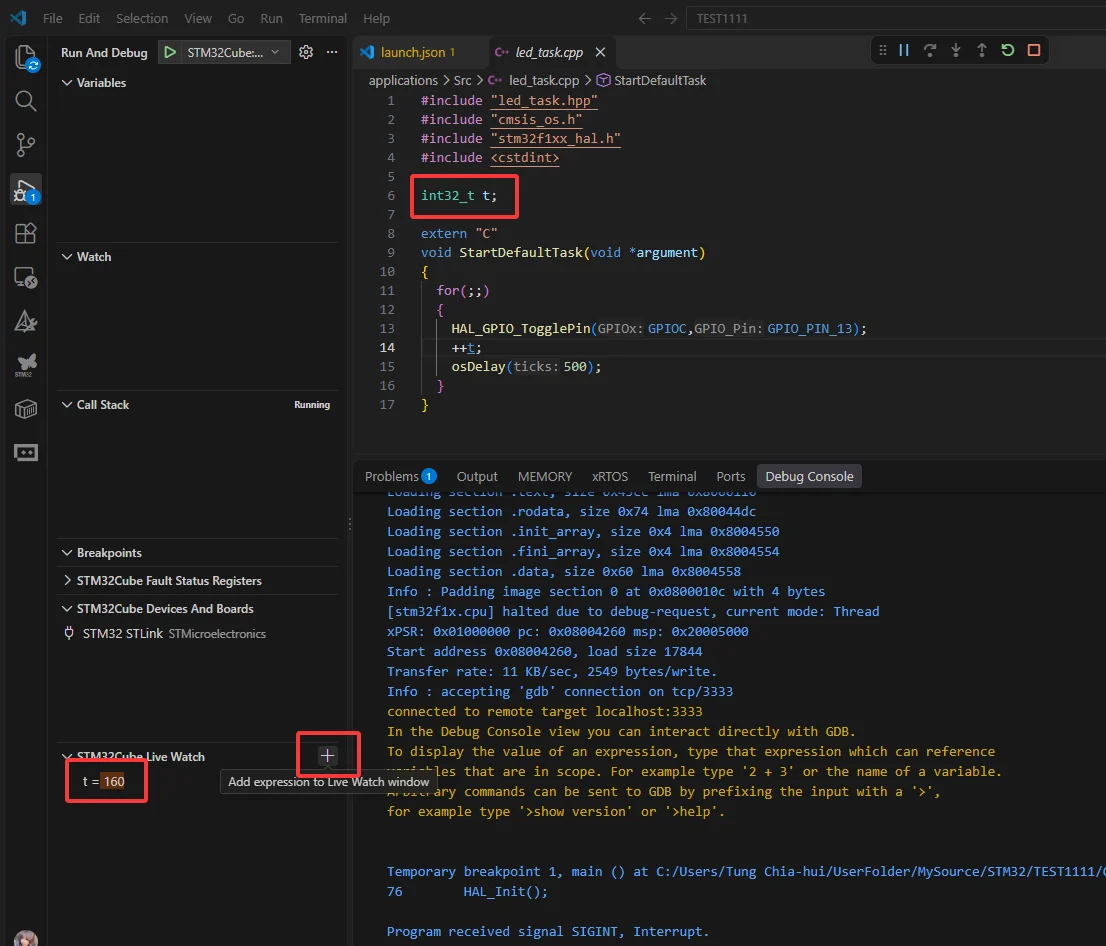
Structs can also:
4.4.5.Change debugger software tocortex debug(Optional, not really necessary):
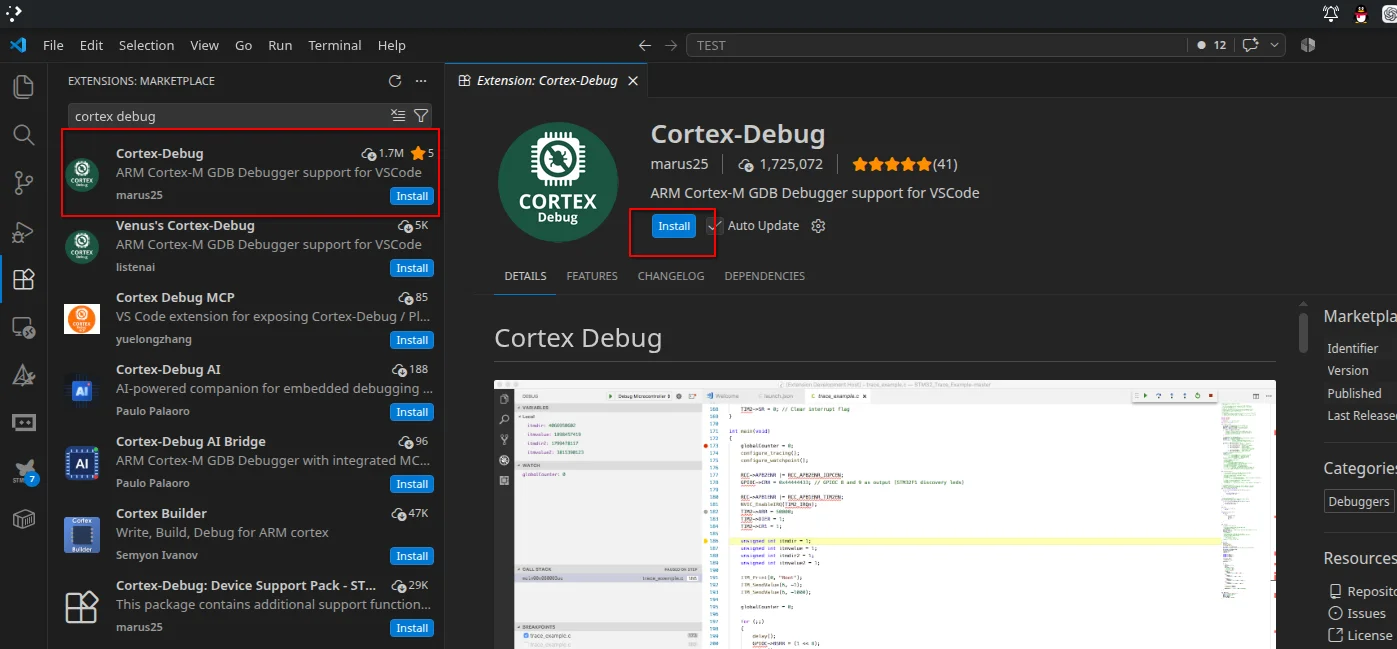
4.4.5.1.Installcortex debugPlugin
Search in VScode forcortex debugand install
4.4.5.2.进行launch.json的配置
New.vscode/launch.json:
{
    "version": "0.2.0",

    "configurations": [
        {
            // 调试配置名称
            "name": "STM32 - OpenOCD - Cortex Debug",

            // Cortex-Debug 固定写法
            "type": "cortex-debug",

            // 下载程序并开始调试
            "request": "launch",

            // 工程工作目录
            "cwd": "${workspaceFolder}",

            // ★ 必改:编译生成的 ELF
            "executable": "${workspaceFolder}/build/Debug/TEST.elf",

            // 使用 OpenOCD
            "servertype": "openocd",

            // ★ OpenOCD 可执行文件
            // Linux 下用 which openocd 查询
            "serverpath": "/usr/bin/openocd",

            // ★ 根据调试器和 MCU 修改
            //
            // ST-Link:
            // interface/stlink.cfg
            //
            // STM32F1:
            // target/stm32f1x.cfg
            //
            // STM32F4 则是:
            // target/stm32f4x.cfg
            "configFiles": [
                "interface/stlink.cfg",
                "target/stm32f1x.cfg"
            ],

            // ★ ARM GNU Toolchain 的 bin 目录
            // 建议不要直接写 "~"
            // 用 ${env:HOME} 更稳
            "armToolchainPath": "${env:HOME}/.local/share/stm32cube/bundles/gnu-tools-for-stm32/14.3.1+st.2/bin",

            // 启动后运行到 main()
            "runToEntryPoint": "main",

            // ★ Cortex Live Watch
            // OpenOCD 下可用
            // samplesPerSecond 最大 20
            // 先用 4Hz 足够
            "liveWatch": {
                "enabled": true,
                "samplesPerSecond": 4
            }


            // ============================================================
            // 以下为可选配置
            // ============================================================


            // 如果 Cortex-Debug 找不到 OpenOCD,
            // Linux:
            // which openocd
            //
            // 一般 Fedora 是:
            // /usr/bin/openocd
            //
            // "serverpath": "/usr/bin/openocd",


            // 如果 OpenOCD 找不到 interface/*.cfg 或 target/*.cfg,
            // Fedora 一般脚本目录在:
            // /usr/share/openocd/scripts
            //
            // 可以显式增加:
            //
            // "searchDir": [
            //     "/usr/share/openocd/scripts"
            // ],


            // 调试 Cortex-Debug / OpenOCD 问题:
            //
            // "showDevDebugOutput": "raw"
        }
    ]
}
Currently, we need to know three things:configFiles,executable,armToolchainPathandserverpath:
configFiles:
Reference Two -f parameters of OpenOCD
We usedstm32f103c8andst-link: So"configFiles": ["interface/stlink.cfg","target/stm32f1x.cfg"].
executable:
Use the terminal command in VS Code to search directly, or look directly in the VS Code file explorer:
# Linux
find build -name "*.elf"
# Windows
gci build -Recurse -File -Filter "*.elf"Note that Windows uses
powershellbut cannot usecmd.
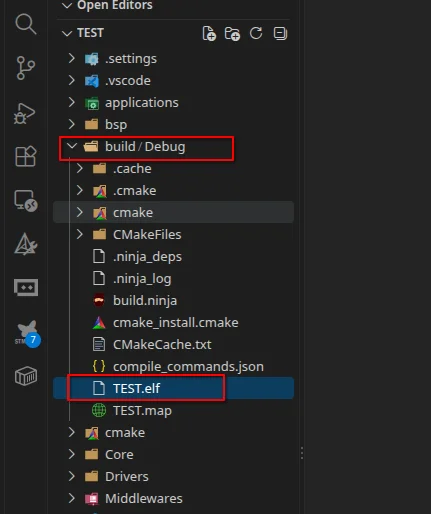
As shown in the figure above, inbuild/Debug/TEST.elf.
Thereforeexecutable = ${workspaceFolder}/build/Debug/TEST.elf.
armToolchainPath:
Directly search using the terminal command in VSCode:
cube bundle show --project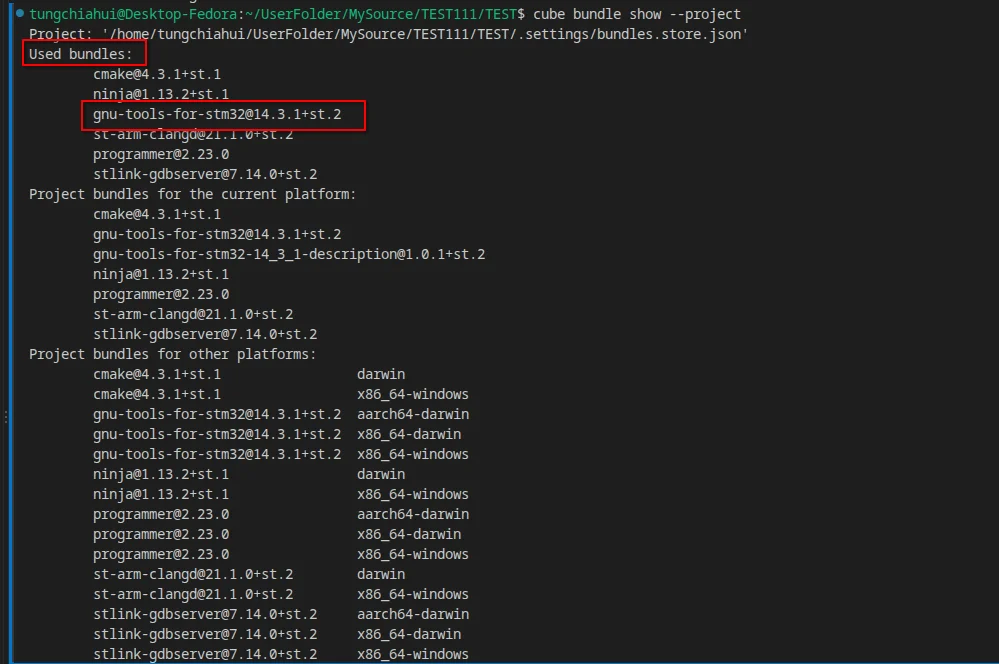
This output indicates that I am usinggnu-tools-for-stm32@14.3.1+st.2
Use a command to find where he is:
# Linux
find ~/.local/share/stm32cube/bundles/gnu-tools-for-stm32 \
  -type f -name "arm-none-eabi-gdb"
# Windows
gci "$env:LOCALAPPDATA\stm32cube\bundles\gnu-tools-for-stm32" `
-Recurse -File -Filter "arm-none-eabi-gdb.exe"Note that Windows uses
powershellbut cannot usecmd.

Copy output result:
/home/tungchiahui/.local/share/stm32cube/bundles/gnu-tools-for-stm32/14.3.1+st.2/bin/arm-none-eabi-gdbBut remove the final execution programarm-none-eabi-gdb; only up tobinis needed:
/home/tungchiahui/.local/share/stm32cube/bundles/gnu-tools-for-stm32/14.3.1+st.2/binThereforearmToolchainPath = /home/tungchiahui/.local/share/stm32cube/bundles/gnu-tools-for-stm32/14.3.1+st.2/bin.
serverpath:
Directly search using terminal commands:
# Linux
which openocd
As for Windows, you should know where you installed it yourself...
Finallaunch.json:
{
    "version": "0.2.0",

    "configurations": [
        {
            // 调试配置名称
            "name": "STM32 - OpenOCD - Cortex Debug",

            // Cortex-Debug 固定写法
            "type": "cortex-debug",

            // 下载程序并开始调试
            "request": "launch",

            // 工程工作目录
            "cwd": "${workspaceFolder}",

            // ★ 必改:编译生成的 ELF
            "executable": "${workspaceFolder}/build/Debug/TEST.elf",

            // 使用 OpenOCD
            "servertype": "openocd",

            // ★ OpenOCD 可执行文件
            // Linux 下用 which openocd 查询
            "serverpath": "/usr/bin/openocd",

            // ★ 根据调试器和 MCU 修改
            //
            // ST-Link:
            // interface/stlink.cfg
            //
            // STM32F1:
            // target/stm32f1x.cfg
            //
            // STM32F4 则是:
            // target/stm32f4x.cfg
            "configFiles": [
                "interface/stlink.cfg",
                "target/stm32f1x.cfg"
            ],

            // ★ ARM GNU Toolchain 的 bin 目录
            // 建议不要直接写 "~"
            // 用 ${env:HOME} 更稳
            "armToolchainPath": "/home/tungchiahui/.local/share/stm32cube/bundles/gnu-tools-for-stm32/14.3.1+st.2/bin",

            // 启动后运行到 main()
            "runToEntryPoint": "main",

            // ★ Cortex Live Watch
            // OpenOCD 下可用
            // samplesPerSecond 最大 20
            // 先用 4Hz 足够
            "liveWatch": {
                "enabled": true,
                "samplesPerSecond": 4
            }
        }
    ]
}4.4.5.3.Debug and LiveWatch
Compile first
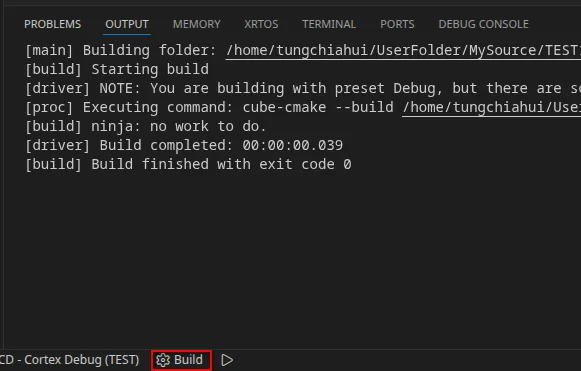
Click to enter debug:
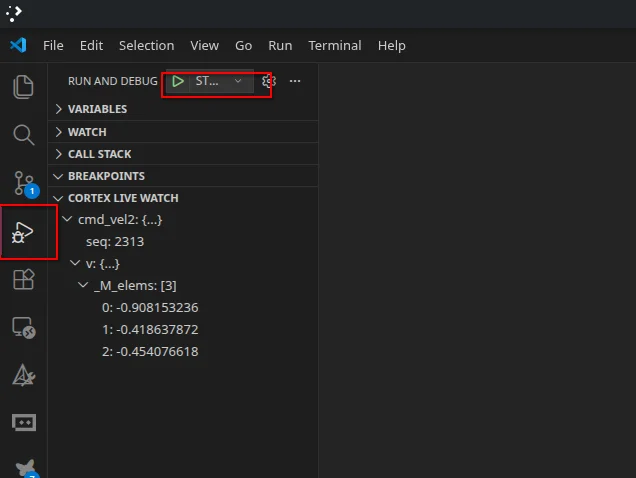
Successfully entered:
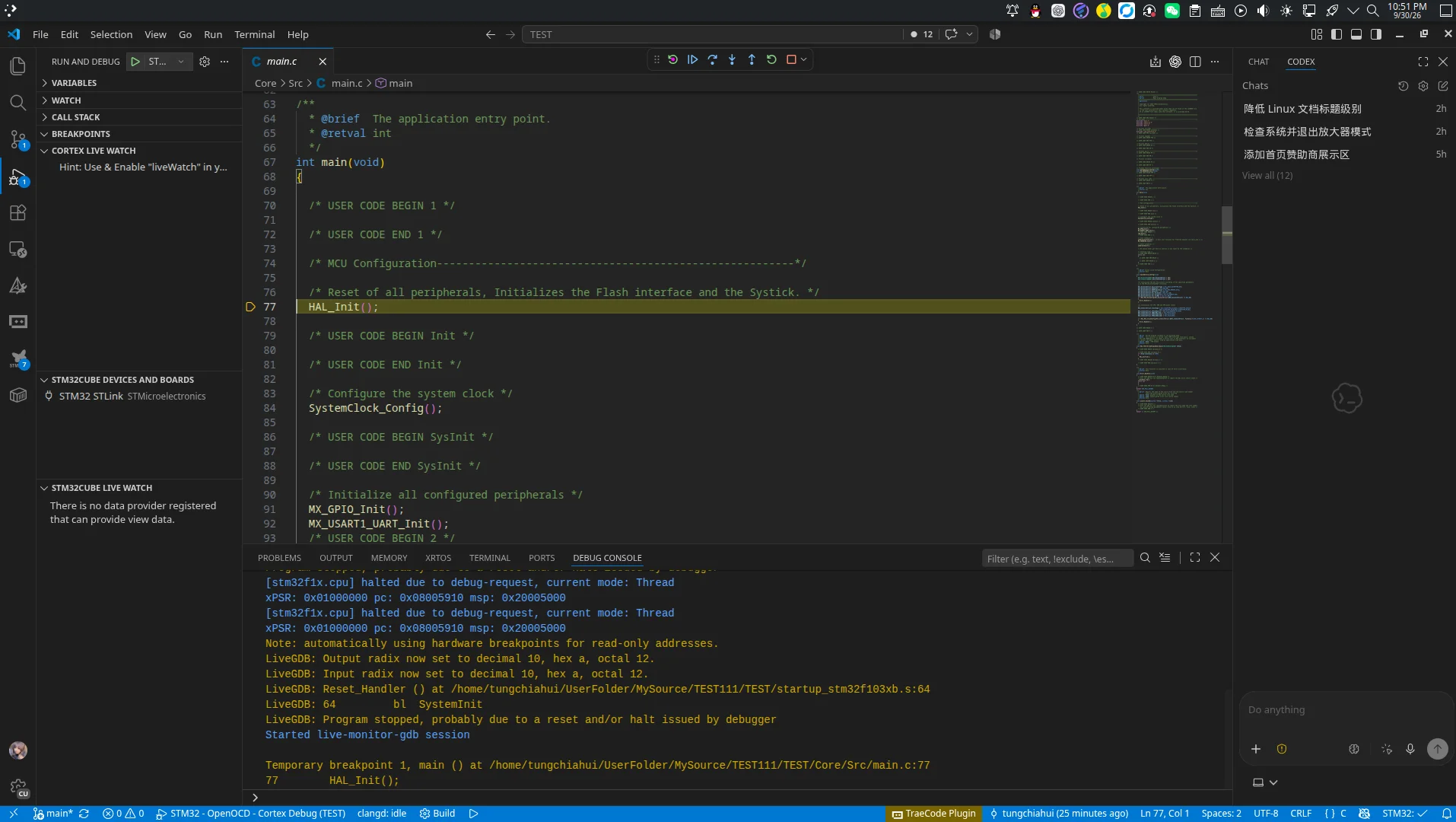
Copy a global variable from your program; in my case it is cmd_vel2:
fill in tocortex live watchnote it is notstm32cube live watch;
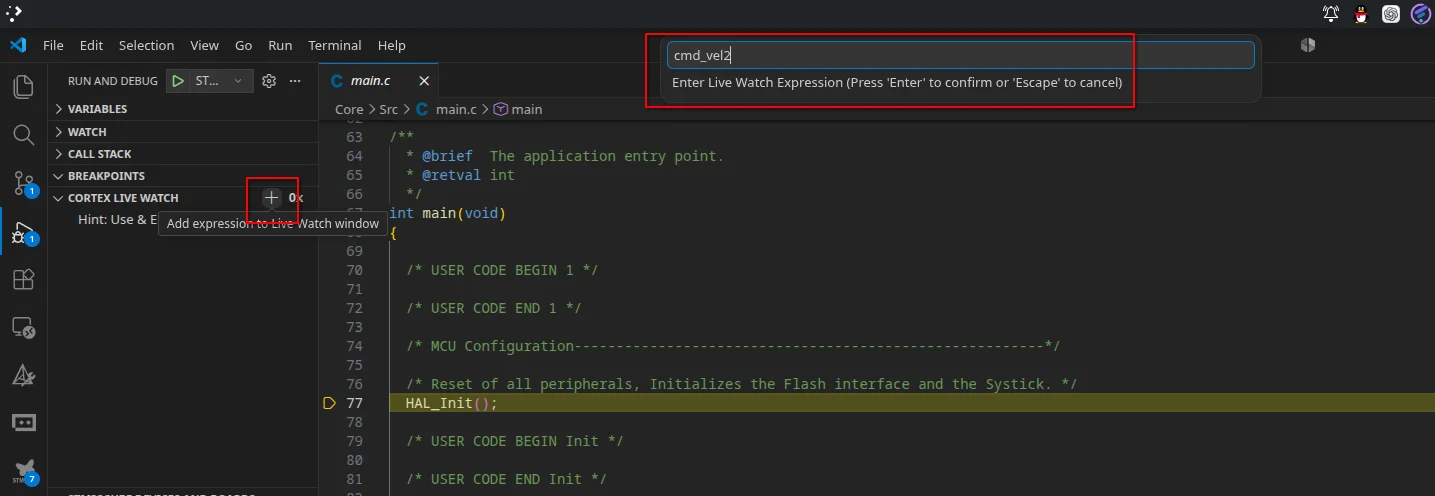
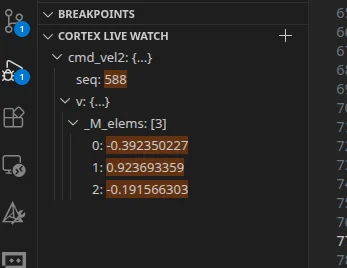
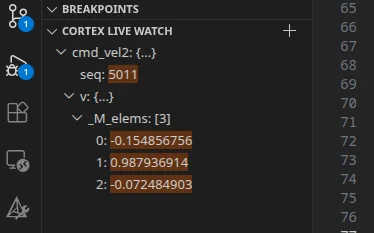
Then click Run to look at the variables.cmd_vel2
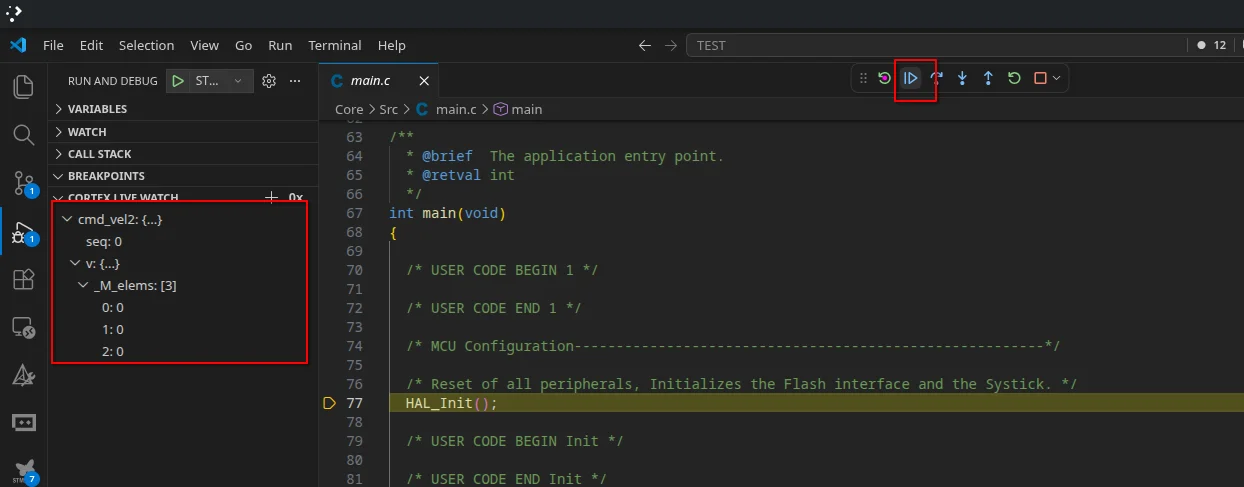
is constantly changing:
5.Frequently Asked Questions
5.1.USB permission issues under Linux
If you have already successfully recognized the device, there is no need to perform this step.
If you encounter it and can't solve it, let AI solve it; AI will get it done for you in a few seconds
If the debugger can be seen in lsusb after it is plugged in, but VS Code cannot find the device, or the following error appears in the debug output, it is usually because the current user does not have permission to access the USB device node:
libusb couldn't open USB device /dev/bus/usb/001/008, errno=13
libusb requires write access to USB device nodes
ST-Link enumeration failed
First run lsusb in the terminal to confirm that the debugger has been recognized by the system. The /dev/bus/usb/001/008 in the error message is only an example; the actual path should be based on your own output. You can use ls -l to check the permissions of that node:
lsusb
ls -l /dev/bus/usb/001/008
**使用 ST-Link:**先按上文点击插件中的 install ST-Link udev rules。如果仍然报权限错误,检查规则是否装到了系统中:
find /etc/udev/rules.d /usr/lib/udev/rules.d -maxdepth 1 -iname '*stlink*.rules' -print 2>/dev/null如果没有找到规则,可以从 ST 官方的 STSW-LINK007 下载页获取安装包。解压后进入 AllPlatforms/StlinkRulesFilesForLinux,按其中的 readme.txt 安装与你的发行版对应的 udev 规则包。在这个目录中,Fedora 使用 .rpm 包,Ubuntu/Debian 使用 .deb 包:
# Fedora:只运行这一行
sudo dnf install ./st-stlink-udev-rules-*.rpm

# Ubuntu/Debian:只运行这一行
sudo apt install ./st-stlink-udev-rules-*.deb
If the downloaded package name differs, refer to the actual file name and the instructions included with the package. ST's release notes also state that the corresponding ST-Link USB access rules need to be installed under Linux.
**Use J-Link:** The previously installed jlink-gdbserver bundle is used to start the debug service; USB permissions also require SEGGER's udev rules. When installing the SEGGER J-Link Software and Documentation Pack, the .rpm or .deb package for the corresponding distribution will install the rules along with it. If using the extracted version, follow the README.txt included in the package to copy 99-jlink.rules to /etc/udev/rules.d/. For specific steps, see SEGGER's Linux troubleshooting instructions.
After installing the rule, run:
sudo udevadm control --reload-rulesThenunplug the debugger and plug it back in,rerun lsusb,and check the /dev/bus/usb/... node using the new bus number and device number. You can substitute the actual path into the command below to check whether the current user can read and write:
test -r /dev/bus/usb/001/008 && test -w /dev/bus/usb/001/008 && echo 'USB 设备节点可读写'After unplugging and replugging, the device number may change. Do not copy the 001/008 from the example. After confirming permissions, return to VS Code and reselect the debugger. If lsusb still cannot see the debugger, first check the USB cable, port, and power supply; this is not a udev permission issue.
Here, what is being checked is /dev/bus/usb/.... If additionally the onboard virtual serial port /dev/ttyACM* needs to be opened, that involves the permissions of the serial device and must be investigated separately.