Wiki
Linux Environment Preparation
1.Environment Introduction
Introduction to the tutorial environment:
-
System: Fedora 43 KDE Edition Linux
-
System Kernel: Linux 6.19.12-200.fc43.x86_64
-
Architecture: X86_64(amd64)
Other Linux environments are also acceptable.
2.Install various software and environments
2.1.Install CubeMX

Download address:
https://www.st.com.cn/zh/development-tools/stm32cubemx.html
It is recommended to download the latest version (at this time, the latest version is 6.15.0).


Extract it

Open this software with root privilegesSetupSTM32CubeMX-6.15.0(Not recommended)
sudo ./SetupSTM32CubeMX-6.15.0(Better suggestion: you can also open it without root privileges, but when choosing the installation path, pay attention to the following, and change it yourself to/home/xxxin one of the folders)
./SetupSTM32CubeMX-6.15.0
In the newly popped-up interface, just keep clicking Next. After the installation is complete, if the screen shown below appears, it has succeeded.

/usr/local/STMicroelectronics/STM32Cube/STM32CubeMX(If you did not install with root privileges, your path will not be this one; you need to select the corresponding path.) Enter this folder, then open a terminal and input
./STM32CubeMX
Next, you can configure the CubeMX application to create a desktop shortcut for quick access. For detailed instructions, see the Appimage section of theVinci Robot Team Linux Introductory Tutorial; you can use ctrl+F to quickly locate this section.
The desktop shortcut is as follows:
(If you did not install with root permissions, your path will not be this one/usr/local/STMicroelectronics/STM32Cube/STM32CubeMX/; you need to select the corresponding path.)
[Desktop Entry]
Name=STM32CubeMX
Exec=/usr/local/STMicroelectronics/STM32Cube/STM32CubeMX/STM32CubeMX
Icon=/usr/local/STMicroelectronics/STM32Cube/STM32CubeMX/help/STM32CubeMX.png
Type=Application
Categories=Development;Electronics;Embedded;
Comment=STM32CubeMX configuration and code generation tool
Terminal=false
Follow the tutorial, and you can achieve this effect.


2.2.Install VSCode
https://code.visualstudio.com/Download

If it is a Debian-based system, download the deb; if it is an RHEL-based system, download the rpm.
After downloading, click the browser, find the folder containing this installation package, and open a terminal at that path.

Debian-based: entersudo apt install ./codeThen press thetabkey to complete the filename, and press Enter.
RHEL-based: entersudo dnf install ./codethen presstabkey to complete the filename, and press Enter.
For example, after completion:
sudo dnf install ./code-1.102.1-1752598767.el8.x86_64.rpm
2.3.Install OpenOCD
2.3.1.Install
We mainly use OpenOCD for debugging, as only this supports LiveWatch, while PyOCD does not currently support it.
# Debian系(如Ubuntu,但Ubuntu一般自带的openocd版本太低了,可能需要自己自行从源码编译)
sudo apt install openocd

# 红帽系(如Fedora,一般openocd都是最新版,无需在意版本号问题)
sudo dnf install openocd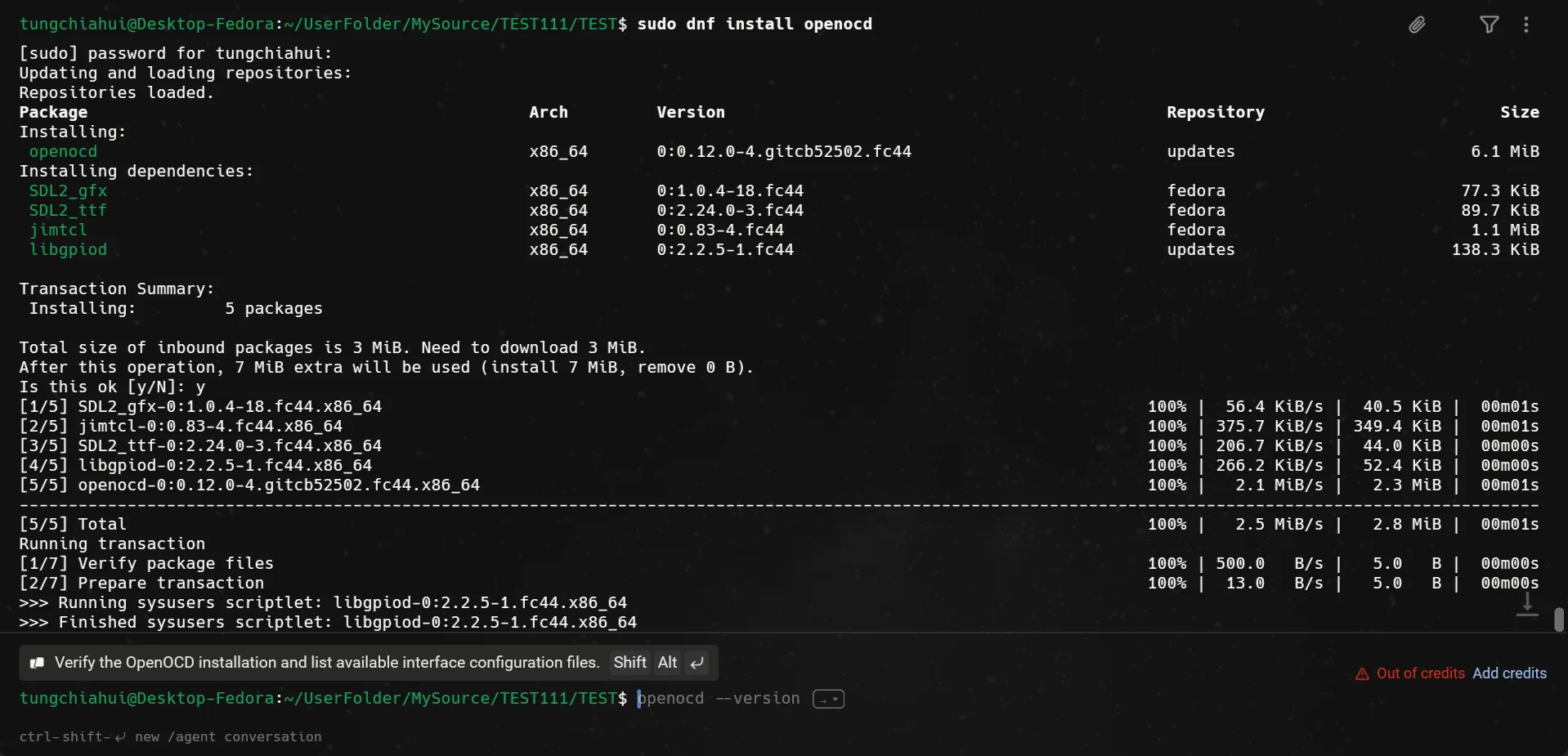
2.3.2.Install udev
First, you need to know:
/etc/udev/rules.d/
    → 你自己手工配置的规则,现在基本清空

/usr/lib/udev/rules.d/
    → Linux 软件包提供的系统规则
       └── 60-openocd.rules
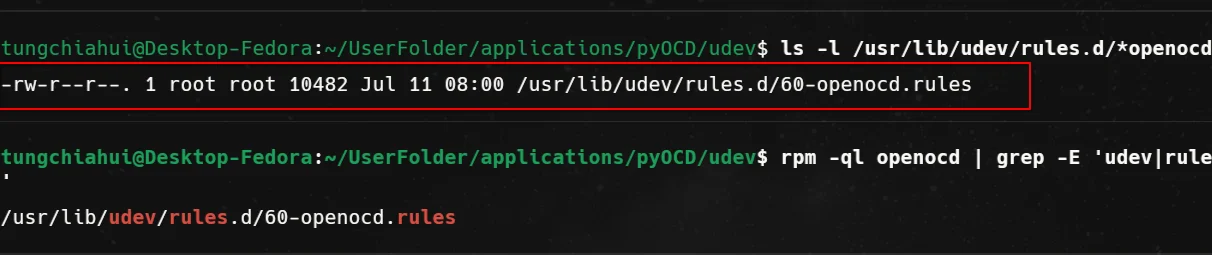
Check whether OpenOCD has automatically installed udev in the system:
# debian系(ubuntu)
dpkg -L openocd | grep -E 'udev|rules'

# 红帽系(fedora)
rpm -ql openocd | grep -E 'udev|rules'
As shown in the figure below, this indicates that OpenOCD has installed udev. (This is much more convenient than pyOCD.)