Wiki
MID360与TF联调
Existing English translations were reused. 8 current source blocks remain in Simplified Chinese, without triggering paid translation.
1.MID360与TF联调
1.1.Check the generation status of TF
Startrobot_descriptionInside there isjoint_state_publisher,robot_state_publisher,RViz2:
source install/setup.bash
ros2 launch robot_description robot_description_launch.py \
  robot_name:=reality_robot \
  use_sim_time:=false \
  use_rviz:=true
Here it needs to be explicitly set to robot_name:=reality_robot because the default entry point of the description package itself is still default_value="simulation_robot". Thenuse_rvizthe default is true, so it can be omitted.
Start serial port program publishing/serial/gimbal_joint_state
source install/setup.bash
ros2 launch serial_comm serial_comm.launch.py- chassis → gimbal_yaw(唯一实际yaw)
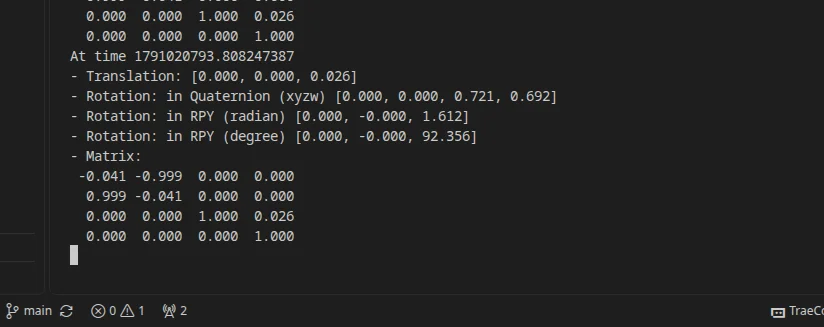
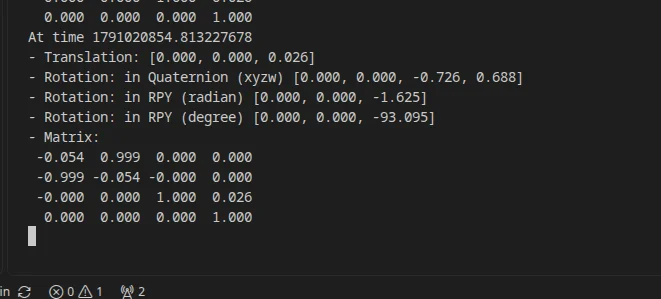
ros2 run tf2_ros tf2_echo chassis gimbal_yawManually turn the gimbal to the left:
If defined correctly, you should see yaw go from: 0 → positive value
Turn left 90 degrees:
Right 90 degrees:
- chassis → front_mid360
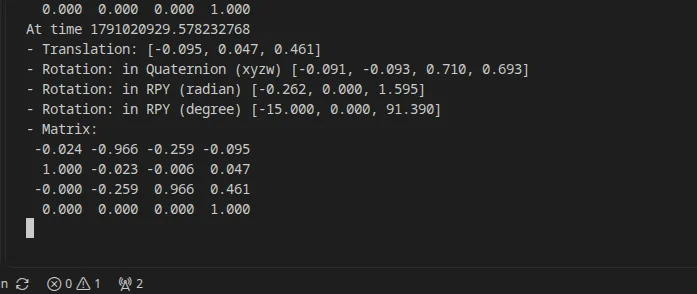
ros2 run tf2_ros tf2_echo chassis front_mid360It should rotate along with it synchronously.
Turn left 90 degrees:
Right 90 degrees:
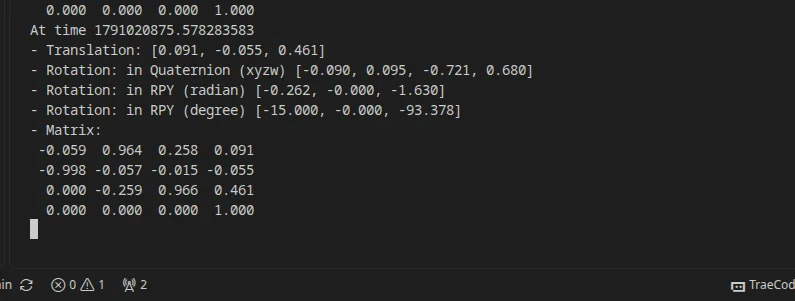
When the gimbal subsequently tilts up or down, this should not change with pitch.
- gimbal_yaw → gimbal_pitch(实际pitch)
ros2 run tf2_ros tf2_echo gimbal_yaw gimbal_pitchNear-horizontal:
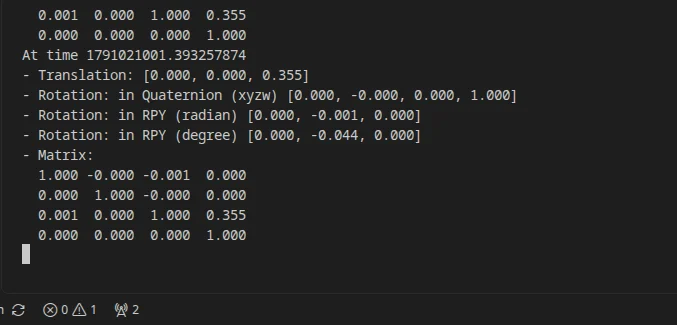
Title:
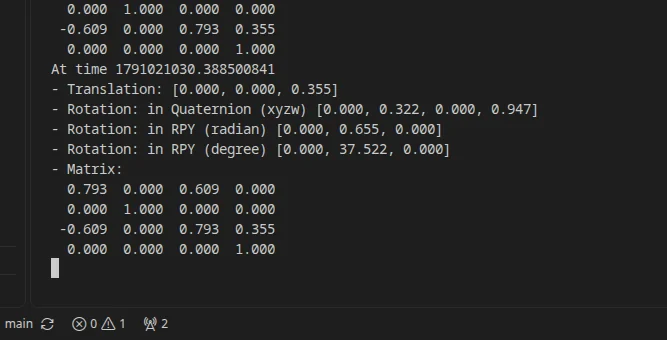
Head down:
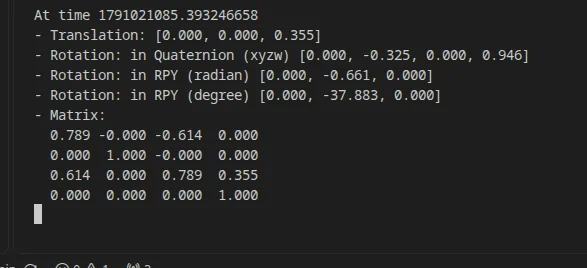
should vary with joint_pitch .
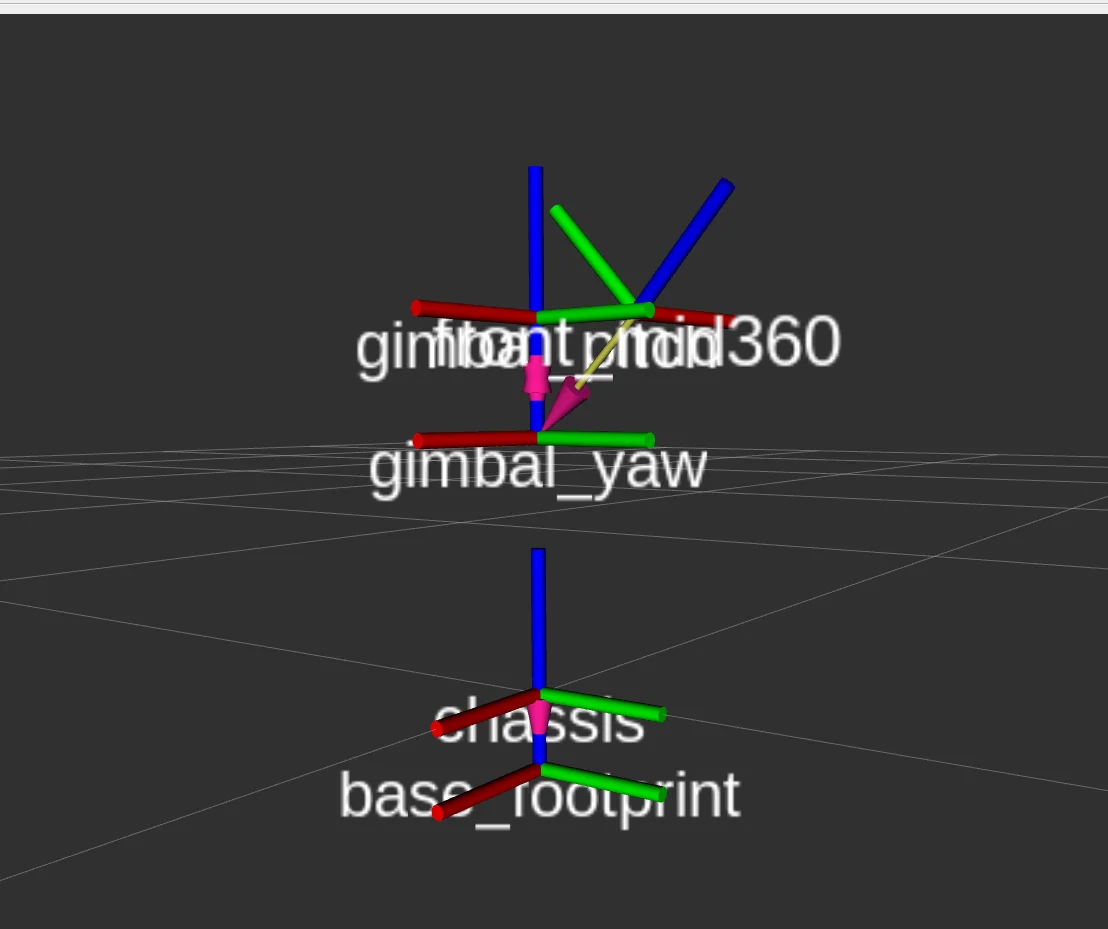
Testing directly in rviz2 is also the same; open the TF plugin in rviz2 to view the various coordinate frames.
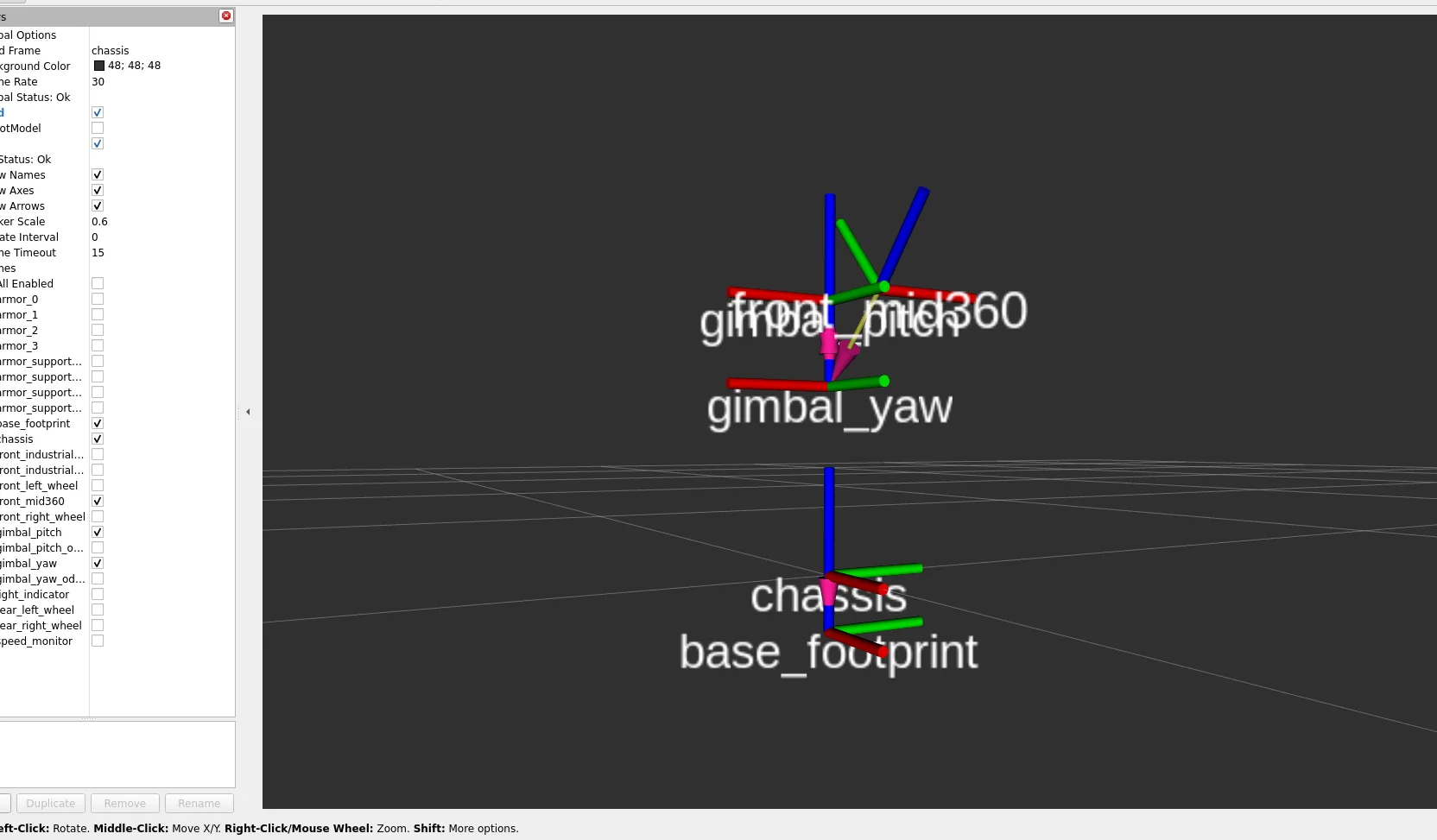
1.2.Test mid360
1.2.1.Modify the mid360 configuration files
sudo apt update
sudo apt install -y iproute2 iputils-ping arp-scan
First, you need to know the IP address of the host machine:
ip addr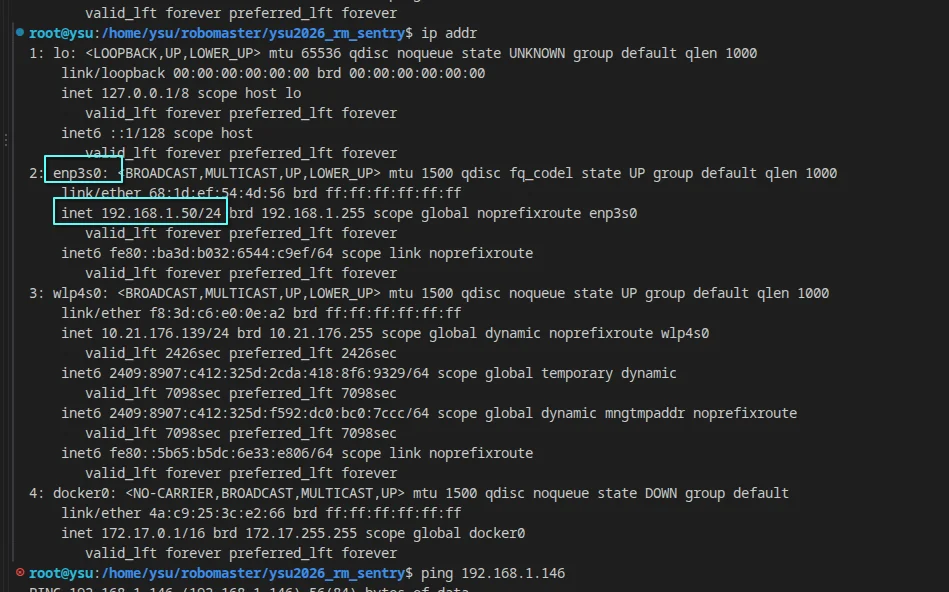
Obtain that the IP address obtained by the host machine is192.168.1.50:
Then you need to know the IP address of the mid360:
Scan:
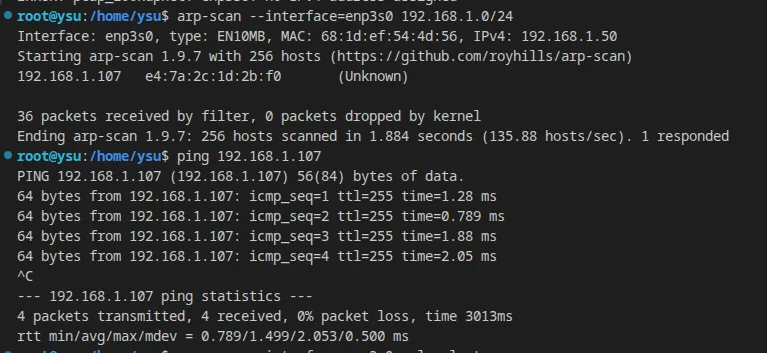
arp-scan --interface=enp3s0 192.168.1.0/24
# 或者
arp-scan --interface=enp3s0 --localnet
As shown in the figure, the scan result is192.168.1.107:
You can ping:ping 192.168.1.107
There are at least two Mid360 configurations in the project. It is recommended to change both to avoid using different IPs when starting the driver alone versus the full reality launch in the future:
# 单独测试mid360的launch的配置(和导航无关)
src/pb2025_sentry_nav/livox_ros_driver2/config/MID360_config.json

# 集成于导航里的mid360真实的配置
src/pb2025_sentry_nav/pb2025_nav_bringup/config/reality/mid360_user_config.json
Put the following
"ip": "192.168.1.146"

"cmd_data_ip": "192.168.1.50",
"push_msg_ip": "192.168.1.50",
"point_data_ip": "192.168.1.50",
"imu_data_ip": "192.168.1.50"
Change to
"ip": "192.168.1.107"

"cmd_data_ip": "192.168.1.50",
"push_msg_ip": "192.168.1.50",
"point_data_ip": "192.168.1.50",
"imu_data_ip": "192.168.1.50"
Final:
Mid360
192.168.1.107
        ↕
工控机 enp3s0
192.168.1.50
Now, to test the Mid360 separately, it is/src/pb2025_sentry_nav/livox_ros_driver2/launch/msg_MID360_launch.pydifferent from the real vehicle codereality/nav2_params.yamlso it is recommended to modify it; it will be easier to test.
Then change the following section in msg_MID360_launch.py:
publish_freq = 10.0
frame_id = 'livox_frame'
Change to
publish_freq = 20.0
frame_id = 'front_mid360'
Thus, our:
# 单独测试mid360
ros2 launch livox_ros_driver2 msg_MID360_launch.py
# 导航
ros2 launch pb2025_nav_bringup rm_navigation_reality_launch.py
The mid360 parameters in both files are now updated.
1.2.2.Test whether the mid360 starts normally
Once modified, it is ready:
source install/setup.bash
ros2 launch livox_ros_driver2 msg_MID360_launch.py
Perform the test.
Check whether the mid360 topic has been published
ros2 topic list | grep livox/livox/lidar
/livox/lidar/pointcloud
/livox/imu
Then check the frequencies of the radar and IMU:
source install/setup.bash
ros2 topic hz /livox/lidar
ros2 topic hz /livox/imu
ros2 topic hz /livox/lidar/pointcloudYou can try it on both a computer and an industrial PC. If it all displays on the industrial PC, there is no problem. If something does not display on the computer, it may be a data packet size issue, but DDS generally has no problem.
lidar and pointcloud should be at 20hz, while imu is at 200hz.
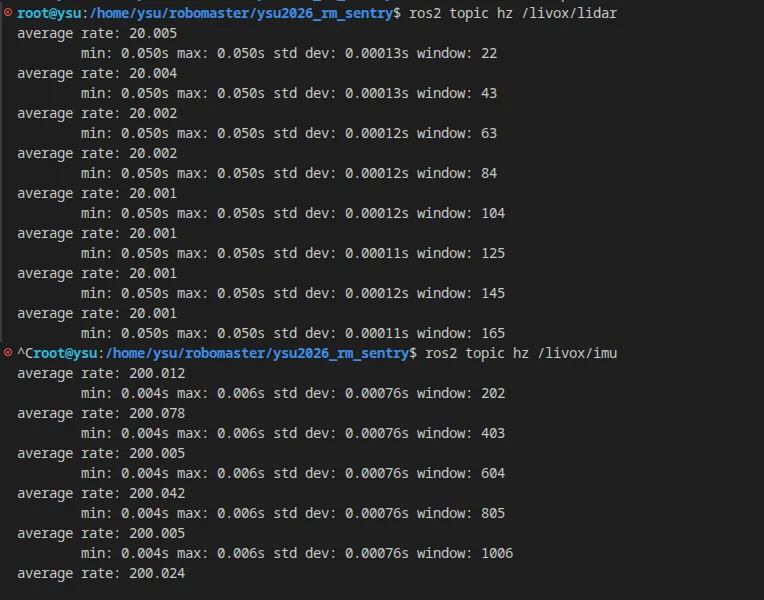
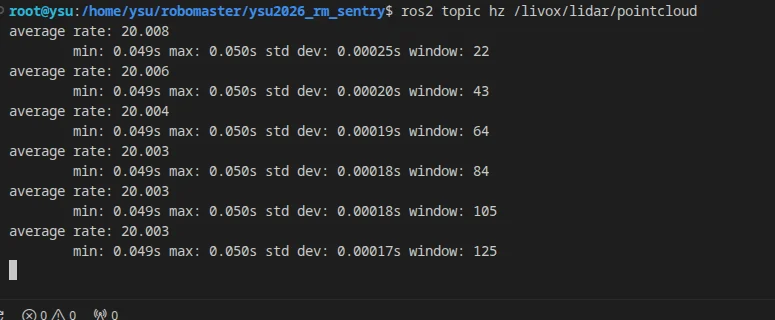
For example,ros2 topic hz /livox/lidarit may not always display on the computer, but it displays on the industrial control machine, then enter the following two commands on the computer:
ros2 topic echo /livox/lidar --once --field point_num
ros2 topic echo /livox/lidar --once --field timebase
If these two can be output, it indicates that: /livox/lidar it can actually also be received across machines; it is just that the ros2 topic hz CLI behaves abnormally with your CustomMsg.
Reconfirm the point cloud frame:
ros2 topic echo /livox/lidar/pointcloud --once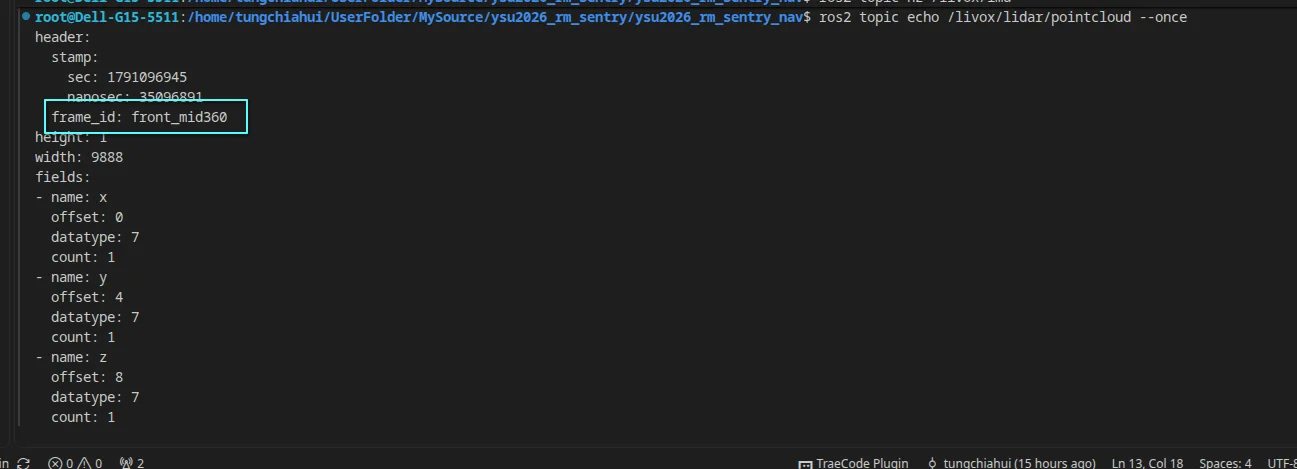
Confirm that the frame is the one we setframe_id: front_mid360.
Then open an rviz2:
rviz2Then in rviz2, set theFixed Frame = front_mid360Make the changes. Then in rviz2 clickBy Topic,then select/livox/lidar/pointcloud。
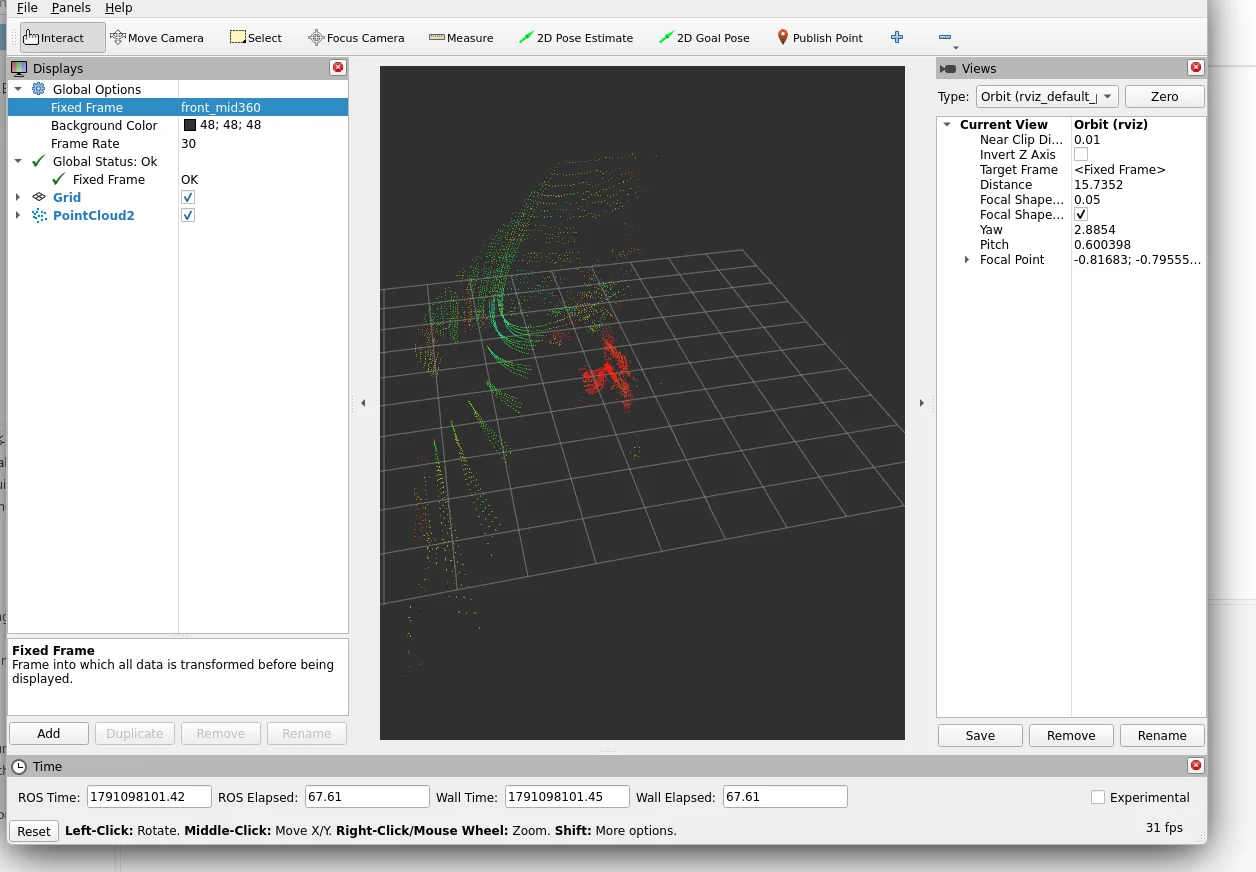
First, confirm that the normal environment point cloud can be seen.
If everything is normal, then the mid360 has started up normally.
The problem occurred: the radar's Hz is particularly low:
This looks less like the Mid360 actually dropping to 3 Hz and more like a remote subscriber slowing down the large RELIABLE point clouds. In this driver version, the /livox/lidar/pointcloud publisher uses the default QoS, which is the RELIABLE configuration seen earlier. Each frame is about 257 KB; at 20 Hz, PointCloud2 alone uses about 41 Mb/s. ROS 2 DDS/QoS supports different reliability policies. For this kind of high-frequency sensor data, display and debugging clients are usually better served by allowing old frames to be dropped and prioritizing the latest frame. ROS Documentation A slow remote RELIABLE reader may cause the writer to retransmit, queue data or even experience backpressure. This can produce a counterintuitive result
电脑/RViz 收得慢
↓
RELIABLE 重传/积压
↓
工控机 publisher 也被拖住
↓
连工控机本地 ros2 topic hz 看起来都只剩 3 HzSolution:
详见ROS 2 远端查看 MID360 点云导致降频、延迟和 RViz 不显示
1.2.3.Joint TF test whether the entire set is successful
The overall framework is:
livox_ros_driver2andserial_commis started by the industrial PC.robot_state_publisheris started by a computer or industrial PC.
工控机
STM32
↓
serial_comm
↓
/serial/gimbal_joint_state
│
│ DDS
▼
电脑
joint_state_publisher
↓
/joint_states
↓
robot_state_publisher
↓
TF
chassis → gimbal_yaw_odom → front_mid360
Mid360
↓ Ethernet
livox_ros_driver2 (工控机)
↓
/livox/lidar
/livox/lidar/pointcloud
/livox/imu
│
│ DDS
▼
RViz (电脑)Industrial PC:
source install/setup.bash
ros2 launch livox_ros_driver2 msg_MID360_launch.py
source install/setup.bash
ros2 launch serial_comm serial_comm.launch.pyComputer:
source install/setup.bash
ros2 launch robot_description robot_description_launch.py \
  robot_name:=reality_robot \
  use_sim_time:=false \
  use_rviz:=true
Understand RViz's Fixed Frame as "In which coordinate system am I standing to view the entire world?" And the point cloud coordinate system isframe_id = front_mid360, That is to say, each frame of the raw point cloud is described "with the lidar itself as the origin".
| RViz Fixed Frame | When you rotate the gimbal yaw | When the whole robot moves |
|---|---|---|
front_mid360 |
The environment point cloud moves or rotates | The environment also moves |
chassis |
The environment should remain largely stationary | The environment moves |
odom / map |
The environment should remain largely stationary | With correct odometry or localization, the environment should also remain largely stationary |