Wiki
Getting Started
Existing English translations were reused. 16 current source blocks remain in Simplified Chinese, without triggering paid translation.
1.Introduction


2.Terminal environment setup

If the ROS2 statement has already been added to~/.bashrcduring the installation above, there is no need to follow this step again.

source /opt/ros/humble/setup.bash  #将ROS2环境变量配置到当前位置
echo " source /opt/ros/humble/setup.bash" >> ~/.bashrc    #每次启动终端都会运行该句
ros2 run demo_nodes_cpp talker

use ctrl+c to cancel program execution

ros2 run demo_nodes_py listener

ros2 run turtlesim turtlesim_node
ros2 run turtlesim turtle_teleop_key
3.Command-line operation

mkdir -p create a new folder
rm -R Recursively delete (delete the folder and the folders and files contained within it)
touch to create a new file
rm deletes files
cd .. returns to the parent directory (cd dot dot)


It will pop up a prompt message telling us the parameters that need to be followed.


ros2 node list会把当前ROS2正在运行的节点列出来


ros2 node info + /节点名 可以查看目标节点的详细情况

It will pop up a prompt message telling us the parameters that need to be followed.


The robot’s motion status can be displayed through the topic.

ros2 topic pub --rate 1 /turtle1/cmd_vel geometry_msgs/msg/Twist "{linear: {x: 2.0, y: 0.0, z: 0.0}, angular: {x: 0.0, y: 0.0, z: 1.8}}"

ros2 service call /spawn turtlesim/srv/Spawn "{x: 2, y: 2, theta: 0.2, name: ''}"


ros2 bag record /turtle1/cmd_vel
ros2 bag play rosbag2_2022_04_11-17_35_40/rosbag2_2022_04_11-17_35_40_0.db3
ros2 bag record + topic
Press Ctrl+C to finish, then the recorded data is in the directory of the current terminal

How can it be reproduced?
ros2 bag play + folder name
4.ROS2 HelloWorld(C++)


1. Create a function package.


指令就是创建ros2的功能包
ros2 pkg create + package name + --build-type (build type) + ament_cmake / ament_python + --dependencies (dependencies) + rclcpp (ROS2 CPP client) + --node-name (node name) + node name
ros2 pkg create pkg01_helloworld_cpp --build-type ament_cmake --dependencies rclcpp --node-name helloworld

The source file was generated automatically, and the file name is consistent with the node name we specified.

This is automatically generated content, but it has nothing to do with ROS2.


If there is more than one library to depend on, press Enter again,
xxx
Add the next one

Line 10 is a package lookup
Line 12 adds an executable
The first parameter of add_executable is the name of the executable file (by default it matches the node name, and by default it matches the source file name). The second parameter is the name of the source file.
Line 17 adds a dependency for our executable program. Our executable program depends on the RCLCPP library.
22行是要为我们的可执行程序设立一个安装目录,创建在了当前功能包下的lib目录,也就是 工作空间名/install/功能包名/lib
After editing the configuration file, compile it, and use cd.. to return to the ws directory.


The icon is green, indicating there are no warnings and no errors.
If it is yellow, then there is a warning
If it is red, then there is a fatal error

Path to the executable binary

source install/setup.bash #刷新环境变量
ros2 run pkg01_helloworld_cpp helloworldros2 run 功能包名称 可执行文件名(默认和节点名一致)

Edit ROS2 C++ source file:

#include "rclcpp/rclcpp.hpp"

int main(int argc, char ** argv)
{
  rclcpp::init(argc,argv);

  auto node = rclcpp::Node::make_shared("helloworld_node");

  RCLCPP_INFO(node->get_logger(),"hello world!");

  rclcpp::shutdown();

  return 0;
}


5.ROS2 HelloWorld(Python)

ros2 pkg create pkg02_helloworld_py --build-type ament_python --dependencies rclpy --node-name helloworldros2 pkg create + package name + --build-type (build type) + ament_cmake / ament_python + --dependencies + rclpy (ROS2 Python client) + --node-name (node name) + node name


Same name as the node name and the executable binary file

By default, there is already code in here, but it is unrelated to ROS2; this is standard Python code.


Binary executable file mapped to the main function of the source file
How to compile it?

First return to the previous level and come to the ws directory


There is a yellow warning, but it does not affect our use.

source ./install/setup.bashRefresh environment variables
ros2 run pkg02_helloworld_py helloworld

import rclpy

def main():
    rclpy.init()
    node = rclpy.create_node("helloworld_py_node")
    node.get_logger().info("hello world by python!")
    rclpy.shutdown()

if name == '__main__':
    main()


6.Run optimization (bash terminal environment)


Use an absolute path.


Try not to do this. ROS2 There is a bug: feature packages from different workspaces may call each other incorrectly, so do not implement global runtime optimization for now.
7.VSCode Environment Setup


View C/C++, Python, CMake, XML, YAML files and code highlighting can be displayed.
When writing some code for ROS2 messages, operations such as code completion can be provided.

A plugin used for writing robot models, which can also perform code completion

ROS2 PDF files are often generated and can be viewed through this plugin.


ROS2It is recommended to install the plugin only after it has matured.

This official plugin can be tried for installation

AI Code Completion

Markdown highlighting


Although there are errors, the program runs normally. (Mainly because VSCode cannot find the header files.)


            "includePath": [
                "${default}",
                "${workspaceFolder}/**",
                "/opt/ros/humble/include/**"
            ],
/** Represents including all subsets under this folder


Press Ctrl + \` (the key below ESC) to open the VSCODE terminal


--node-name也是可选参数,如果不配置,则不会有源文件,也不会有可执行文件到源文件的映射


No modification is needed; it has already been generated by default.

Then return to the WS directory to compile (but at this point, compilation compiles all function packages under the entire WS directory)

Refresh environment variables and run


How can multiple source files be added within a single function package?

Create a new file, for example hellovscode2.cpp
However, at this point the file is a standalone file with no configuration at all; correspondingly, after compilation it will not be executed either.
If we want to compile and execute this file, we must configure the relevant configuration files.


These selected ones are not needed and can be deleted.


8.Run optimization (colcon build)

Normally, the files in the WS directory are fully compiled.

colcon build --packages-select xxx xxx xxx #可以指向多个包
9.Advanced VSCode Environment
9.1.clangd plugin code hints (optional, but recommended)
https://colcon.readthedocs.io/en/released/index.html
Since the performance of the C/C++ plugin in large projects is absolutely terrible, we chose to use the clangd plugin in LLVM for code suggestions.
However, clangd relies on cmake to generate a compilation information file, and we need some steps to generate that file.
Since ROS2 does not have a single standardized CMakeLists like ROS1, its configuration is not as convenient as ROS1.
-
Configure colcon build parameters
- Method 1: (Not recommended) Each time compilation requires this command:
colcon build --cmake-args -DCMAKE_EXPORT_COMPILE_COMMANDS=ONEquivalent to writing in the cmake file (generally not recommended to modify CMakeLists)
set(CMAKE_EXPORT_COMPILE_COMMANDS ON)- Method 2: Global parameters (more recommended)
mkdir ~/.colcon

vim ~/.colcon/defaults.yaml
Press downinsert(插入)button

Enter the content below
build:
  cmake-args:
- -DCMAKE_EXPORT_COMPILE_COMMANDS=ONPressESC, and press:wq, then pressEnter(回车)to successfully save.
During compilation, normally usingcolcon buildwill automatically enable the CMAKE_EXPORT_COMPILE_COMMANDS=ON parameter.
-
Then configure the clangd plugin.
-
First, download the clangd plugin.

-
Download the clangd file.
Press Ctrl Shift P to open the search box.
Enter clangd, find the item to download the language server, and click to install clangd (please maintain a good network condition).

- Next, configure clangd:
-
Disable the code suggestion feature of C/C++

如果没有上图的弹窗,可以进行手动关闭,依然是ctrl shift P,输入settings然后找到如下图的选项

Find the option shown in the figure below and change it to disabled.
"C_Cpp.intelliSenseEngine": "disabled"

- Restart clangd
然后ctrl shift P搜索clangd找到如下图的选项(重启clangd语言服务器前,要先colcon build)

Code completion works normally now.

10.Install other tools
10.1.terminal
10.1.1.Install terminator (optional, varies by person; there is the more user-friendly Warp, see below)
sudo apt install terminator
| 快捷键 | 功能 | 记忆方法 |
|---|---|---|
Ctrl + Shift + E |
垂直分屏,左右分 | E = East,往东边开一个窗口,也就是左右分 |
Ctrl + Shift + O |
水平分屏,上下分 | O = Over / Under,上下叠放 |
Ctrl + Shift + S |
隐藏/显示滚动条 | S = Scrollbar,滚动条 |
F11 |
全屏/退出全屏 | F = Fullscreen,F11 本来就是很多软件的全屏键 |
Ctrl + Tab |
在不同 pane 之间切换 | 跟浏览器切 Tab 类似,循环切换 |
Ctrl + L |
清屏 | L = clear 里的 L,也可以理解成“拉到新页面” |
Ctrl + Shift + W |
关闭当前 pane | W = Window,关当前小窗口 |
Ctrl + Shift + Q |
退出整个 Terminator | Q = Quit,退出程序 |
Because its font is very dark, so it needs to be set.
cp ~/.config/terminator/config ~/.config/terminator/config.bak
vim ~/.config/terminator/config
Press onceggdG, pay attention to case. Then press theinsertkey, then make the file content as:
[global_config]
  title_transmit_bg_color = "#31363b"
  title_transmit_fg_color = "#fcfcfc"
  title_receive_bg_color = "#232629"
  title_receive_fg_color = "#fcfcfc"
  title_inactive_bg_color = "#232629"
  title_inactive_fg_color = "#bdc3c7"

[keybindings]

[profiles]
  [[default]]
    use_theme_colors = False
    use_system_font = False
    font = Noto Sans Mono 11

    background_type = solid
    background_color = "#232629"
    foreground_color = "#fcfcfc"
    cursor_color = "#fcfcfc"

    palette = "#232629:#ed1515:#11d116:#f67400:#1d99f3:#9b59b6:#1abc9c:#fcfcfc:#7f8c8d:#ff5555:#50fa7b:#fdbc4b:#3daee9:#ff79c6:#8be9fd:#ffffff"

    scrollback_infinite = True

[layouts]
  [[default]]
    [[[window0]]]
      type = Window
      parent = ""
      size = 920, 660
    [[[child1]]]
      type = Terminal
      parent = window0

[plugins]
Finally, pressESC, enter:wqto save and exit.
Then completely close Terminator and reopen it. This configuration does several things:
- 背景:接近 Konsole Breeze 的深灰,不是死黑
- 字体:接近纯白,比以前亮很多
- 蓝色:换成更亮的 KDE 蓝
- 绿色/黄色/青色:也整体提亮
- 顶部红色标题条:改成灰色,不再那么刺眼
10.1.2.Warp Terminal (recommended, looks better and also supports split panes)
Compared with Terminator, Warp Terminal has a more modern default appearance, clearer fonts, and a brighter interface.
Most importantly, it also supports multi-pane splitting similar to Terminator, so it can serve as a modern replacement for Terminator.
However, note that Warp's keyboard shortcuts are not exactly the same as Terminator's.
-
Install
-
Ubuntu / Debian installation
wget -O warp-terminal.deb "https://app.warp.dev/download?package=deb"
sudo apt install ./warp-terminal.deb
After installation, you can open Warp from the application menu, or enter the following in a terminal:
warp-terminal -
Fedora / RHEL installation
If you are using a distribution such as Fedora, RHEL, or CentOS, you can install the RPM package:
wget -O warp-terminal.rpm "https://app.warp.dev/download?package=rpm"
sudo dnf install ./warp-terminal.rpm
The startup method is also:
warp-terminal
-
-
Common Warp shortcuts
| 快捷键 | 功能 | 记忆方法 |
|---|---|---|
Ctrl + Shift + D |
向右分屏 | D = Divide,分割出一个新的 pane,默认往右边开 |
Ctrl + Shift + E |
向下分屏 | E = Extend Down,向下面扩展一个新的 pane |
Ctrl + Alt + 方向键 |
按方向切换 pane | 想去哪边就按哪个方向键 |
Ctrl + Shift + [ |
切换到上一个 pane | [ 可以理解成往前切 |
Ctrl + Shift + ] |
切换到下一个 pane | ] 可以理解成往后切 |
Ctrl + Shift + Enter |
最大化/还原当前 pane | Enter 进入当前 pane 的专注模式 |
Ctrl + Shift + W |
关闭当前 pane | W = Window,关闭当前小窗口 |
Ctrl + Shift + T |
新建标签页 | T = Tab,新开一个标签页 |
Ctrl + PageUp |
切换到上一个标签页 | 类似浏览器切换标签 |
Ctrl + PageDown |
切换到下一个标签页 | 类似浏览器切换标签 |
Ctrl + L |
清屏 | L = clear 里的 L,相当于翻到一个新页面 |
Ctrl + = |
放大字体 | 等号旁边通常也是加号,表示放大 |
Ctrl + - |
缩小字体 | 减号,表示缩小 |
Ctrl + 0 |
恢复默认字体大小 | 归零,恢复默认 |
-
Features of Warp
- The default appearance is better than Terminator, so no extra effort is needed to tweak the color scheme
- Supports persistent split panes, suitable for development on large screens
- Font rendering is relatively clear, and the visual experience is brighter than Terminator
- Supports command blocks, making long command output look clearer
- Supports AI features, but it can also be used as a regular terminal without using AI
When Warp is opened for the first time, it may need to be online to initialize. After that, it can be used as an ordinary terminal even when offline, except that cloud-based features such as AI and collaboration will not be available.
If you just want a traditional, stable, lightweight terminal, you can continue using Terminator.
If you want a better-looking interface, a more modern interactive experience, and also need split panes, then Warp is a very good choice.
10.1.3.Open the current directory with Warp via right-click in KDE Dolphin
Even if the terminal has already been set to Warp in KDE's "Default Applications," Dolphin's "Open Terminal Here" may still not respond. This is a compatibility issue between Dolphin/KIO and the launch method of the Warp Linux version, and it can be resolved by adding a Dolphin service menu.
-
Create the Warp startup script:
mkdir -p ~/.local/bin
nano ~/.local/bin/warp-here
Write the following content:
#!/bin/bash

target_dir="${1:-$HOME}"

# Warp 已经运行时,使用 URI 新建指定目录的窗口
if pgrep -x warp-terminal >/dev/null; then
    encoded_path=$(
        python3 -c \
        'import sys, urllib.parse; print(urllib.parse.quote(sys.argv[1], safe="/"))' \
        "$target_dir"
    )
    exec xdg-open "warp://action/new_window?path=$encoded_path"
fi

# Warp 冷启动时,将目标目录传给新启动的 Shell
export WARP_DOLPHIN_DIR="$target_dir"
exec /usr/bin/warp-terminal
After saving, add execution permissions:
chmod +x ~/.local/bin/warp-here -
Configure the shell to handle the directory passed in during Warp cold start. If using Bash, open
~/.bashrc:nano ~/.bashrcAdd the following at the end of the file:
# 从 Dolphin 冷启动 Warp 时进入指定目录
if [[ -n "${WARP_DOLPHIN_DIR:-}" && -d "$WARP_DOLPHIN_DIR" ]]; then
    cd -- "$WARP_DOLPHIN_DIR"
    unset WARP_DOLPHIN_DIR
fi
If Warp uses Zsh, add the above content to
~/.zshrc. -
Create a Dolphin service menu:
mkdir -p ~/.local/share/kio/servicemenus
nano ~/.local/share/kio/servicemenus/warp-here.desktop
Write the following content:
[Desktop Entry] Type=Service MimeType=inode/directory; Actions=openWarpHere; X-KDE-Priority=TopLevel [Desktop Action openWarpHere] Name=Open Warp Here Icon=dev.warp.Warp Exec=/home/tungchiahui/.local/bin/warp-here %f%fwill be replaced by Dolphin with the currently selected folder path. -
Set permissions, refresh the KDE cache, and restart Dolphin:
chmod +x ~/.local/share/kio/servicemenus/warp-here.desktop
kbuildsycoca6
dolphin --quit
dolphin &
After reopening Dolphin, right-click a folder and you will see "Open Warp here." When Warp is not yet running, the script uses an environment variable to make the first window open in the target directory; when Warp is already running, it uses the official URI scheme to open a new window in the specified directory. This avoids having both a default-directory window and a target-directory window appear at the same time during a cold start.
Dolphin's F4 embedded terminal relies on KonsolePart and can still only use Konsole, which is unrelated to this context menu.
10.2.git

Git入门教程:Git入门教程
10.3.pcl_viewer
# Debian系(Ubuntu)
sudo apt install pcl-tools

# 红帽系(Fedora)
sudo dnf install pcl-tools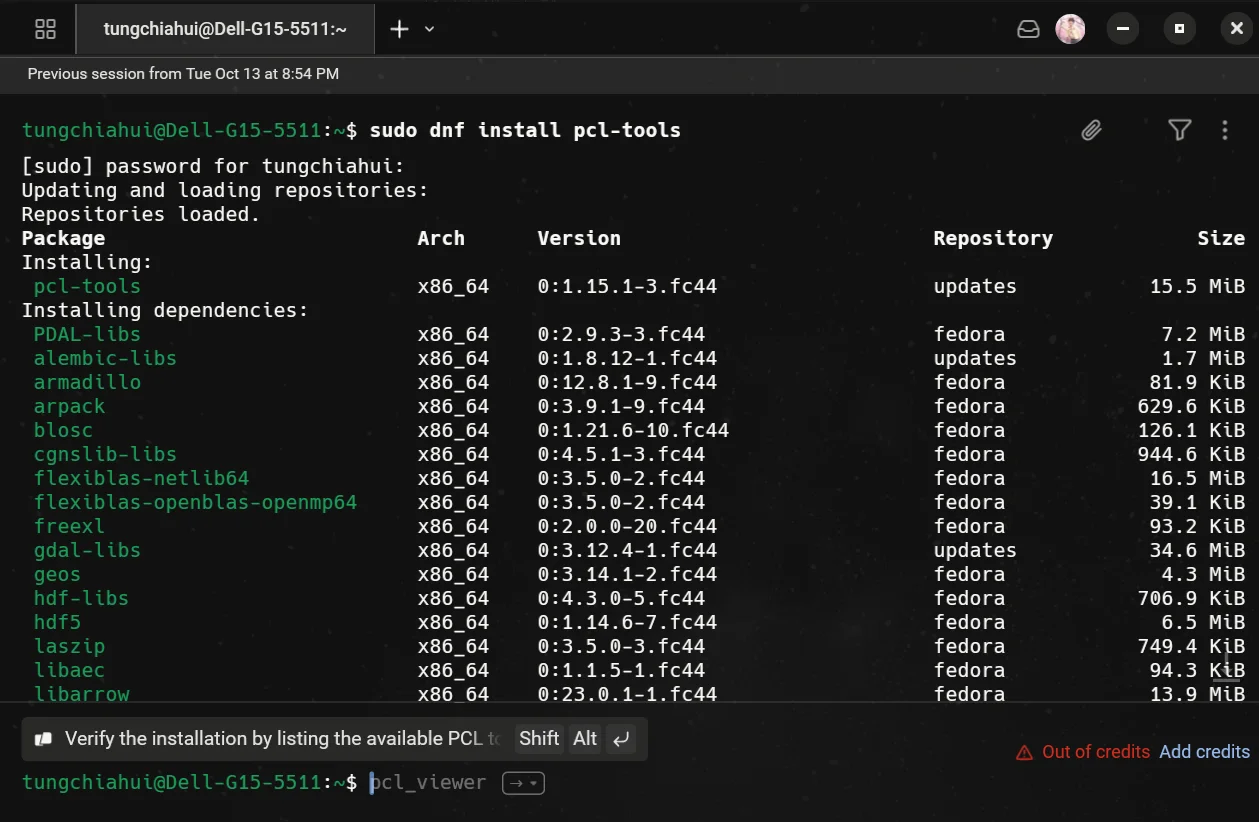
然后查看某个xxx.pcd是:
pcl_viewer xxx.pcdor
pcl_viewer -bc 255,255,255 xxx.pcd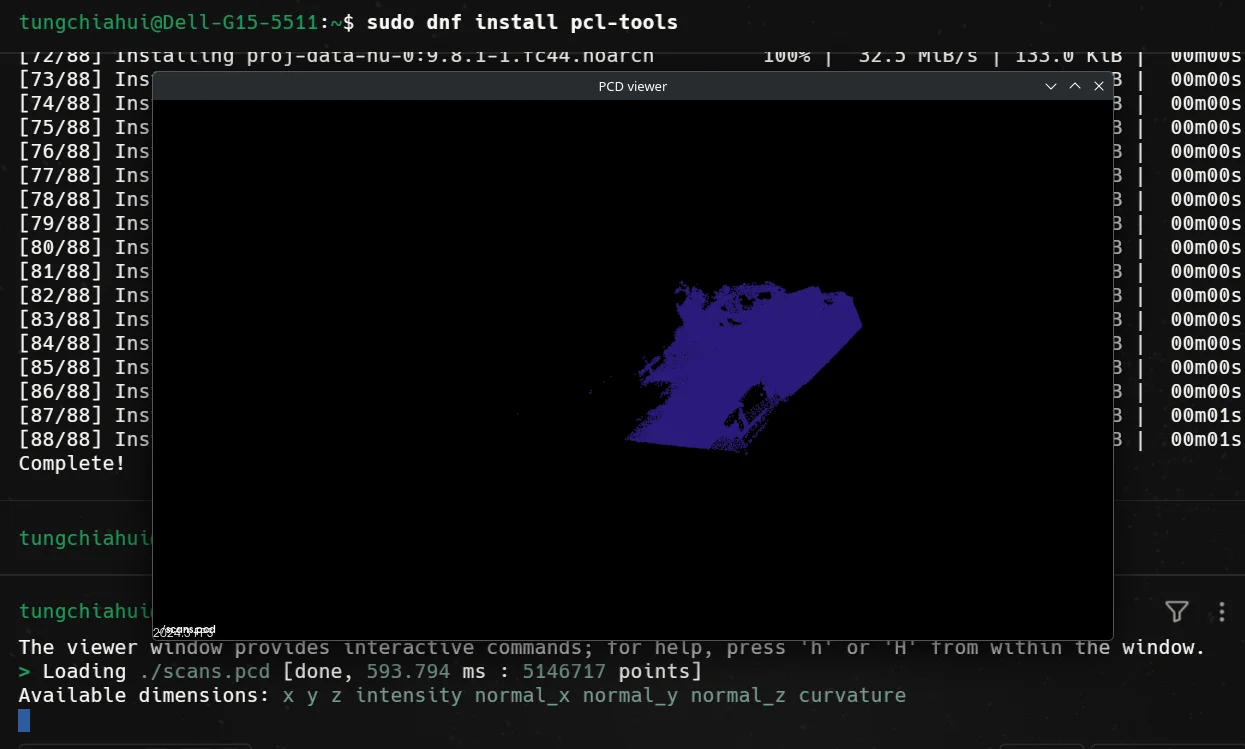
11.ROS2 system framework


A client library is the client of ROS2, such as rclcpp and rclpy.
Abstract DDS Layer is the DDS abstraction layer, so that DDS can be made pluggable and the DDS module can be replaced at will.
Intra-process API is an in-process communication API, a type of API that can improve communication efficiency.

